

Invite your team
Paysera QMS has two management levels plus the operator role. An account holds at most one management level — never both — and Operator is independent of that choice:
- Organisation Admin — full access to the workspace: branches, service catalogue, users, and settings. An organisation admin manages every branch of the organisation, including pairing its displays and kiosks, without being assigned to any of them.
- Location Manager — runs the branches they are assigned to: services, hours, windows, operators, and statistics for those branches.
- Operator — serves clients at a counter through the operator console. Can sit on top of either management level, or be held on its own.
Prerequisites
- An administrator sign-in for your workspace.
- For location managers and operators: the branch they will work at already exists (see Create your first branch).
Send an invitation
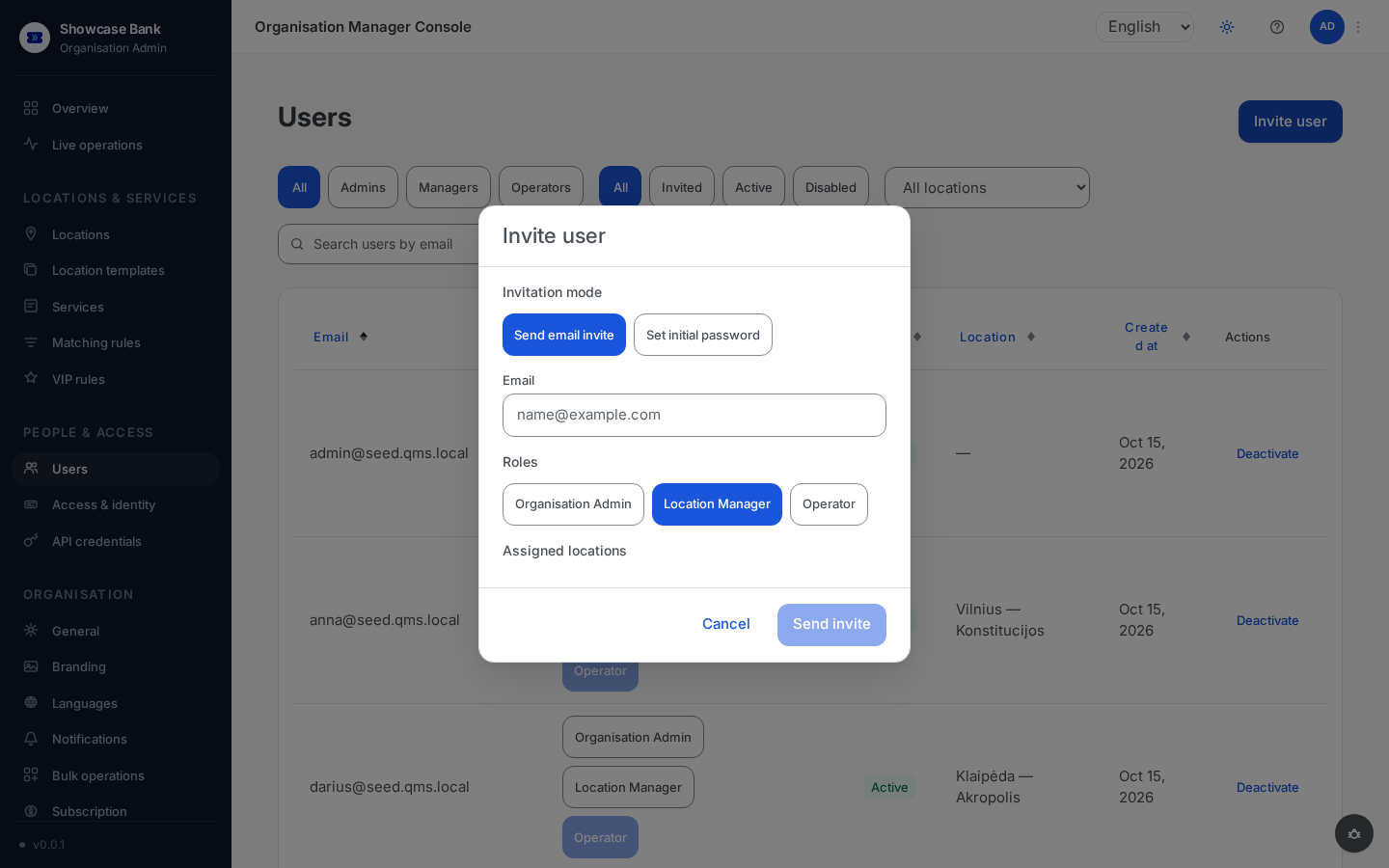
Open Users in the sidebar and click Invite user.
Choose the Invitation mode:
- Send email invite — the person receives a link and sets up their own sign-in. The link is valid for 7 days.
- Set initial password — you type a password and hand it over yourself; the person is active immediately and must change the password on first sign-in.
Enter their Email.
Pick the management level, if the person is to have one. Location Manager and Organisation Admin are an either/or choice — picking one clears the other. Location Manager reveals Assigned locations — tick the branches they will manage; a organisation admin needs no assignment, because the level already covers every branch. Turn on Operator if the person serves at a counter: it reveals a branch selector — pick the branch where they will serve. An Operator-only invitation is perfectly normal — the dialog only insists that at least one role is picked.
Click Send invite.
Track acceptance
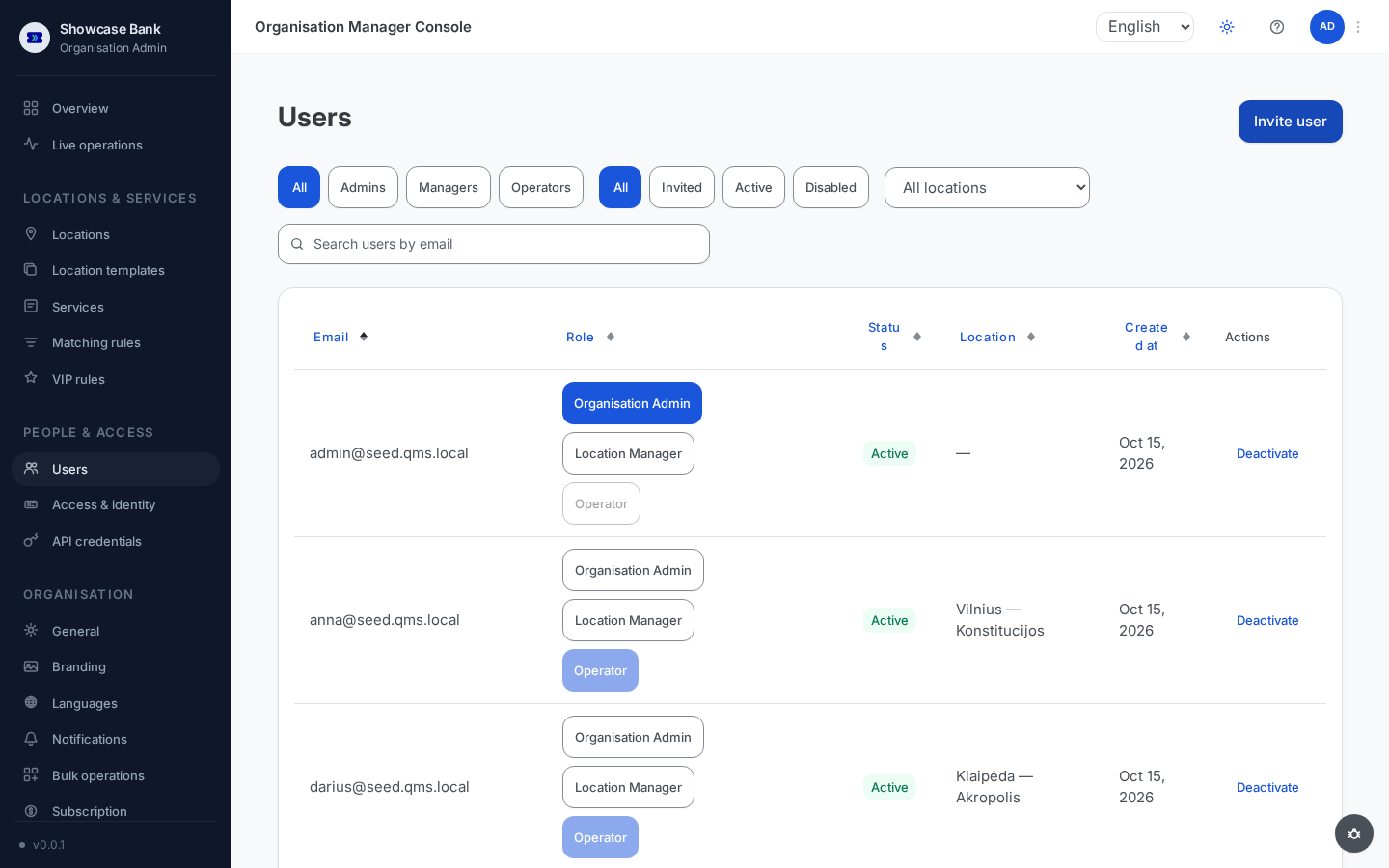
An email-invited person appears in the user list with Invited status.
They follow the emailed link and choose how they will sign in — a password or a Google account.
Once they finish, their status becomes Active. The Users page lets you filter by role (Admins, Managers, Operators), by status (Invited, Active, Disabled), and by branch, or search by email.
Result
Your whole team is listed on the Users page — each row shows the person's roles, assigned branches, and status. You can deactivate a member from their row at any time; a newly invited operator still needs their profile completed (windows, languages, services) before they can be matched with clients — see the branch's Operators tab.
Common problems
- "Email already in use" — the address already belongs to a member of your workspace. Each member has one account; change the roles on the existing account instead of inviting the same address again.
- The invite expired or never arrived — invitations are valid for 7 days. Check the spam folder first; while the person is still in Invited status you can resend or cancel the invitation from their row in the list.