

Create your workspace
Paysera QMS is a multi-tenant service: your organisation gets its own workspace with a dedicated web address (subdomain) where your team signs in and your clients queue.
Words this documentation uses
The product is used by banks, clinics, restaurants, and public offices alike, so it names things generically:
- Branch (shown as Location in the console) — any site you serve people at: a clinic, a restaurant, an office, a bank branch.
- Window — the counter, room, chair, or desk where a person is served.
- Operator — the staff member who serves them.
Prerequisites
- A work email address you can read (you will confirm it, unless you sign up with Google).
- A name for your organisation as clients should see it.
- The country your organisation is registered in and its official registration (company) code.
Register
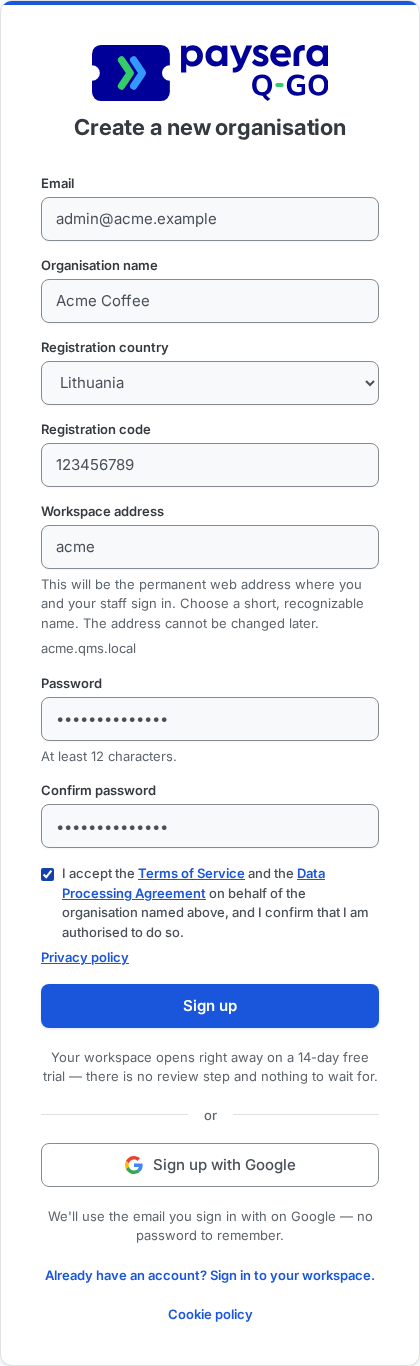
Open the Paysera QMS signup page. Its heading reads Create a new organisation.
Fill in the form, from top to bottom. To sign up with a Google account instead, skip the form and go on to step 3.
- Email — the address you will sign in with as your workspace's first administrator. The confirmation email goes to it, so use one you can read now.
- Organisation name — your organisation's name as your clients will see it, 1–80 characters. As you type it, the form suggests a workspace address; you can change the suggestion.
- Registration country — the country your organisation is registered in. Pick it from the list.
- Registration code — your organisation's official registration (company) code, 1–40 characters.
- Workspace address — the first part of your workspace's web address:
acmegives youacme.followed by the platform's domain, and the form shows the full address under the field as you type. 3–40 characters: lowercase letters, digits, and hyphens. It must include at least one letter, and it must start and end with a letter or digit. Some names (such aswww,admin,docs) are reserved, and an address another organisation already holds is taken; the form tells you as you type. The address is permanent: it cannot be changed later. - Password — your administrator password, at least 12 characters. A password known from a data breach is refused.
- Confirm password — the same password again; the two must match.
- Terms of Service and Data Processing Agreement — tick the checkbox to accept both documents on behalf of the organisation named above, confirming that you are authorised to do so. Each document name opens the document.
Select Sign up — or, to use a Google account, Sign up with Google below the form. What happens next depends on how you signed up:
- Email and password — we send a confirmation email to the address you entered. The link in that email is what confirms the address; it expires in 24 hours.
- Google account — no confirmation email is sent; Google has already verified the address. After you sign in with Google, a short screen, Name your organisation, shows the Google address you are signing in with and asks for the same organisation details as the form: Organisation name, Registration country, Registration code, Workspace address, and the Terms of Service and Data Processing Agreement checkbox. It asks for no password — you sign in with Google.
Follow the confirmation link (password signup), or select Create organisation on that screen (Google signup). Your workspace is created and you are signed in as its first administrator.
Result
Your workspace is open for business straight away. Following the confirmation link (password signup), or submitting the organisation screen (Google signup), activates it on a 14-day free trial — there is no review step and nothing to wait for. You are signed in as the first administrator, the management console opens normally, and every feature is available: you can configure branches, services, and your team, issue client QR codes, and pair a display right away.
Common problems
- "This subdomain is already taken" — another organisation holds that workspace address. Pick a different one; the form also warns you while you type.
- No confirmation email — check spam, and make sure the address is correct. The Check your email page you land on after signing up has a Send again button that requests a new confirmation link. Wait 60 seconds between two requests; if you ask sooner, the page tells you how many seconds are left. As long as the confirmation link has not been followed, you can also submit the signup form again with the same email address: the new attempt replaces the unfinished one. Once the address has been confirmed this no longer works — the workspace is active by then, and signup answers that an account with that address already exists, pointing you at your workspace address to sign in instead. The FAQ covers the other answers signup can give about an email address.