

Configure notifications
Clients follow their queue position live on the ticket page; email covers everything that happens away from it — booking reminders, the "your turn is approaching" heads-up, and post-visit feedback requests. The Notifications page is where an organisation admin controls what the platform emails and how those emails read.
Prerequisites
- An organisation admin sign-in. The page lives in the management console and is visible to organisation admins only.
The Notifications page
Open Notifications in the sidebar.
Post-visit feedback request email — off by default. When enabled, a client whose service is completed receives an email with a link to rate their visit, so feedback also comes from clients who already closed the ticket page. The switch saves immediately; there is no separate save step. Notes:
- The rating link stays valid for 48 hours after completion (the ticket page's own rating window is the same, whether or not this email is enabled).
- No email is sent when the client has already rated, when no email address is known for the ticket, or when the client has opted out of email notifications.
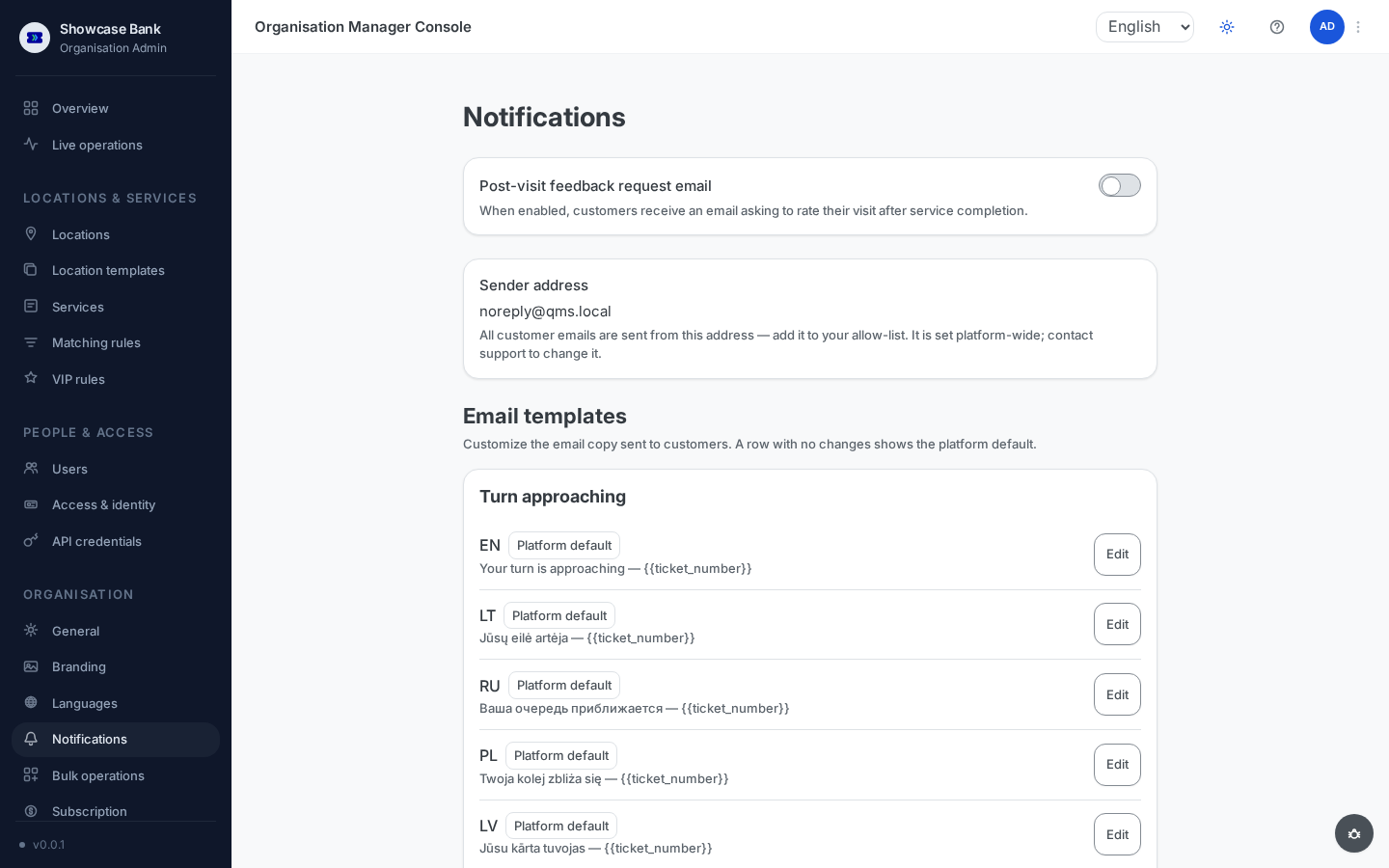
What the platform emails
- Your turn is approaching — sent when a waiting client's turn gets close, giving them time to return if they stepped away. The email goes only to signed-in clients who have not opted out; every client additionally sees the approaching banner on their ticket page, which needs no email.
- Called — the client's ticket has been called.
- Appointment reminder — 24 hours before a booked appointment, carrying the visit date and time in the branch's local time, branch name and address, service, booking reference, and a link to view, change, or cancel. Appointments booked less than 24 hours ahead get no reminder (the booking confirmation suffices), and cancelled appointments are never reminded.
- Post-visit feedback request — as configured above.
Languages
Every email renders in the client's language, resolved in order: the preferred language of a signed-in client, then the language chosen on the ticket page, then your workspace default. If no wording exists for that language, the platform falls back to your workspace default and finally to English, so a client always receives readable copy. Ready-made wording ships in English, Lithuanian, Latvian, Estonian, Russian, and Polish; any other language active in your workspace catalogue can be covered by writing your own copy, as described next.
Edit the email wording
The Email templates section on the same page tunes each email's copy to your brand — a row with no changes shows the platform default.
Each email type expands to one row per active language in your workspace catalogue, showing the wording currently in effect and marking untouched rows as the platform default.
Editing a row opens the effective subject and body pre-filled. Placeholder tokens — for values such as the ticket number, branch name, and service name — are listed next to the editor and are filled in per message; saving copy with an unrecognised token is rejected with an error naming it.
A saved edit applies to that email type in that language only; every other language keeps its own wording. A reset action (with confirmation) removes your version and returns the row to the platform default.
Every save and reset is recorded in the audit log.
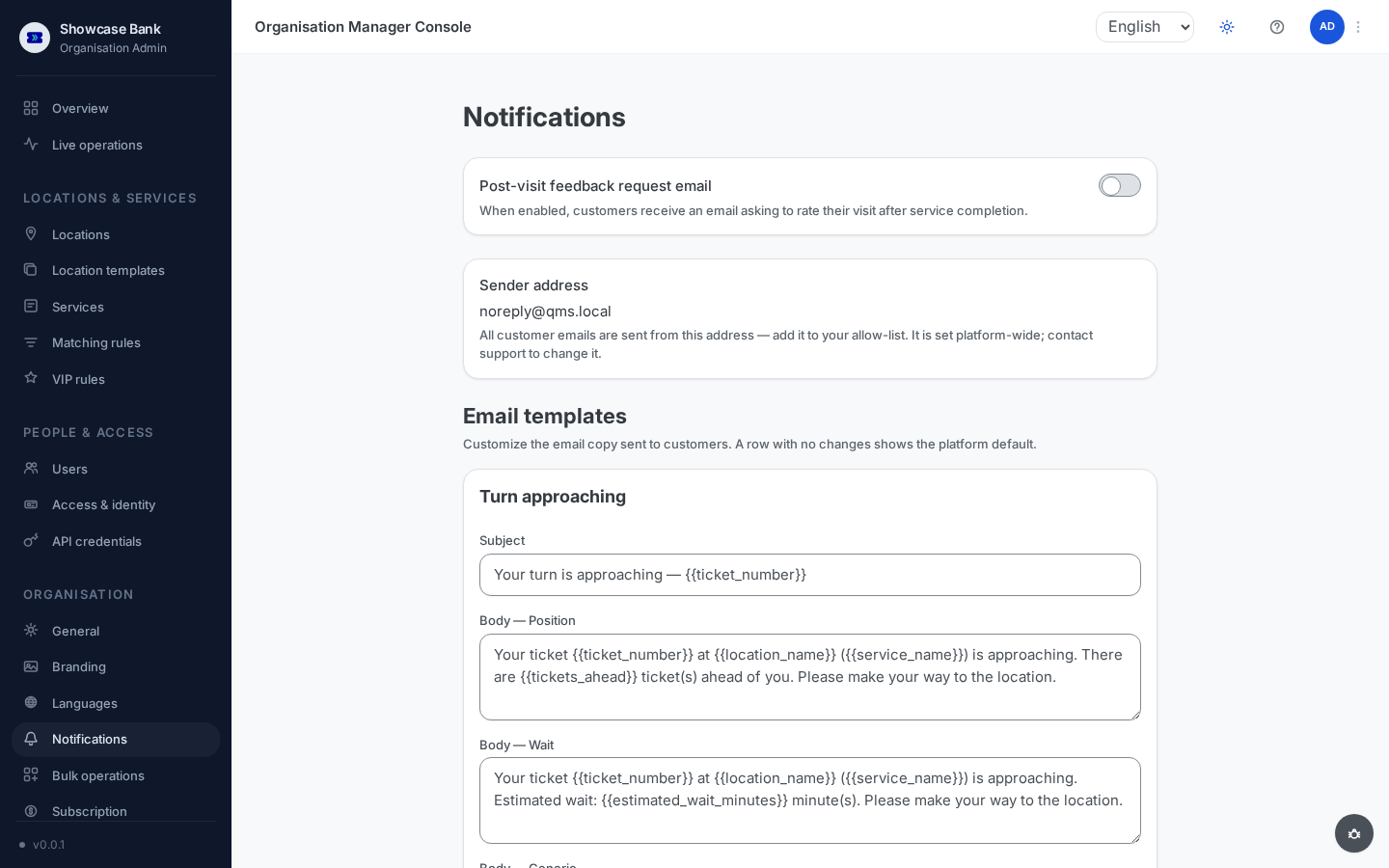
Result
Clients get timely, readable email in their own language — reminders that cut no-shows, a heads-up before their turn, and a feedback ask after the visit — with every word under your control and nothing sent to anyone who opted out.
Common problems
- A client got no "approaching" email — the ticket was anonymous or the client opted out; the ticket-page banner still covers them.
- No reminder for an appointment — it was booked less than 24 hours before the slot, or was no longer confirmed at send time.
- A template edit won't save — the copy contains a placeholder token the platform does not recognise; the error names the invalid token.
- Clients of some language receive English — that language has neither your own copy nor a platform default, so the fallback chain ends at English. Write copy for it in the Email templates section.