

Go live
Your branch is configured and your team is invited. Three final steps open it to clients: confirm the branch is ready, put a display on the wall, and show the rotating QR code clients scan to join the queue.
Prerequisites
- A configured branch (Create your first branch).
- At least one operator invited and fully set up — assigned to a window, with at least one language and one service (Invite your team).
Check branch readiness
Open the branch configuration page. The readiness checklist lists five steps: Services assigned, Working hours configured, Active window, Operator fully configured, and Visit reasons. The first four are what a branch needs before it can serve clients; Visit reasons — at least one active reason in the branch's visit-reason list — is the one step that does not gate serving.
Each step carries a link (Configure services, Configure hours, and so on) that takes you straight to the settings where it is configured.
When all five are complete, the checklist header reads Location ready.
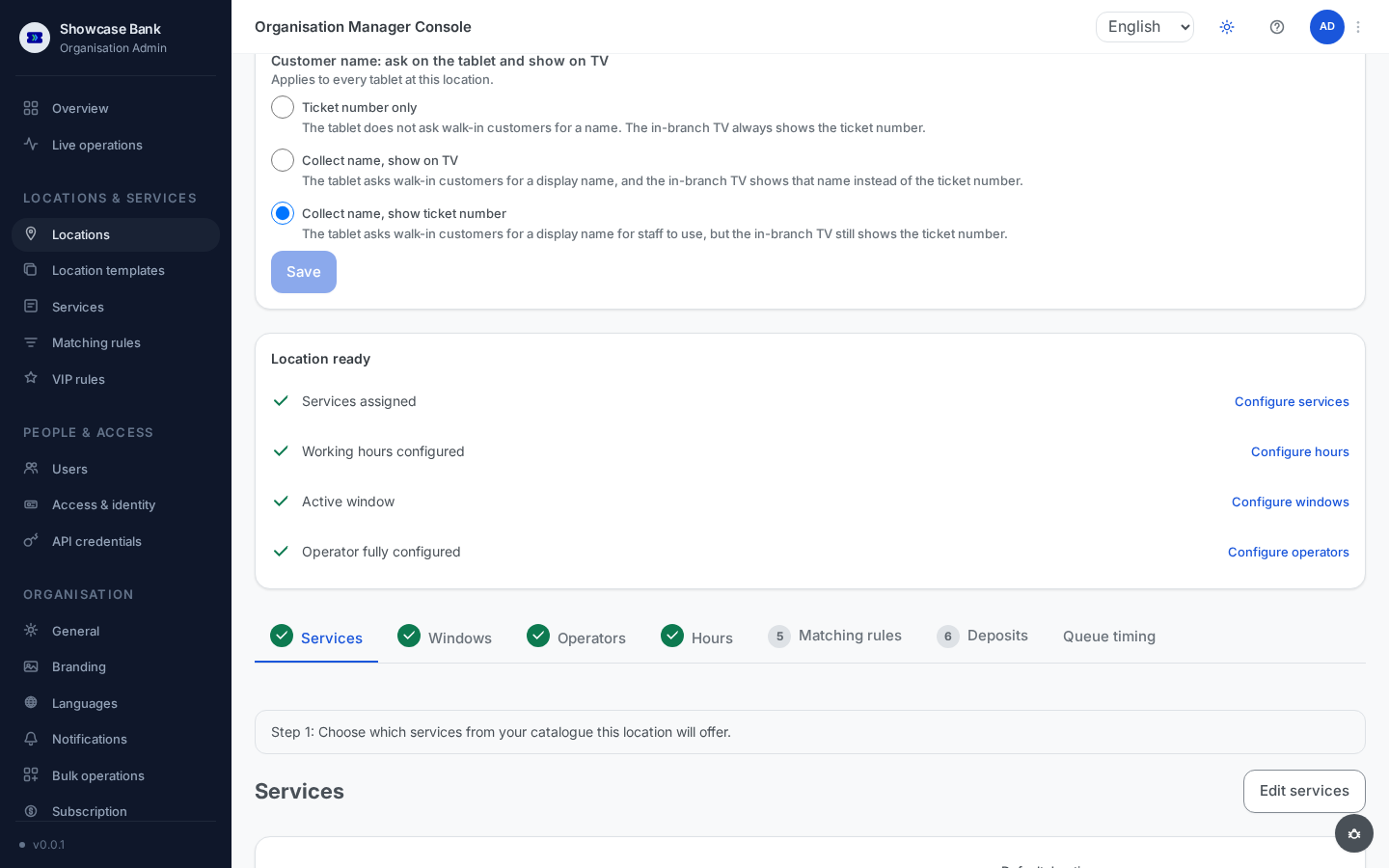
The checklist is advisory — it never blocks clients from joining the queue. But an operator whose profile is missing languages or services is not matched with clients, so finish the checklist before opening the doors.
Pair the in-branch display
The in-branch display is a TV showing called tickets and which window to go to.
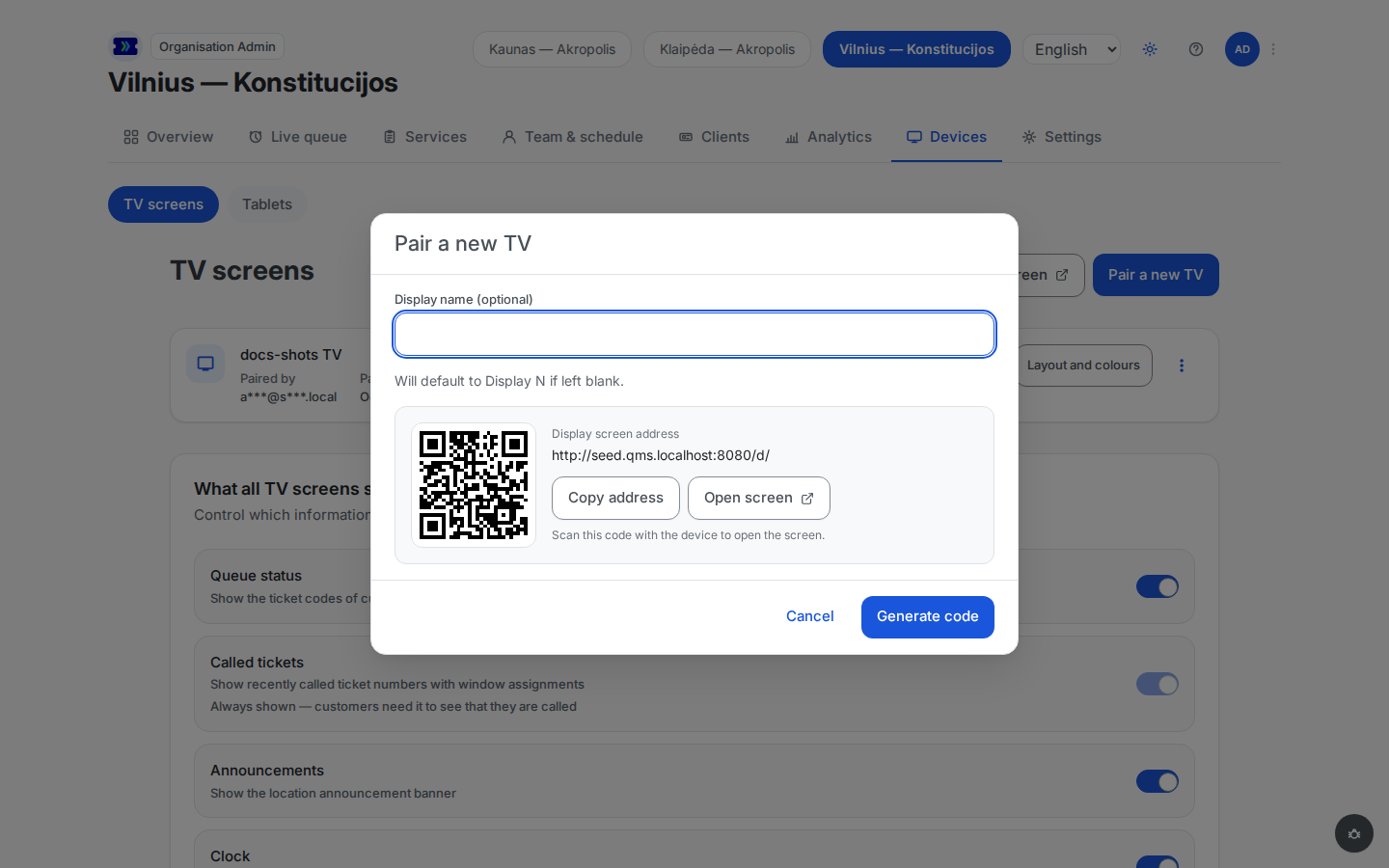
Displays are paired from the location manager console. A location manager signs in to it directly and pairs devices at the branches they are assigned to; an organisation admin opens it with the Location Manager row in the account menu at the top right and pairs at every branch. There, open the branch, then TV screens under Devices, and click Pair a new TV.
Optionally give the display a name (for example "Main hall TV"); left blank, it is named Display 1, Display 2, and so on.
Click Generate code. You get a 6-digit code — single-use and valid for 10 minutes.
On the TV's browser, open your workspace's display page. It asks for a pairing code — enter the one you generated.
The TV starts showing the branch queue and stays paired. You can rename or unpair it any time from the TV screens list, which also shows when each display was last seen.
Show the rotating QR code
Clients join the walk-in queue by scanning a current QR code on a paired kiosk screen at your entrance — a tablet you pair as described in Pair a kiosk.
- Choose the branch's QR entry mode: a single QR for all services (the client picks a service after scanning) or one QR per service (the client goes straight into that service's queue).
- Keep the paired kiosk screen open. Its QR codes refresh before their short validity window ends; printed codes and saved images are unsuitable for walk-in entry.
- A mode change appears on the next screen refresh. Previously shown codes keep their original expiry, and an already opened visitor flow keeps its original deadline.
- Before opening the doors, lock the tablet to the kiosk screen so clients cannot leave it, switch apps or put it to sleep — see Lock down the kiosk tablet.
Result
Your branch is live. Clients scan the QR and follow their place in the queue from their phone, called tickets appear on the display, and your operators serve from the operator console.
From here, each area has its own section of this documentation: Configuration (services, matching rules, branding, devices), Daily operations (the operator console and the manager's day), Client experience (what your clients see on their phone, the display, and the kiosk), Appointments, and Analytics.
Common problems
- "Pairing code is invalid or expired" — codes are single-use and expire after 10 minutes. Generate a fresh code and enter it promptly.
- A display shows an Offline badge in the list — the branch has not heard from that TV for several minutes. Check the TV is on, connected to the network, and still has the display page open.
- A kiosk shows an Offline badge on the Tablets page — the tablet has left the kiosk screen, gone to sleep, or lost its network. Bring the kiosk screen back and lock the tablet down.
- An operator presses "Call next customer" and sees a message about missing configuration — their profile lacks assigned services or languages. Complete it on the branch's Operators tab; the readiness checklist points at the same gap.