

Manage your operator shift
Control availability, take breaks, review your own statistics, and sign out. Serve a client covers the normal serving loop.
Auto-next for busy hours
- Flip the Auto-next switch in the header and the console calls the next waiting client for you at these moments, as long as you are free and your status is available: the moment you finish — after every Complete service, No-show, Skip, Transfer, or Hand off — when you switch it on, when you become available again after a break, back office or the end of your shift, and when a new client joins the queue for one of your services. If the Pick, Recall or Today's appointments list is open, the call waits until you close it. Picking a client manually pauses auto-next for that one cycle. The switch always starts off when you open the console.
Availability, breaks, and back office
 Open full-size screenshot (new tab)
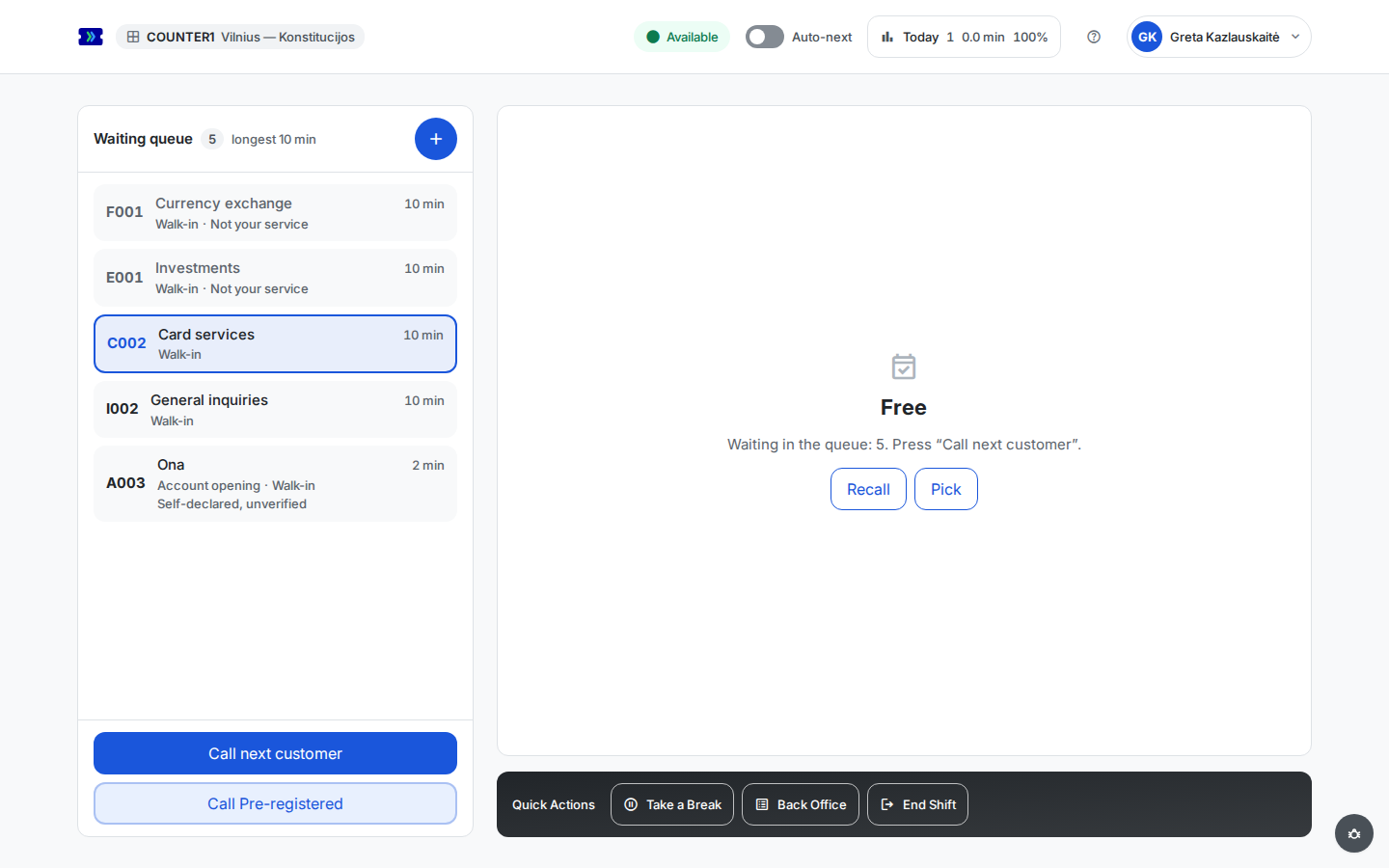
- Your status decides whether clients are routed to you, and the header shows it at all times. Opening the console puts you Available (matchable) — there is no "set available" step and no schedule to be inside first — unless you ended your last shift yourself, which the console leaves standing (see End Shift below). From there Break and Back office are yours to set from the Quick Actions strip under the ticket card, and End Shift takes you Offline; Busy is set automatically while you hold a called or serving ticket.
- Take a Break and Back Office both take you out of matching; the header then shows a timer counting how long you have been away, and the button turns into End Break or End Office — press it to become available again. Breaks and back office are counted separately in your day's statistics, so paperwork time does not read as break time. Both are blocked while you hold a ticket — complete or transfer first.
- End Shift works even mid-service. If you are holding a client, the console asks you to confirm first ("End your shift?") and warns that your client goes back to the queue — with their place and ticket number preserved — to be picked up by a colleague. With no client in hand it takes effect straight away. The console also signs you out automatically when you go half an hour without touching it, when it loses contact with your browser for a minute, and on a day you are marked absent. Your scheduled hours no longer sign you out: staying late or starting early keeps you available. Once you are offline the workspace is replaced by a "Your shift is ended" card, which names whichever reason signed you out; the header and its account menu stay. Unless that reason is an absence, the card offers a Go available button that puts you straight back in the queue. Reopening the console returns you only when the system signed you out — an End Shift you pressed yourself is treated as the end of your shift, not as something the next page load undoes, so use the button.
Your day at a glance
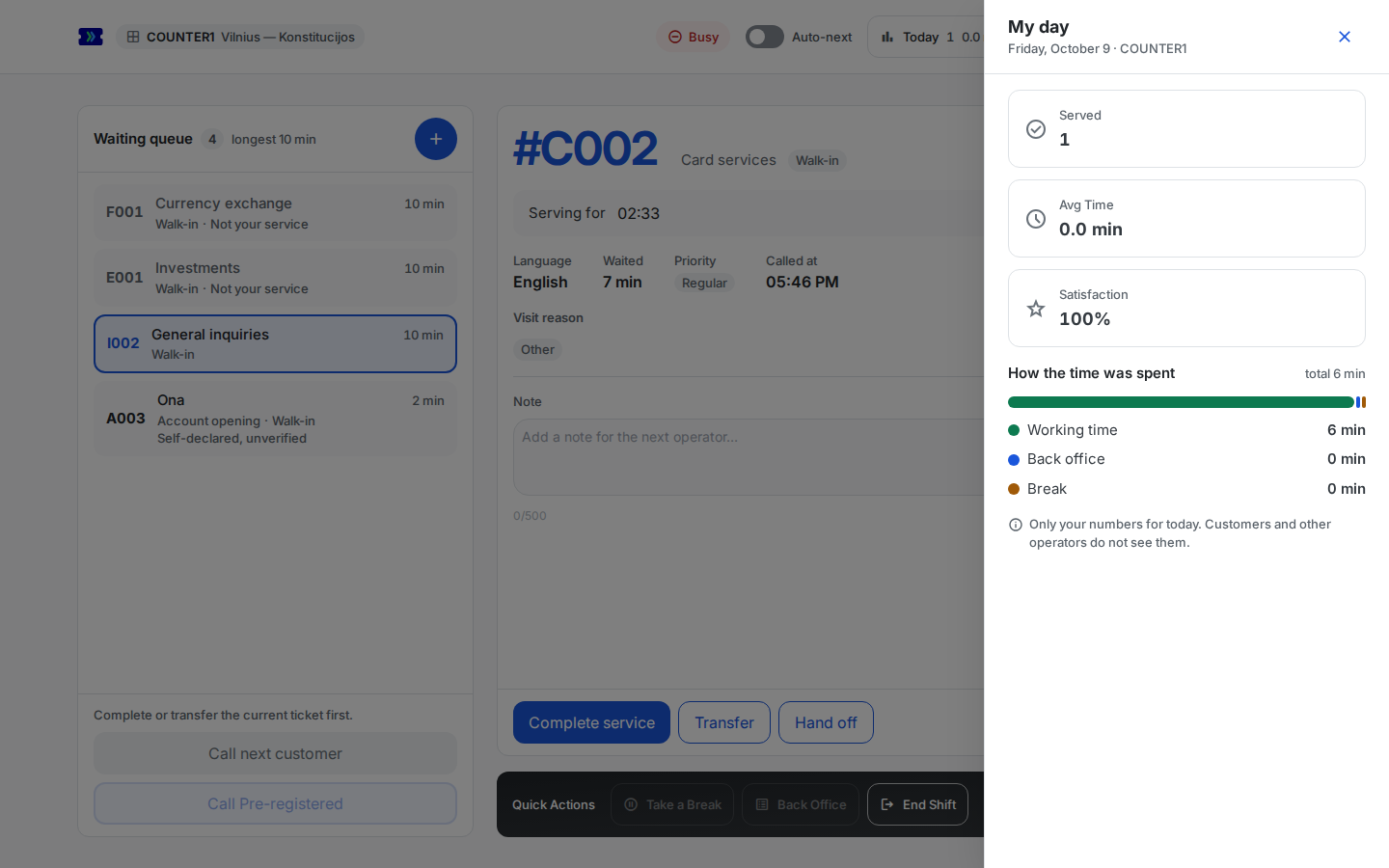
- The Today summary in the header shows your served count, average service time, and satisfaction so far. Click it to open the My day side panel: the Served, Avg Time, and Satisfaction tiles, then How the time was spent — your total time split into Working time, Back office, and Break, with a break or back office in progress marked (Active). The numbers are yours alone — customers and other operators do not see them — update live, and reset at midnight.
 Open full-size screenshot (new tab)
Sign out
- Sign out sits at the bottom of the account menu, which opens from your name in the header. It ends your shift first, then signs you out — so the next time you sign in, the console opens on the "Your shift is ended" card; press Go available to start again.
- If you are holding a client — called or serving — the console asks first ("Sign out now?"): the client returns to the queue keeping their place and ticket number, and your shift ends. Press End shift and sign out to go ahead, or Cancel to finish with the client first.