

Manage your branches
A branch is a physical location of your organisation — everything client-facing (queues, appointments, displays, kiosks) belongs to one. Create your first branch walks through the initial setup; this page is the complete reference: editing details, working hours in depth, holidays and closures, and retiring a branch.
Prerequisites
- An organisation admin sign-in. Creating, editing, and archiving branches happens in the management console.
- Holidays and closures are managed in the location manager console. A location manager signs in to it directly and reaches the branches they are assigned to; an organisation admin opens it from the account menu and reaches every branch.
The Locations list
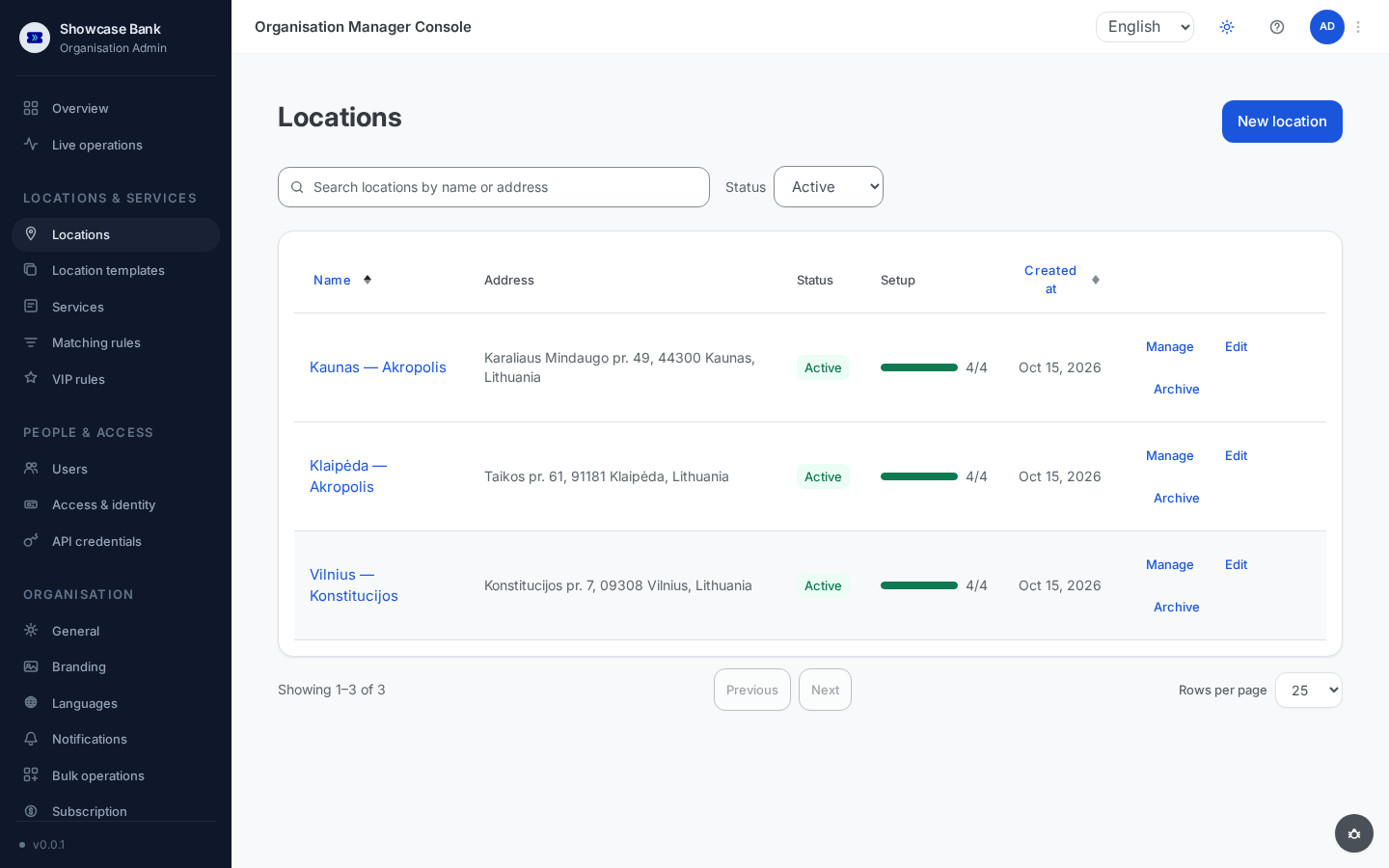
Open Locations in the sidebar. Each row shows the branch name, address, status, and a Setup bar tracking the four required setup steps, with Manage, Edit, and Archive actions.
Search by name or address, and use the Status filter to switch between active and archived branches.
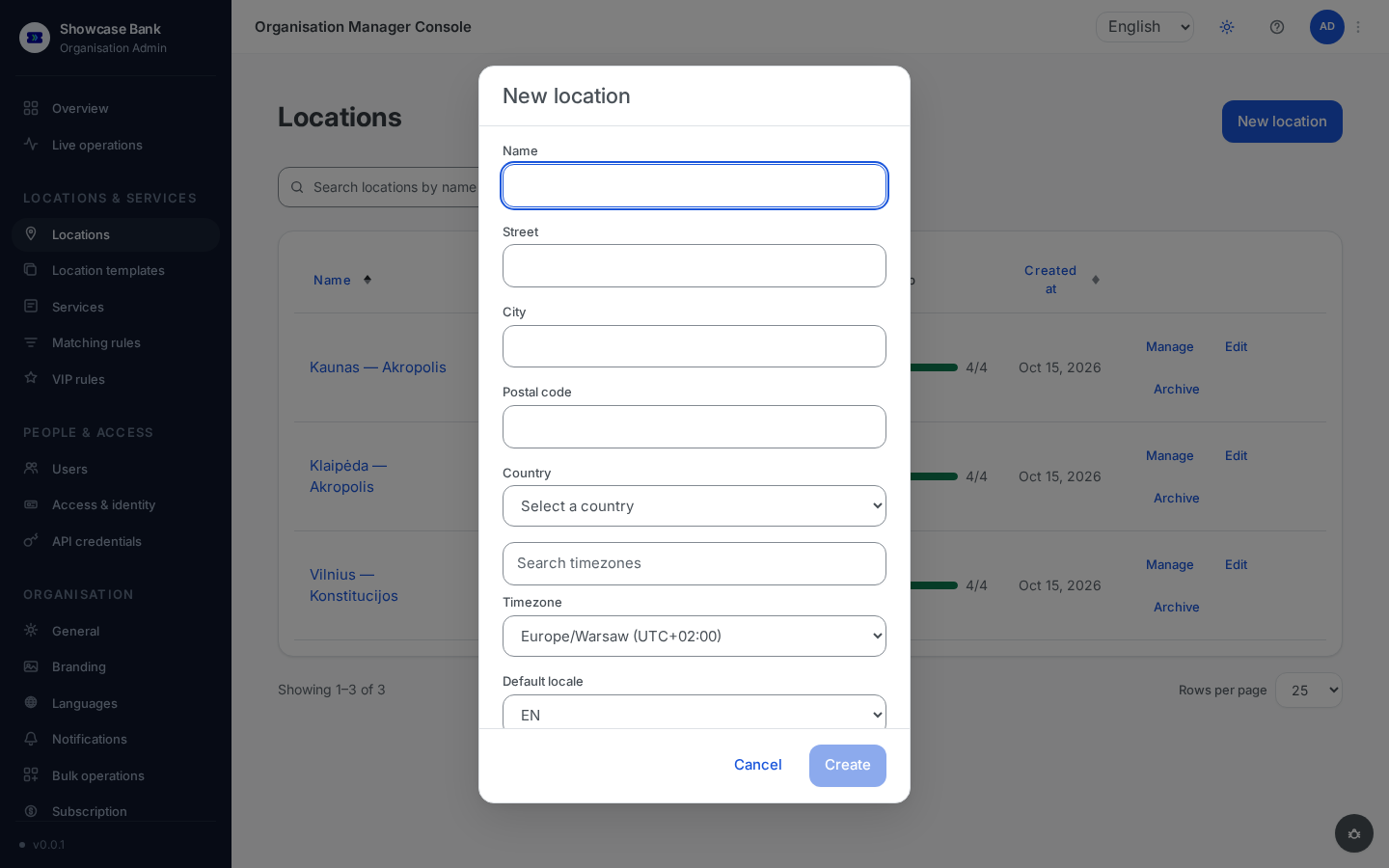
New location opens the create dialog: name (unique within your workspace), street, city, postal code, country, timezone, and the default locale clients see first at this branch.
The branch configuration page
Click a branch name (or Manage) to open its configuration page.
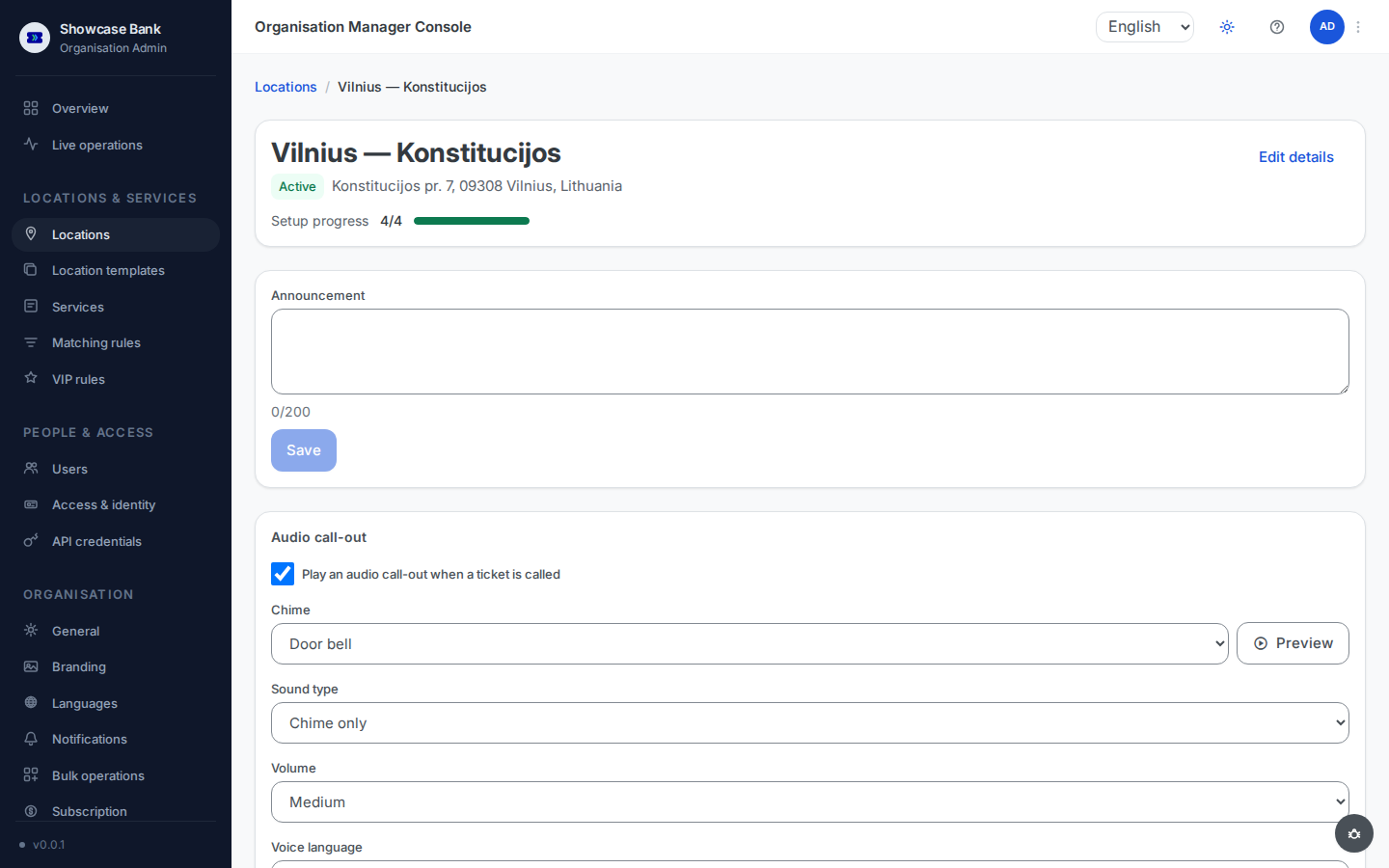
The header card shows the address, status, and setup progress; Edit details reopens the same fields as the create dialog. Renaming is safe — the name only has to stay unique within your workspace.
Below the header sit an Announcement box (a short message of up to 200 characters shown to clients at this branch) and the Audio call-out settings for the in-branch display — chime, sound type, volume, and voice language.
Further down, the readiness checklist links each pending setup step to its settings, and the configuration tabs — Services, Windows, Operators, Hours, and more — hold the per-branch setup covered in Create your first branch.
Working hours
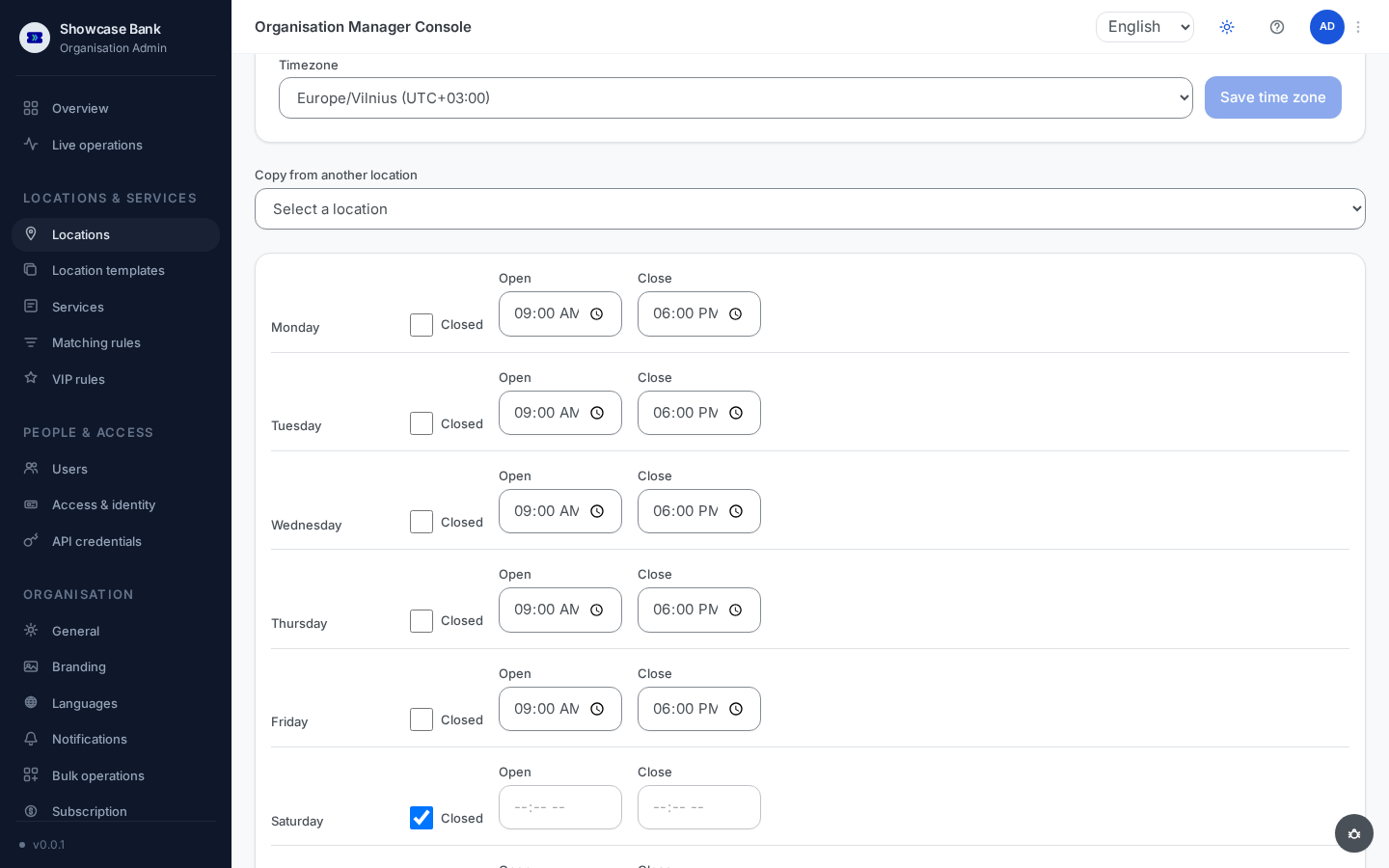
A new branch starts with a preset — Monday–Friday 09:00–18:00, weekends closed — so it is usable immediately.
Open the Hours tab. Each day has Open and Close times and a Closed checkbox.
Adjust the times per day, or tick Closed for non-working days. The close time must be later than the open time; overnight hours (e.g. open 22:00, close 02:00) are not supported.
With more than one branch, a Copy from another location picker appears above the form. Selecting a branch replaces all seven day rows with its hours — nothing is saved until you click Save, so you can tweak the copy first.
Working hours drive three things: appointment slots exist only within them; walk-in clients can scan the QR at any time but are not called until the branch is open; and operators whose schedule follows the branch hours pick up changes automatically — see operator schedules.
Holidays and closures
Full-day closures — public holidays and custom closure periods — live in the location manager console: open the branch, then Holidays & Absences under Team & Schedule.
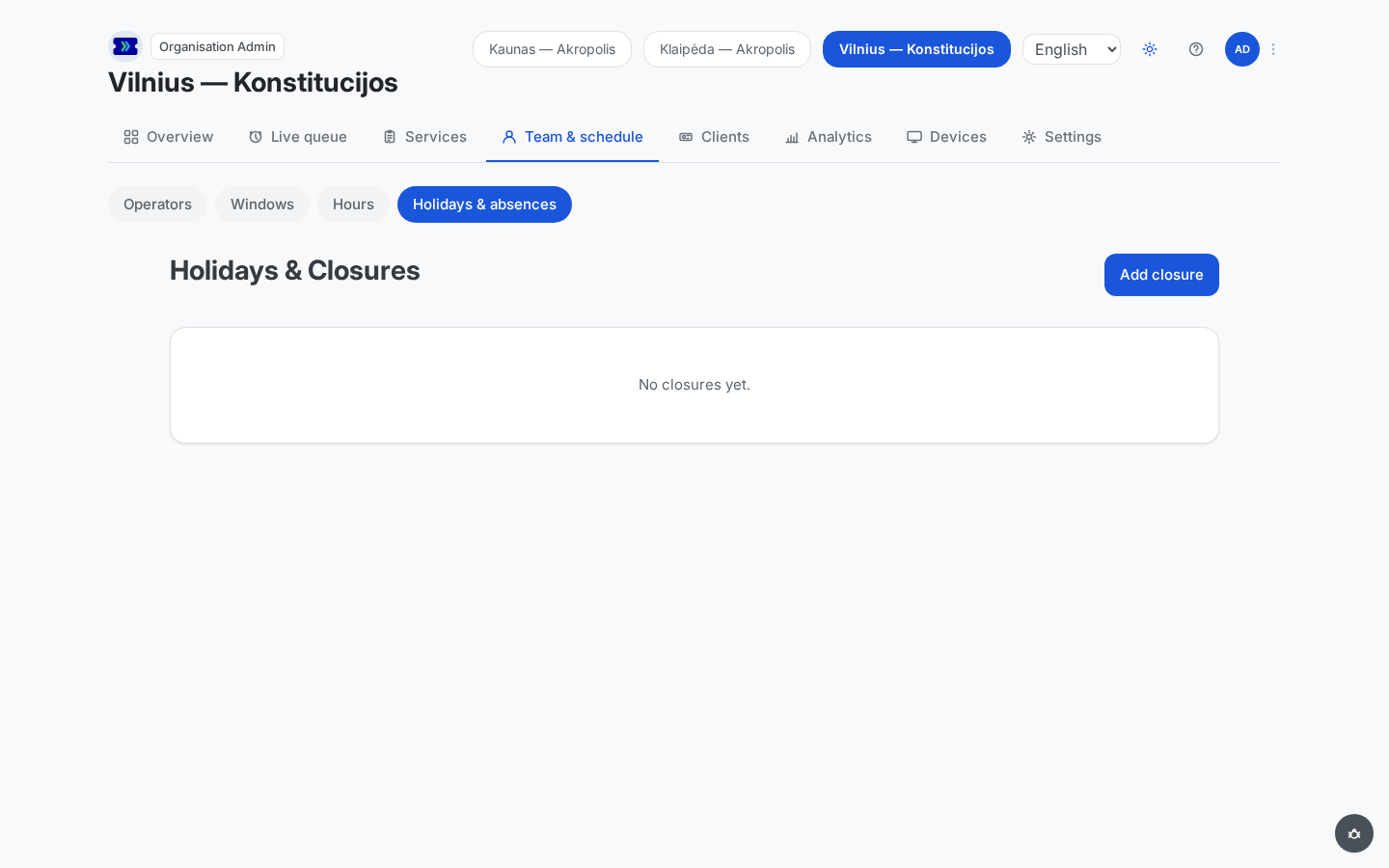 Open full-size screenshot (new tab)
- Click Add closure and fill in:
- Type — public holiday or custom closure.
- Name — e.g. "Christmas", "Renovation week".
- Date — a single date or a range (start–end within the same calendar year). The start date must be today or later.
- Yearly — when ticked, the closure repeats every year on the same dates until you remove it.
- Closures are full-day only — for reduced hours on a specific date there is no partial-day closure; adjust the weekly hours instead.
On a closed date the branch is fully shut: the booking calendar offers no slots, the walk-in QR page shows a "Location closed" message and issues no tickets, and every operator is removed from matching — individual operator schedules cannot override a closure.
If a new closure overlaps confirmed appointments, the save is stopped with a count of affected bookings. Confirming cancels those appointments and emails each affected client. Removing a closure reopens its dates immediately.
Archive, reactivate, or delete a branch
- Click Archive on the branch's row in the Locations list. Archiving is blocked while the branch has clients still waiting or being served, or any future appointment — the error shows both counts. Future appointments are never auto-cancelled: cancel or move them first from the appointments surface.
- An archived branch disappears from the default list (find it under the archived status filter), accepts no new tickets or bookings, and is excluded from matching — but its whole configuration and history are kept.
- Reactivate restores an archived branch exactly as it was — services, windows, operators, and hours — no re-creation needed.
- An archived branch can also be permanently deleted. This clears its name and address for good (reports and history keep working, but the branch is gone from every list) and cannot be undone.
Result
You can take a branch through its whole life cycle: create it, keep its details and weekly hours current, plan holidays without stranding booked clients, and archive it — reversibly — when it closes.
Common problems
- The branch name is rejected — names are unique within your workspace; pick a different one.
- Working hours won't save — the close time must be later than the open time on the same day; overnight spans are not supported.
- No "Copy from another location" picker — it appears only when your workspace has at least two branches.
- "Selected location has no saved working hours" — the branch you picked has nothing to copy; the form is left unchanged.
- Archive is blocked — active tickets or future appointments still reference the branch. Serve out the queue and cancel or move the appointments, then archive.