

Serve a client
Your everyday loop is Call next customer → Customer Arrived → visit reason → Complete service. This guide takes you through one visit at your service window.
For other tasks, see Handle exceptions or Manage your shift.
Prerequisites
- An account with the Operator role, invited and fully set up — assigned to a service window, with at least one language and one service (Manage your team).
- The branch's visit-reason catalogue configured — operators cannot complete a visit without tagging it (Configure visit reasons).
Sign in and find your window
- Open the operator console sign-in page (an operator who accepts their invitation lands there automatically) and sign in.
- The console scopes itself to your service window. With exactly one assigned window nothing is asked; with several, a "Which window today?" picker appears first — pick the one you are sitting at and press Begin shift. The console remembers your choice on that device, and you can switch later from the account menu. With no window assigned yet, the console shows "No service window assigned" and asks you to contact your location manager; once they have added you, press I've been added — refresh.
A tour of the workspace
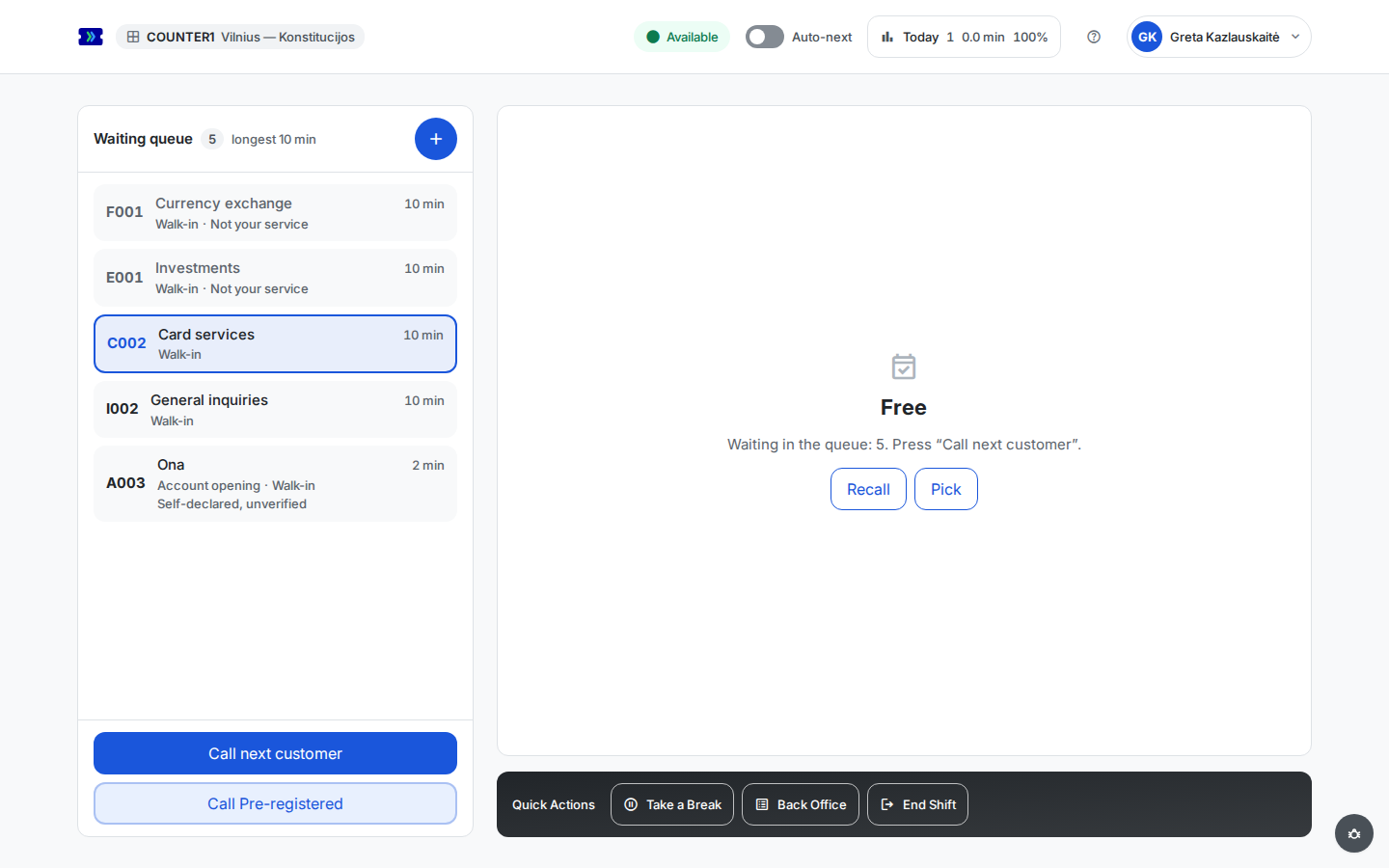 Open full-size screenshot (new tab)
- The header, left to right, shows your window (its code and the branch), your status (Available, Busy, Break, Back office, or Offline — with a running timer during a break or back office), the Auto-next switch, the Today summary (your served count, average service time, and satisfaction so far), the ? help button, and the account control with your name. The help button turns on help mode: hover over any control for an explanation, and press it again or Escape to leave.
- The account control opens the account menu: your profile, your windows (with two or more, pick another one here to switch) and your services, then Language, Theme (light, dark, or following the system), Change password, the console switcher when your account also holds a management level, and Sign out.
- The Waiting queue card on the left lists every client currently waiting at the branch — across all services, so you always see the whole room. Its title shows how many are waiting and the longest wait. Each row shows the ticket number, the client's name (the service stands in for an anonymous walk-in), a priority badge when the client has one, and how long they have waited — with a warning sign once the wait runs long. A smaller line underneath gives the service, the arrival channel (Walk-in, Web, or Mobile), the booked time for an appointment, and markers such as Arrived for a booked client who checked in or Note when the ticket carries one. The first ticket you can take — the one at the top for a service you are assigned to — is outlined in the accent colour. Rows for services you are not assigned to are greyed out, cannot be clicked, and say "Not your service".
- The Call next customer and Call Pre-registered buttons sit at the bottom of the queue card.
- The large card on the right is your current ticket. Idle, it reads Free with the number of clients waiting, and offers Recall and Pick; once you call someone it becomes their ticket card, with its actions along the bottom.
- Under the ticket card sits the dark Quick Actions strip with the Take a Break, Back Office, and End Shift buttons (more under Availability).
Call the next client
- Press Call next customer. The platform picks the optimal waiting client for you according to the branch's matching rules — your services, languages, priority tiers, and waiting times all weigh in. When nobody is waiting for your services, the button is simply disabled until someone joins; during a break or back office a line above it says that customers are not called.
- The ticket card switches to the Called state: the ticket number in large type, the client's name when known, the service and arrival channel, and a timer counting since the call while you wait for the client at the window. Below come the client's details — their language, how long they waited, priority, booked time, and call time. The client's phone and the in-branch display announce the call with your window number.
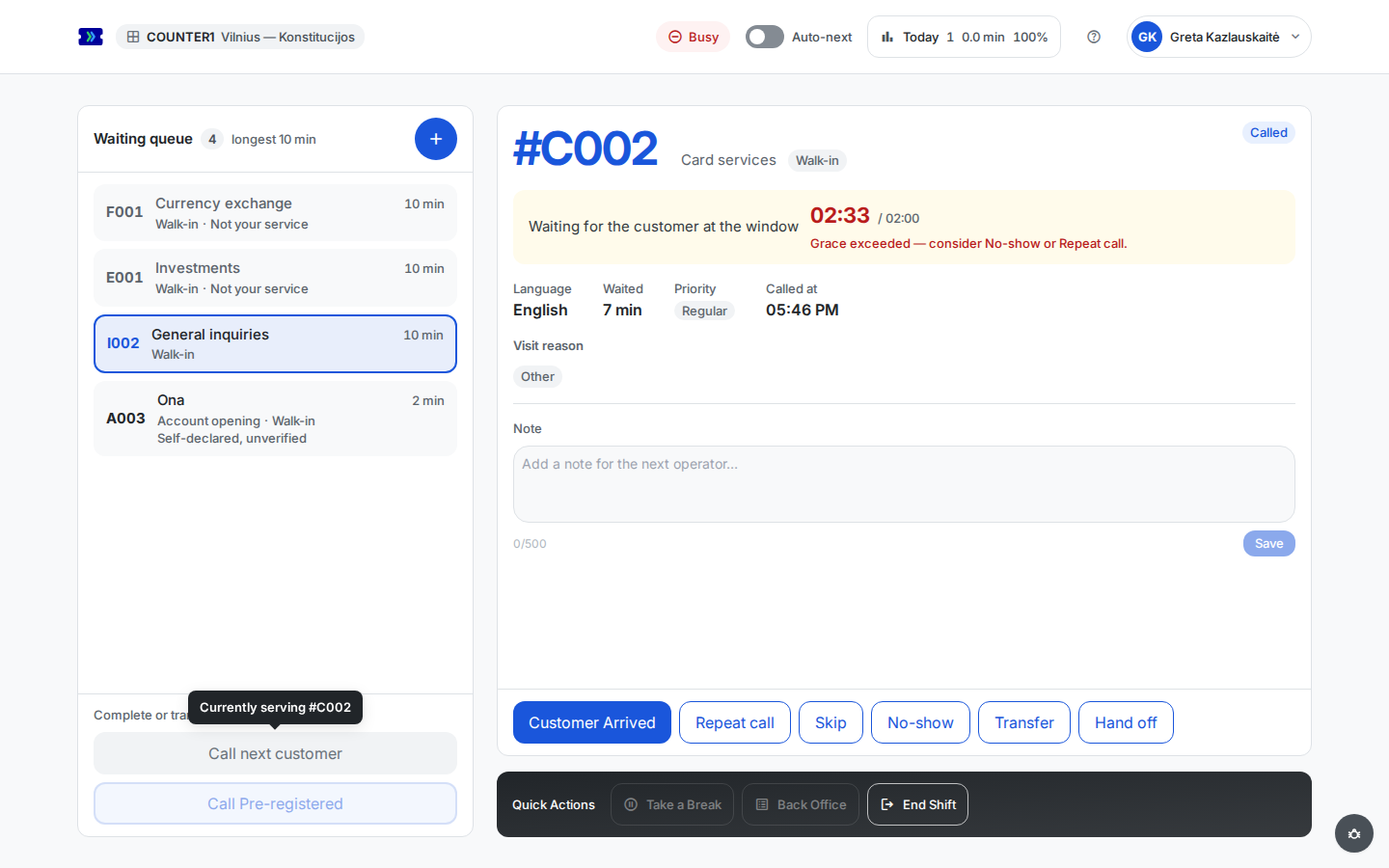 Open full-size screenshot (new tab)
- The timer keeps you honest about the branch's no-show grace time: once the grace period passes, the timer changes colour and the card suggests a repeat call or a no-show. Nothing happens automatically — the decision stays yours.
Serve and complete
- When the client walks up, press Customer Arrived. The ticket switches to Serving and the service clock starts.
- While serving, tag the visit with one or more visit reasons from the branch catalogue. An Other option with a short free text covers anything not in the list. While the branch has active visit reasons, tagging is mandatory: Complete service stays disabled with "Please select at least one visit reason to complete the service." until at least one reason is selected.
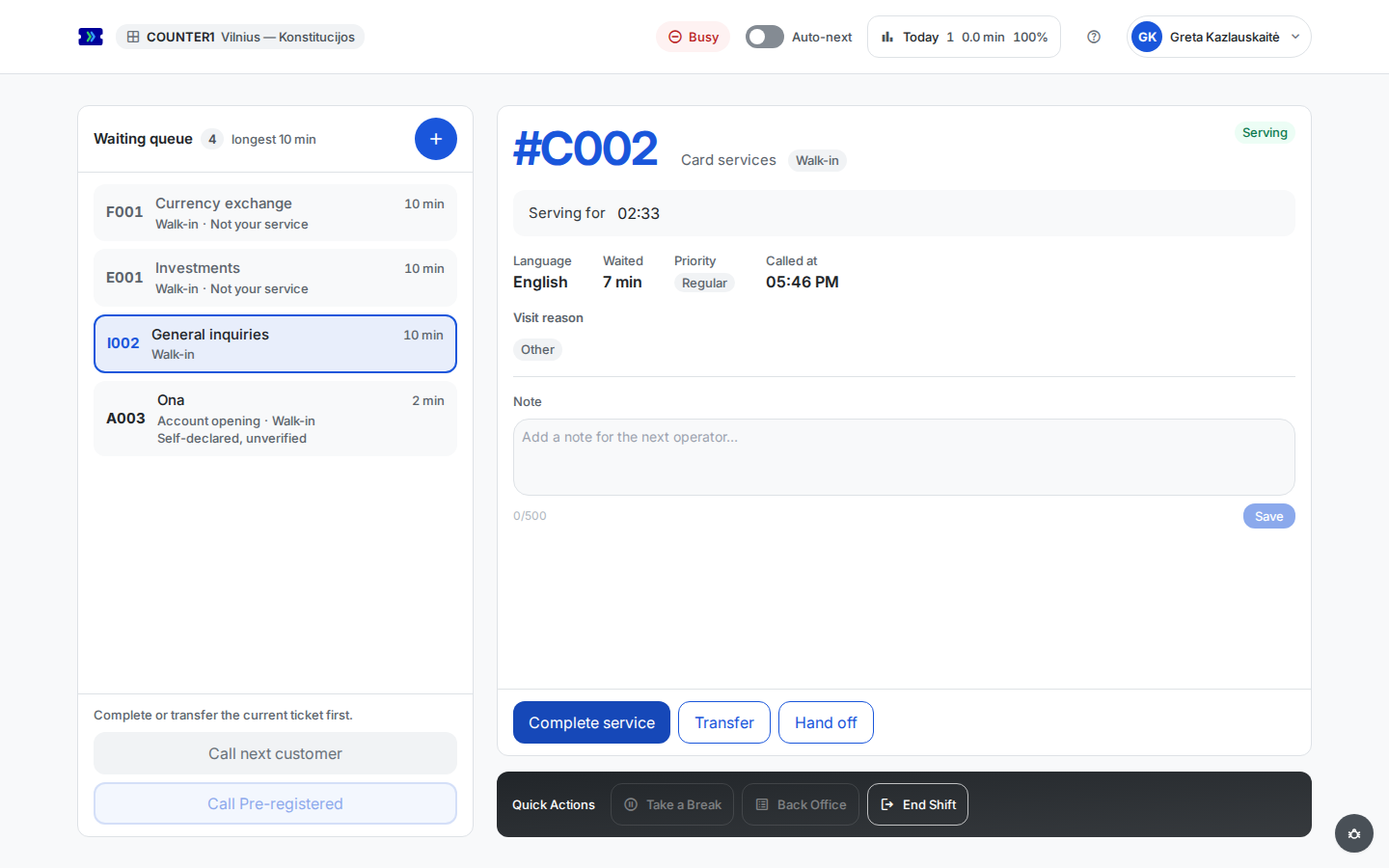 Open full-size screenshot (new tab)
- Press Complete service when you are done. The visit and its duration are recorded, the client's ticket page shows the service as completed, and you are free for the next call.
What next?
Result
The visit is complete and you are ready for the next client.
Common problems
- Call next customer is greyed out — nobody is waiting for your services, you are on a break or in back office (the line above the button says so), or you are still holding a ticket. Hover over the button for the reason.
- Complete service is greyed out — no visit reason selected yet; the console says so right under the button.
- Take a Break / Back Office is greyed out — you are holding a ticket; complete, transfer, or hand it off first.
- "Not your service" on a queue row — the row is informational; the ticket can only be called by an operator assigned to that service. Your manager assigns services on your operator profile (Team).
- "Customer is no longer waiting — pick another." — a colleague called that client between your click and the confirmation; the list updates live, pick again.
- You cannot get yourself back available — you are marked absent for today, which is the one reason the console holds you offline; ask your location manager to correct the absence (Team). Your scheduled hours are not a reason: they no longer control whether you can be available.
- A client's ticket cannot be skipped again — one skip per ticket; serve, transfer, or mark no-show.