

Set up your branding
Your logo travels with your workspace onto every client-facing surface: the web booking page, the tablet kiosk, and the in-branch TV display. The Branding page is where an organisation admin uploads it — with a live preview of all three surfaces before anything is saved.
Prerequisites
- An organisation admin sign-in.
- A logo file: PNG, SVG, or JPG, up to 2 MB.
Upload the logo
Open Branding in the sidebar. Until a logo is uploaded, the page shows a labelled placeholder.
Click Select file and pick your logo. Files over 2 MB or of an unsupported type are rejected with an inline error before anything is uploaded.
The three Preview cards — Web Booking, Tablet Kiosk, TV Display — update instantly, before you save: the logo appears left-aligned in the booking page header, centred on the kiosk welcome screen, and left-aligned in the TV display's header, each at the real surface's sizing.
Save. The previews reflect the saved logo from then on, and the client surfaces pick it up.
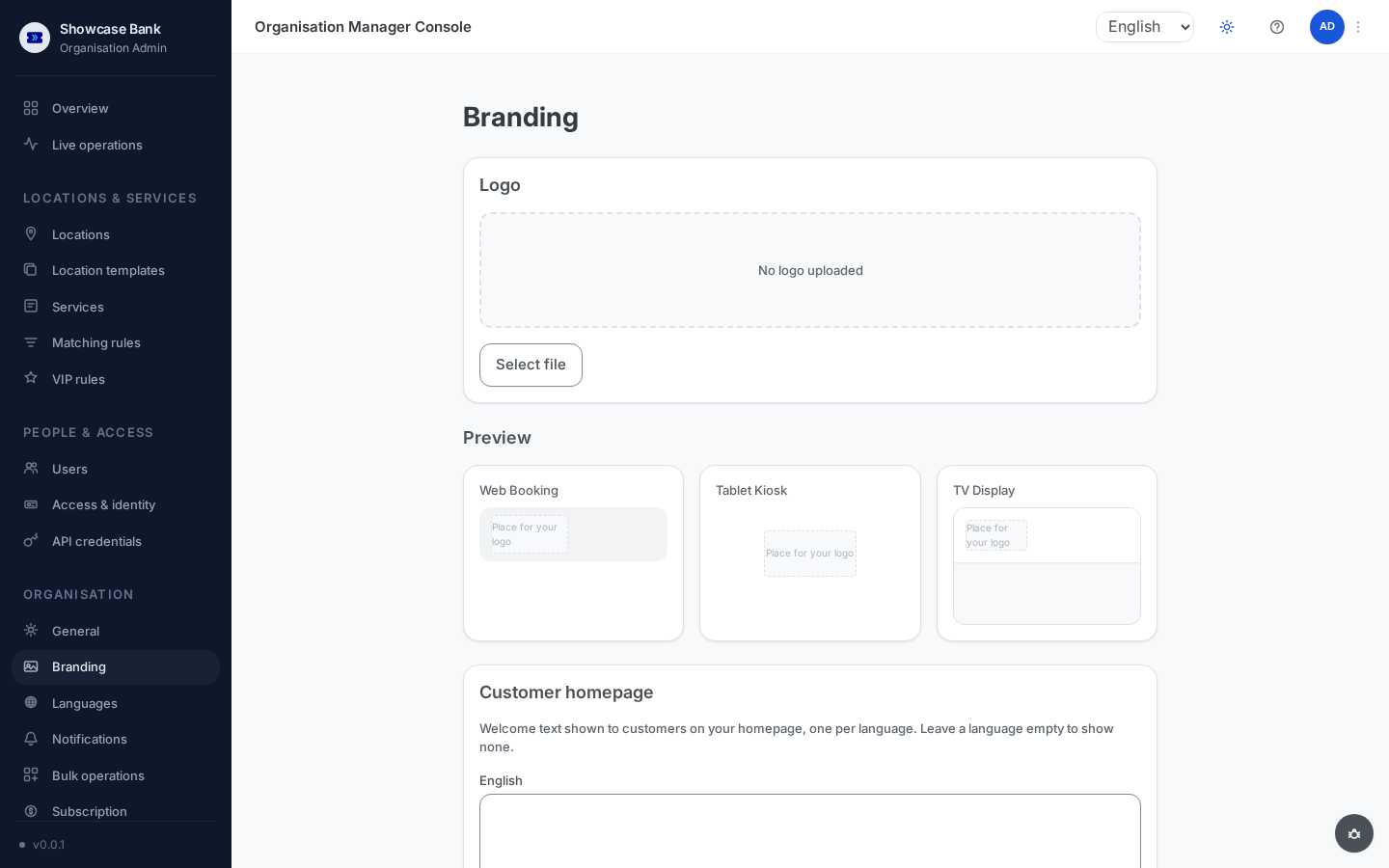
To change the logo, upload a new file the same way. Removing the logo returns the surfaces to their neutral state: the kiosk welcome screen shows a neutral placeholder, and the TV display's header shows the Paysera Q-GO logo again. Uploads and removals are recorded in the audit log.
Set up your customer homepage
The same page has a Customer homepage section for the page customers see when they open your booking site.
- Under Customer homepage, write the welcome text once per language your organisation offers, at most 500 characters per language. Leave a language empty to show no welcome text in it.
- Optionally fill in Contact phone, Contact email and Help link. The phone number is at most 32 characters long. The help link must be a full address starting with
http://orhttps://, at most 2048 characters long. Customers see each contact detail only if you filled it in. - Click Save homepage. There is no publish step: customers see the change the next time they load the page.
- Click View public homepage to open the page as customers see it.
Where the logo appears
- Web booking — the page header of your public booking site.
- Tablet kiosk — the welcome screen, above the QR code.
- TV display — the header across the top, with or without calls on the screen, beside Customer queue and, unless the branch has switched the Clock channel off, the date and time.
Result
One upload puts your brand in front of clients at every touchpoint — booking from home, registering at the kiosk, and waiting in the branch — and the preview cards let you verify sizing and placement without walking to a single device.
Common problems
- The file is rejected — only PNG, SVG, and JPG up to 2 MB are accepted; resize or convert the file.
- A surface still shows no logo — no logo is saved yet (the previews render the placeholder in that case), or the device has not reloaded the page since the upload.