

Register at the kiosk
The kiosk at your entrance is the way in for clients who prefer not to use their phone — or have none. It lets them pick their language on the first screen, walks them through a two-step registration, and tells them exactly what to watch for on the TV. This page is that flow as the client experiences it; the device itself is set up in Displays & kiosks.
Prerequisites
- A paired kiosk with your branch's services and kiosk languages configured (Displays & kiosks).
The flow
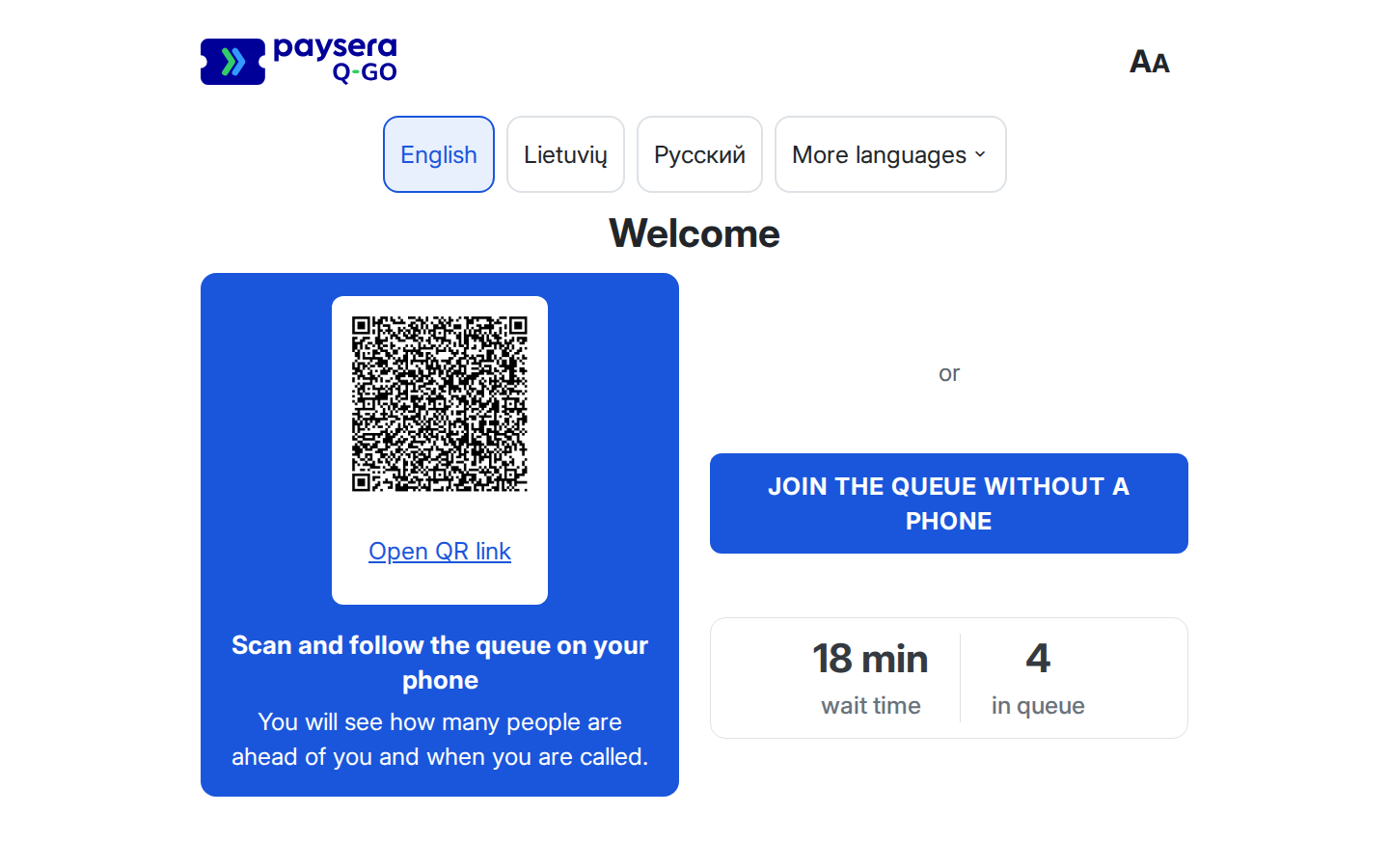
Welcome screen. The kiosk shows your logo, a row of language buttons, a short greeting, and two ways in: a card with a QR code — "Scan and follow the queue on your phone" — and, under the word "or", a Join the queue without a phone button. The branch's live figures — how many are in the queue and the current wait — sit below. Nothing on this screen changes by itself except the QR code, which refreshes regularly, and the live figures. Scanning the QR is exactly the phone flow; tapping the card or the button starts the on-screen path that the rest of this page follows.
Language. The language buttons list exactly the languages whose Tablet kiosk toggle is on for the branch, in your order, each written in its own language. The screen starts in the branch's default kiosk language; a tap on another language switches the whole screen to it, and the rest of the flow follows. With more than four languages, the row shows the first three and a More languages button that opens the full list.
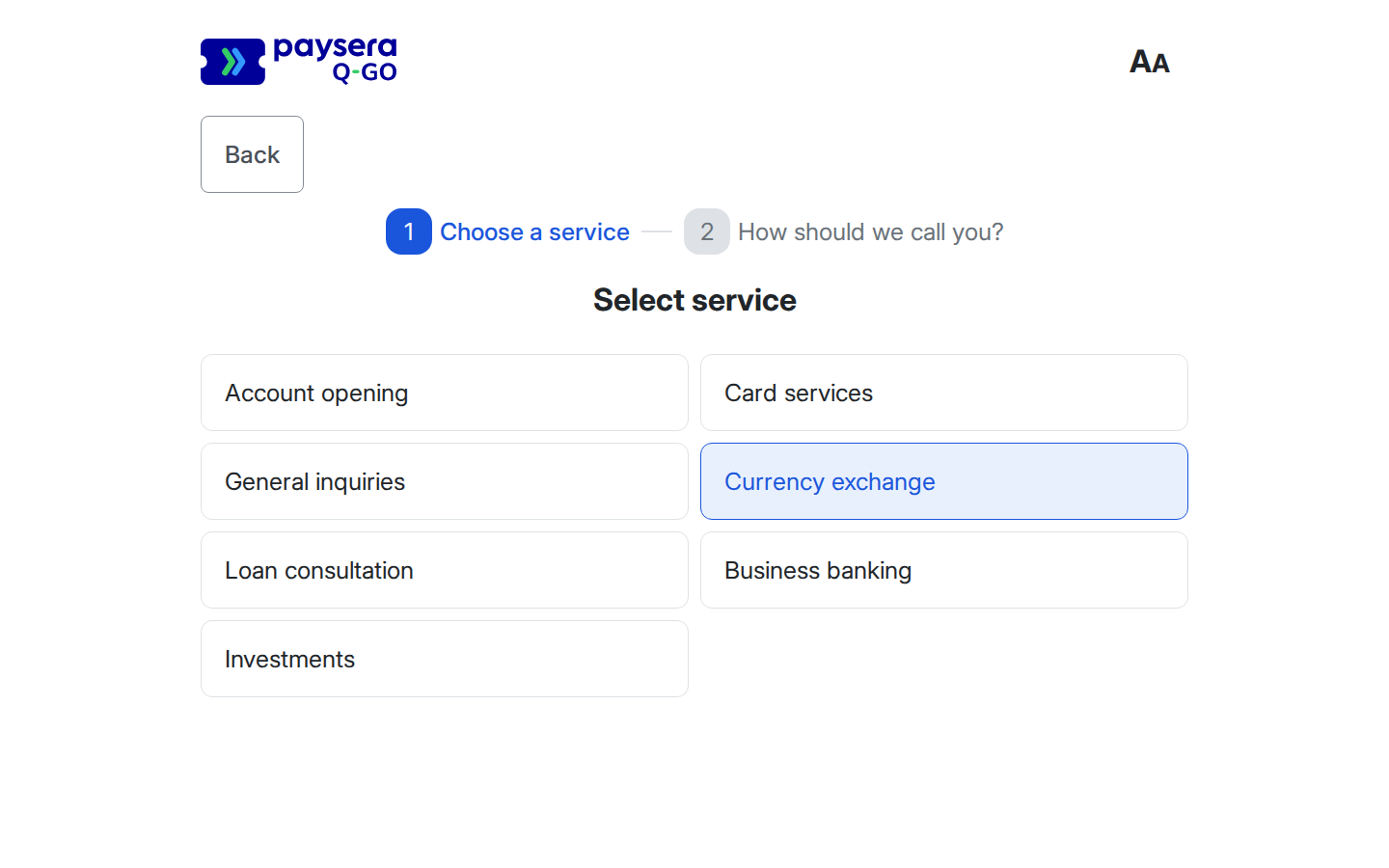
Service. A two-step progress bar appears — "Choose a service", then "How should we call you?" — with a Back button at the top left. The client taps their service from the branch's list, in the order you configured. Back here returns to the welcome screen, still in the client's language.
Name. Whether this step appears depends on the branch's walk-in name setting:
- Ticket number only — there is no name step; tapping a service issues the ticket.
- Collect name, show ticket number — the step asks "How should we call you?" and explains that only the staff member serving the client will see the answer, while the TV shows their number.
- Collect name, show on TV — the same question, explaining that the answer will appear on the TV when the client is called and need not be their real name.
In both name modes the field starts empty and an answer is required: a name, a company name or any word will do. Tapping Register with the field empty asks the client to fill it in instead of issuing a ticket. The kiosk offers no choice of operator. Where your workspace collects self-declared details and the branch collects a name, a client who wants a particular staff member can scan the entry QR code and pick the operator on their phone (phone walk-in); they can also book online. Back returns to the service list.
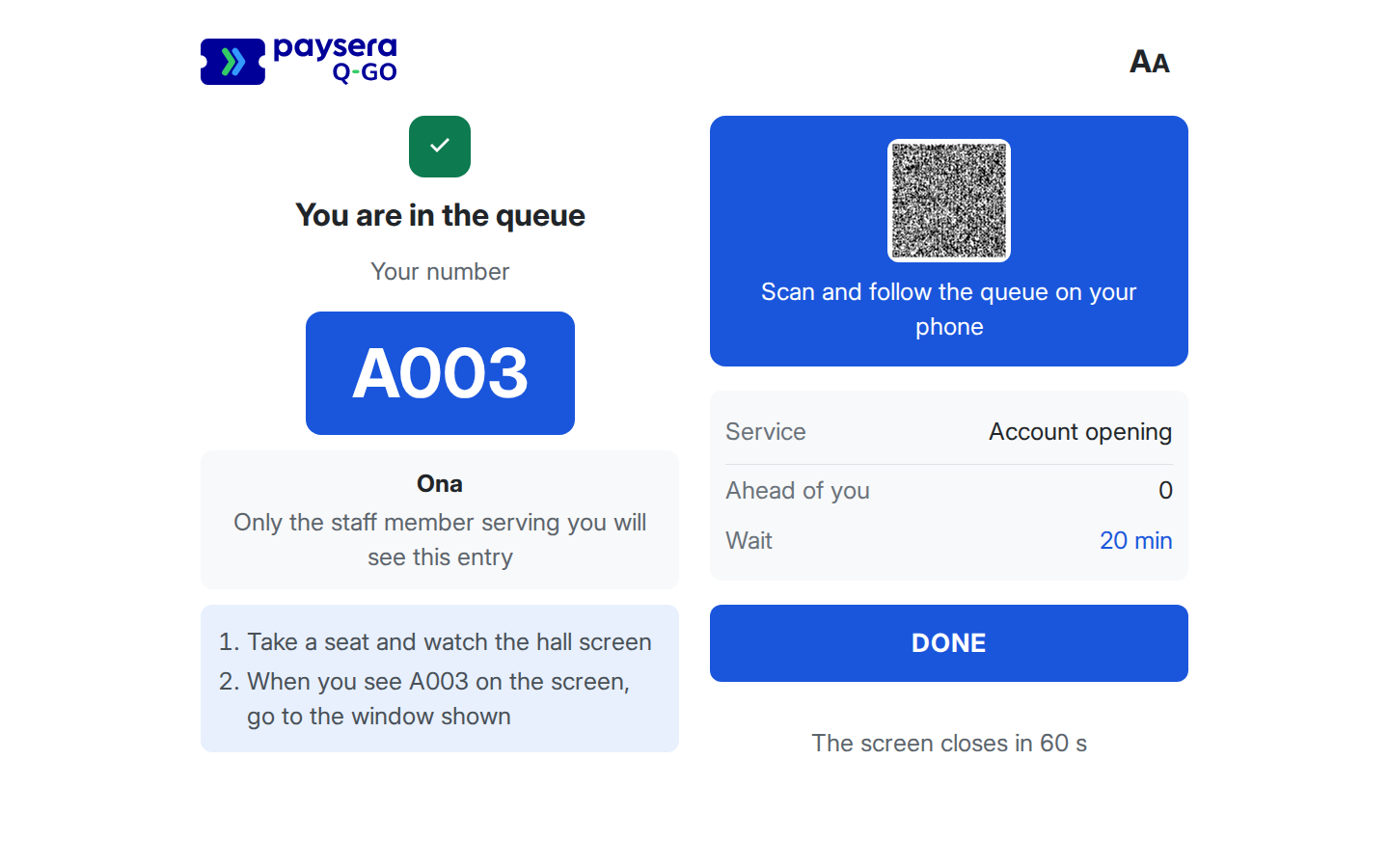
Confirmation. The kiosk confirms with a green check and "You are in the queue", then shows, in the largest text on the screen, exactly what the TV will show for this client:
- with Collect name, show on TV, it says "The hall screen will call you like this:" followed by the name alone, for example Ona;
- in the other two modes, the ticket number — and with Collect name, show ticket number, the typed name in a small card noting that only the staff member serving them will see it.
Below come the service, how many people are ahead, the estimated wait, and two short steps: "Take a seat and watch the hall screen" and "When you see A014 on the screen, go to the window shown" — naming whatever the TV will show for this client. (A branch with no paired TV reads "Take a seat" and "When A014 is called, go to the window" instead.) A QR code lets the client follow the queue on their phone as well. Done returns the kiosk to the welcome screen; a note says when the screen will close by itself.
From here the client waits on the TV display: their number — or, with Collect name, show on TV, their name instead of the number — appears in the waiting list, and the call names their window on screen — with sound, if enabled.
Larger text and screen orientation
Every kiosk screen has an AA button in the top corner. Tapping it makes all the text at least half as large again, for clients who find the default size hard to read; it stays on through the registration and switches back to normal for the next client. The kiosk works with the tablet held upright or on its side: every screen fits without scrolling sideways, and a long service list scrolls within its own area.
When the branch is closed
On a day the branch is closed, the welcome screen shows a "Location closed today" message in place of the QR card and the Join the queue without a phone button, so no registration starts. A client who was already mid-registration when the day became closed sees the same message with a Back to start button, and no ticket is issued.
The kiosk looks after itself
Between clients, no one needs to touch the kiosk:
- A registration abandoned mid-way returns to the welcome screen after two minutes without a touch. Nothing is issued, nothing to cancel — any interaction restarts the timer, so an active client is never cut off.
- The confirmation screen returns to welcome on its own after a minute without a touch (or when the client taps Done); any other touch keeps it open. The issued ticket stays in the queue either way.
- Each of these resets, and Done, starts the next client fresh: the welcome screen comes back in the branch's default language and at the normal text size.
Result
A client without a phone registers in their own language in a few taps, leaves with a queue number, and follows their turn on the TV — while the kiosk resets itself for the next person in line.
Common problems
- A client's language is missing — its Tablet kiosk toggle is off in the branch's language settings.
- A service is missing from the kiosk list — it is not active at the branch; the kiosk offers exactly the branch's service list.
- A client cannot register without typing a name — by design in both Collect name modes; any word will do. If you would rather not ask for a name at all, choose Ticket number only in the branch's walk-in name setting.
- The kiosk reset while a client was reading the confirmation — by design after a minute without a touch (a touch keeps the screen open); the ticket is still in the queue, and the TV's waiting list shows their number.