

Configure languages
Languages work in three tiers: an organisation admin curates the workspace language catalogue, each branch activates and orders languages from that catalogue for its own client-facing surfaces, and each operator lists the languages they speak (covered under Team).
Prerequisites
- An organisation admin sign-in for the workspace catalogue.
- Branch language settings are edited in the location manager console: an organisation admin reaches every branch there, a location manager the branches they are assigned to.
The workspace language catalogue
Open Languages in the sidebar of the management console. The catalogue lists each language with its native name, an Active toggle, reorder arrows, and a Remove action.
Add language offers the languages the platform is translated into, shown by their native names. A language outside that set cannot be added; one already in your catalogue stays until you remove it. Customer pages, the kiosk, the display and customer emails can use any of the sixteen languages; the staff consoles stay on six.
The catalogue is ordered: use the arrows to reorder. The first active language is the workspace default — the fallback for client-facing emails when a client's preference is unknown.
English is always present and cannot be removed or deactivated.
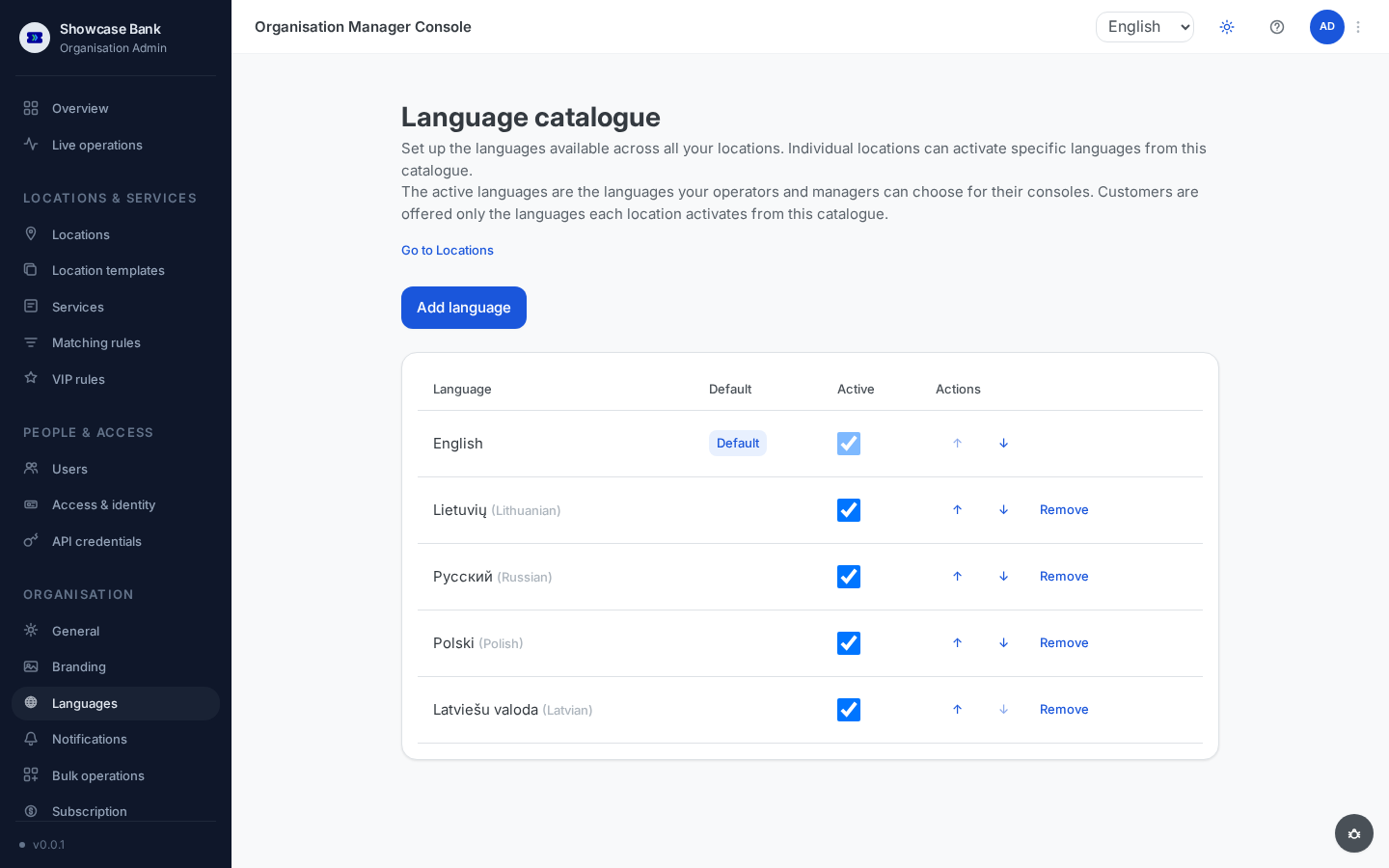
Deactivating a language hides it from downstream pickers (branch language lists, operator languages) without touching existing assignments. Removing it entirely is blocked while any branch or operator still uses it — the error names them.
Note the catalogue governs what you can offer clients. The console UI itself is translated into a fixed set of languages (with a header language selector when your catalogue has more than one active language); for a language outside that set, console chrome falls back to English while client-facing content uses your own translations — for example the per-branch service display names described in Services.
Branch language settings
Each branch chooses its own subset. In the location manager console, open the branch, then Languages under Services.
- A new branch starts with every active catalogue language, in catalogue order. Add or remove languages from there — only languages active in the workspace catalogue are offered, as the page's note says: "Only languages in your organisation's catalogue are available here. Your organisation admin manages that catalogue."
- The branch list is ordered (move up / move down); the first language is the branch default.
- Every language row has four surface toggles — Tablet kiosk, Web booking, In-branch display, Ticket page — all on when a language is added. A surface shows only the languages toggled on for it. The tablet kiosk and the in-branch display open in the first of them in your branch order; the kiosk welcome screen offers one language button per enabled language, in that order. Web booking, your organisation's customer homepage and the walk-in entry pages open in the language the customer picked there before, otherwise in their browser's language, otherwise in English — each only when the page offers it — and only then in the first language it offers (for web booking and walk-in pages, the first in your branch order). A language the customer picks on those pages is remembered in their browser for 12 months; nothing is remembered until they pick one.
- Languages are listed by name, in the language of your console, followed by their code. A line above the list ("TV language: …") names the language the TV screens show and the rule that picks it: the first language with In-branch display ticked that is not deactivated at organisation level, otherwise the first language in the list that is not deactivated at organisation level, otherwise English. When the TV screens have no translation for that language, the line says so and names English, which they show instead. The line updates as you tick, reorder, add or remove languages.
- Removing a language takes it off the branch's client surfaces on the next page load; past tickets served in it are unaffected. A branch always keeps at least one language.
If the organisation admin deactivates a language in the workspace catalogue, it stays in branch lists flagged "Deactivated at organisation level" and stops rendering to clients — each branch manager decides whether to remove it from their list.
Result
Clients at each branch see kiosks, booking pages, displays, and ticket pages in the languages that branch actually serves, in the order you chose — while the workspace catalogue keeps the offering consistent and every removal safe.
Common problems
- A language is missing from the branch picker — it is not active in the workspace catalogue; an organisation admin must add or activate it first.
- The last branch language cannot be removed — every branch needs at least one; add a replacement first.
- Removing a language from the workspace catalogue is blocked — a branch or operator still references it; the error lists them. Deactivate it instead, or clear those references first.
- The console still shows English after adding a language — the console UI is translated into a fixed set of languages; your catalogue controls client-facing surfaces, not console chrome.