

Manage your team
Invite your team covers the first invitations; this page is the complete reference for the people in your workspace — roles, pending invites, operator profiles, schedules, absences, moves between branches, and passwords.
Prerequisites
- An organisation admin sign-in for the Users page and role changes.
- Operator administration also works from the location manager console — an organisation admin reaches every branch there, a location manager the branches they are assigned to.
Roles and management levels
There are two management levels — Organisation Admin and Location Manager — and an account holds at most one of them, never both:
- An Organisation Admin manages the whole workspace and, with it, every branch in the organisation. Admins are not assigned to branches; their reach follows the level.
- A Location Manager manages only the branches they are assigned to.
Operator is independent of that choice: either level can also hold it, and an account can be an operator and nothing else.
Everything sits under a single email and password. An account that also holds the Operator role lands on a console picker after signing in; a management level on its own goes straight to its console. The console rows in the account menu at the top right then move between the consoles the account holds — for an organisation admin that includes the location manager console, whose location switcher reaches every branch. Two constraints to know:
- An account holds the Operator role at one branch at a time.
- A workspace always keeps at least one active Organisation Admin — the platform blocks the change that would remove the last one, and warns you when an action would leave you as the only admin.
Members and invitations
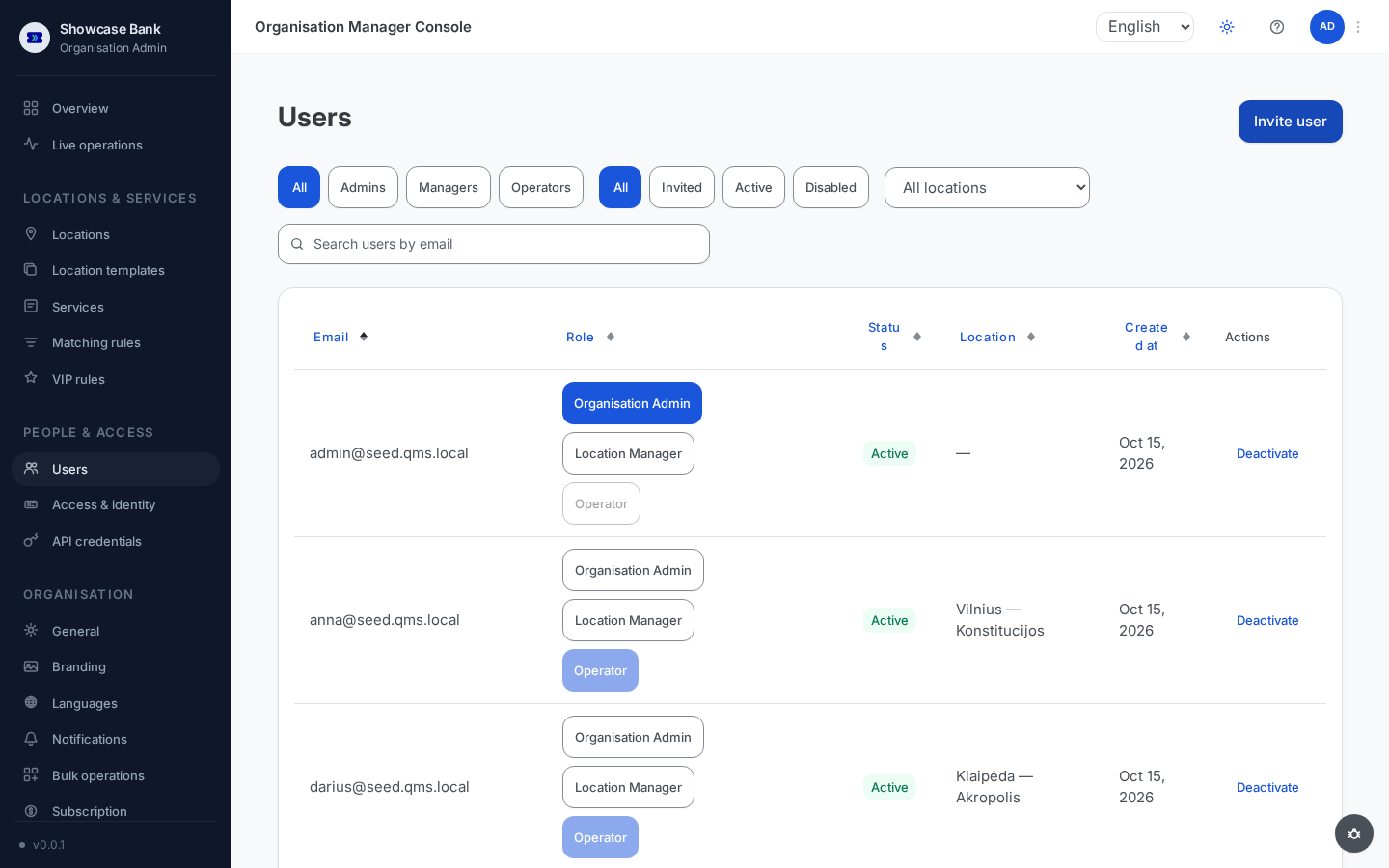
Open Users in the sidebar. Filter by role and status, narrow to one branch, or search by email; each row shows the person's role badges, branch, and status, with per-row actions.
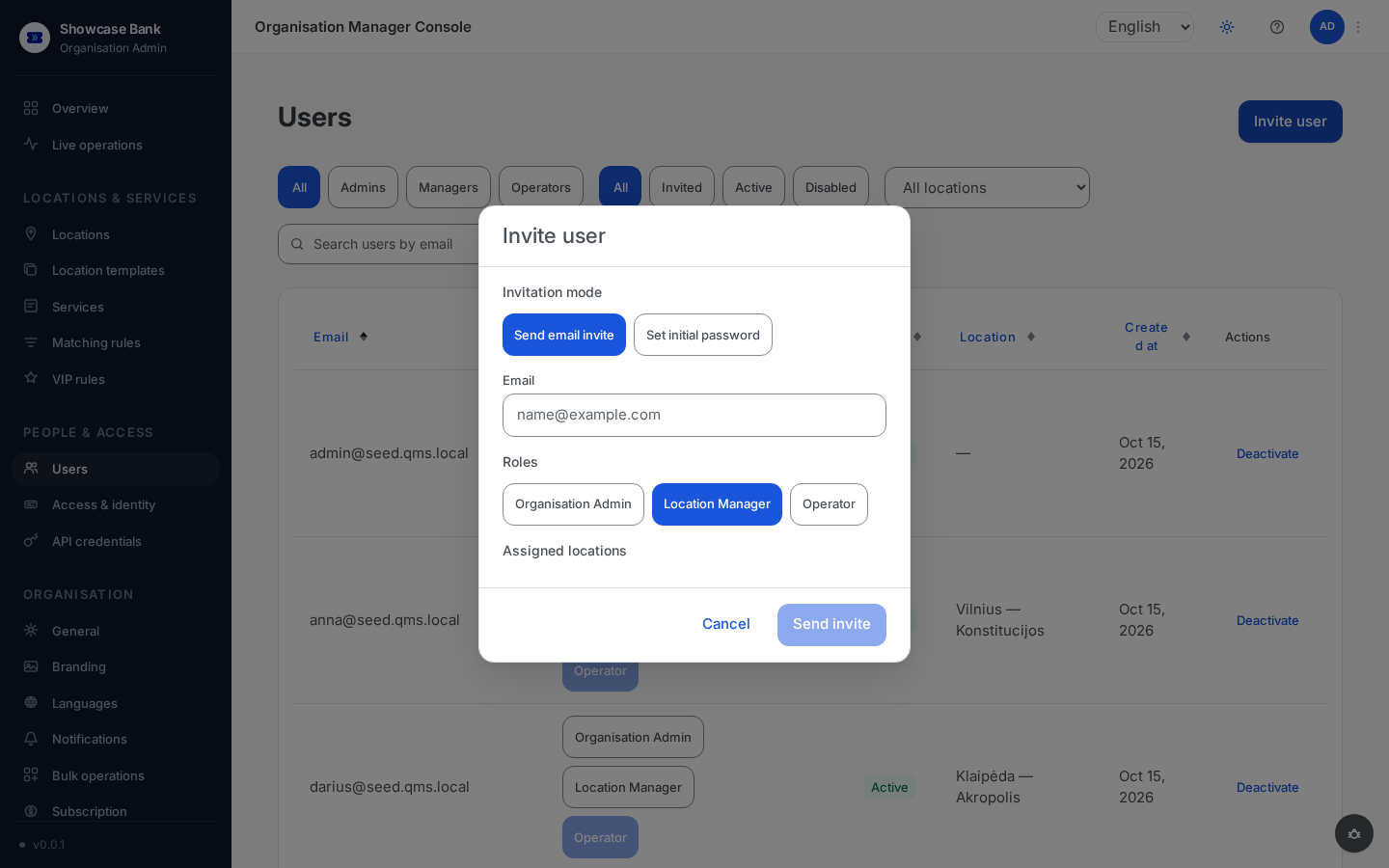
Invite user offers two modes (described step by step in Invite your team): an email invite the person accepts within 7 days, or Set initial password, which makes the account active immediately.
Roles can be changed later from the user's row. The two management levels remain an either/or choice: switching an account to Location Manager asks for their assigned branches, and switching it to Organisation Admin drops those assignments, since an admin already manages every branch. Adding Operator asks for their branch. Only moves away from Organisation Admin ask for confirmation — switching down to Location Manager, or clearing the level on an account that also has Operator. Switching up to Organisation Admin applies straight away.
Resend or cancel a pending invite
While a person's status is Invited, their row carries two extra actions:
- Resend issues a fresh link (valid another 7 days) and expires the old one. Resending is rate-limited — wait a minute between resends, up to five per day per person.
- Cancel (with confirmation) removes the pending account entirely, freeing the email address for a fresh invite — the recovery path for a typo in the address.
Inviting an email that already belongs to a workspace member fails with "Email already in use": change the roles on the existing account instead. If the existing entry is itself a pending invite, use Resend or Cancel on it.
Deactivate and reactivate
Deactivate on a member's row blocks their sign-in but keeps their history; the row remains under the Disabled filter and can be reactivated later. You cannot deactivate the last active organisation admin (including yourself).
Operators
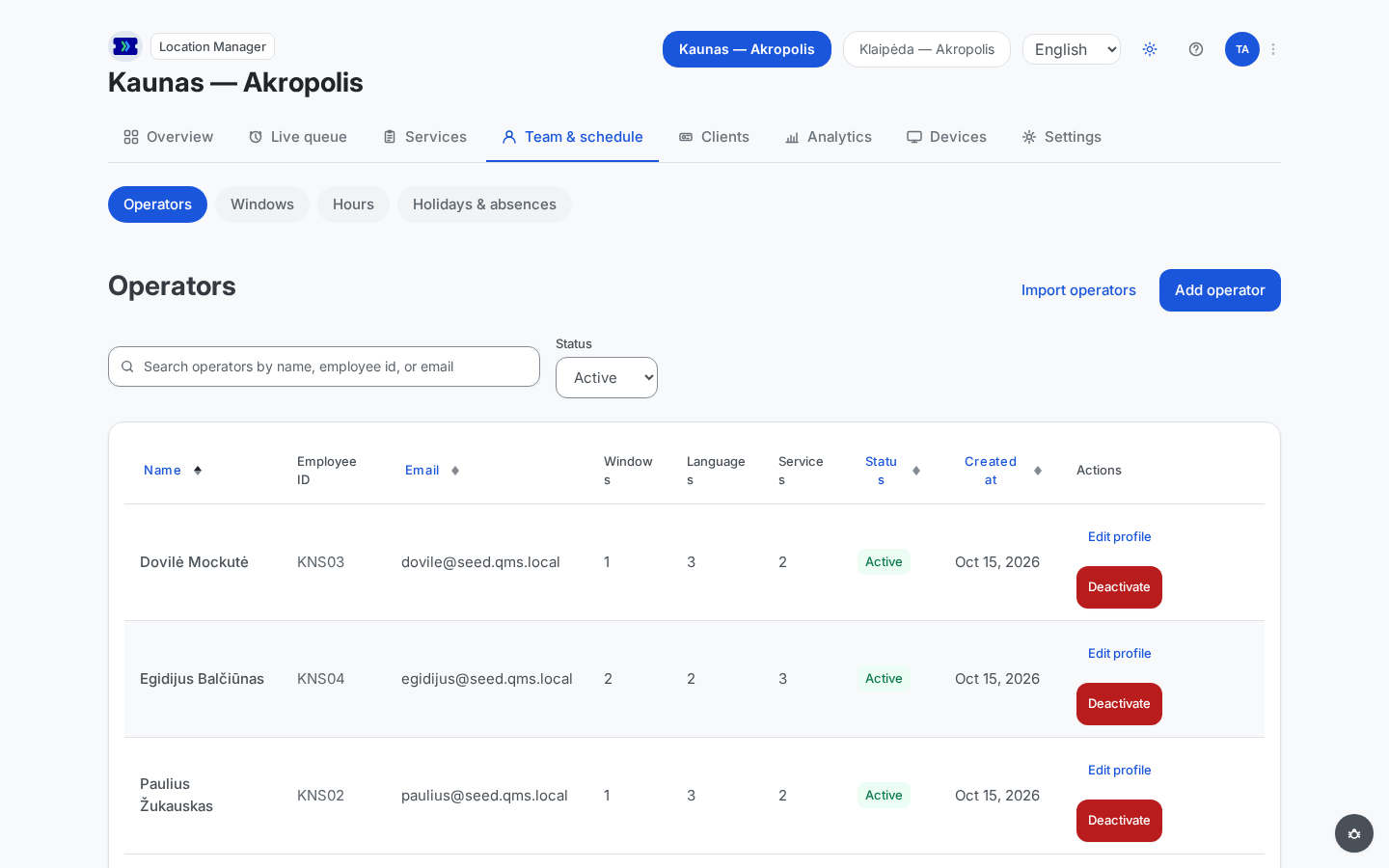
Operators are managed per branch: in the location manager console, open the branch, then Operators under Team & Schedule. An organisation admin reaches every branch there; a location manager, the branches they are assigned to.
 Open full-size screenshot (new tab)
There are several ways to add one:
- Add operator with an email invite — the person appears as Invited, and their profile fields unlock once they accept and set up their sign-in.
- Add operator with an initial password — active immediately, no email round-trip; you hand the password over yourself.
- Promote an existing member — organisation admins can pick someone already in the workspace instead of retyping their email.
- Import operators — a CSV of up to 100 operators (email plus optional name, employee ID, languages, services) with one shared initial password. The platform does not email that password — distributing it is your step, and each operator replaces it at first sign-in.
The operator list defaults to the Active status filter — switch it to Invited to see people who have not accepted yet.
An active operator who still lacks a window, a language, or a service shows "Missing: …" under their name in the list, with a Complete setup button that opens the operator's page at the card to fill in. The operator's name in each row is a link to the same page.
Complete the profile
A new operator is not matched with clients until their profile has at least one service window, one language, and one service. Open the operator's page and work through its sections — window assignment and Services and languages (tick the operator's languages and services and Save services and languages). The branch readiness checklist points at the same gaps.
Operator schedules
An operator's weekly schedule starts by following the branch's working hours — no setup needed, and any change to branch hours applies to them automatically.
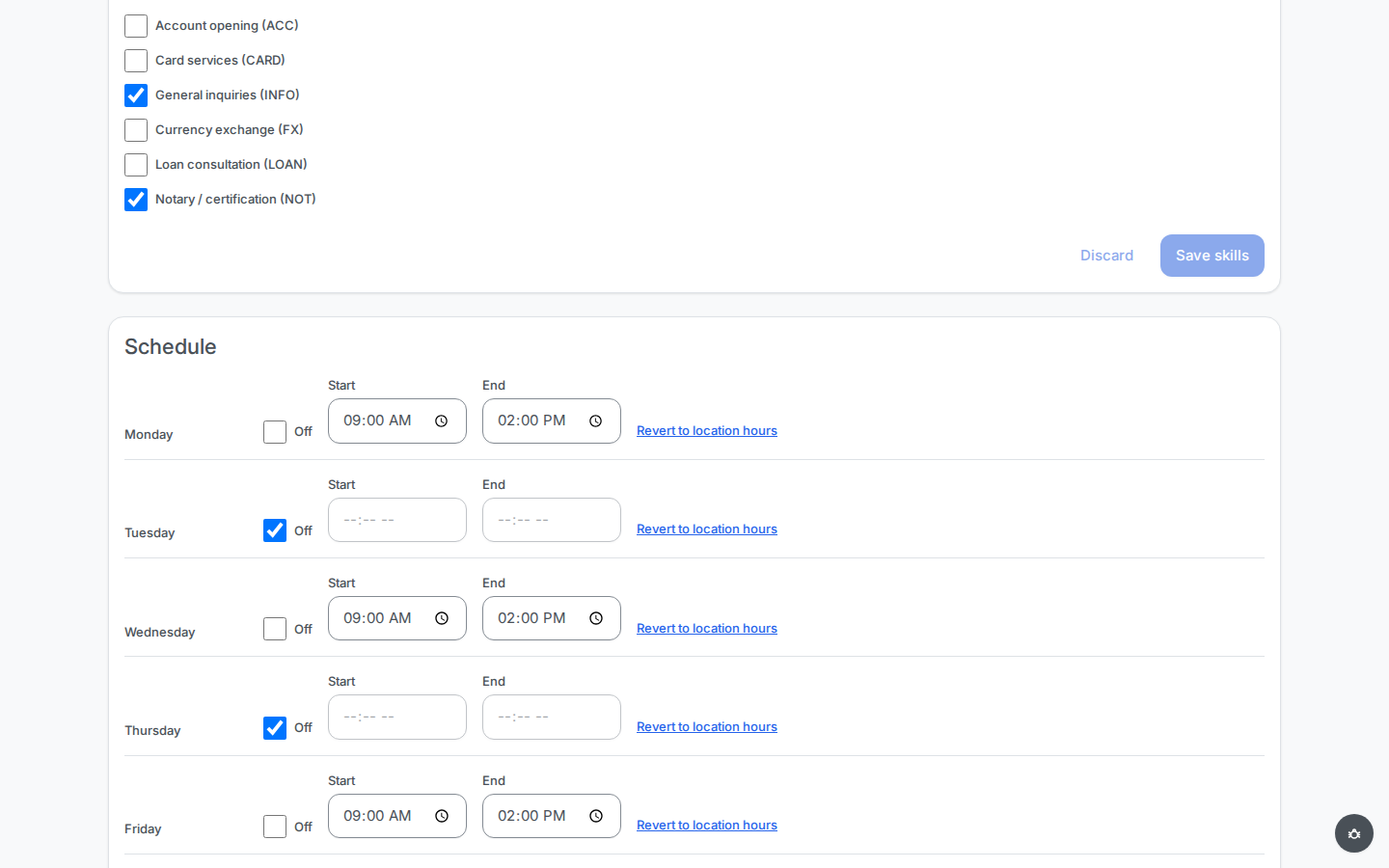
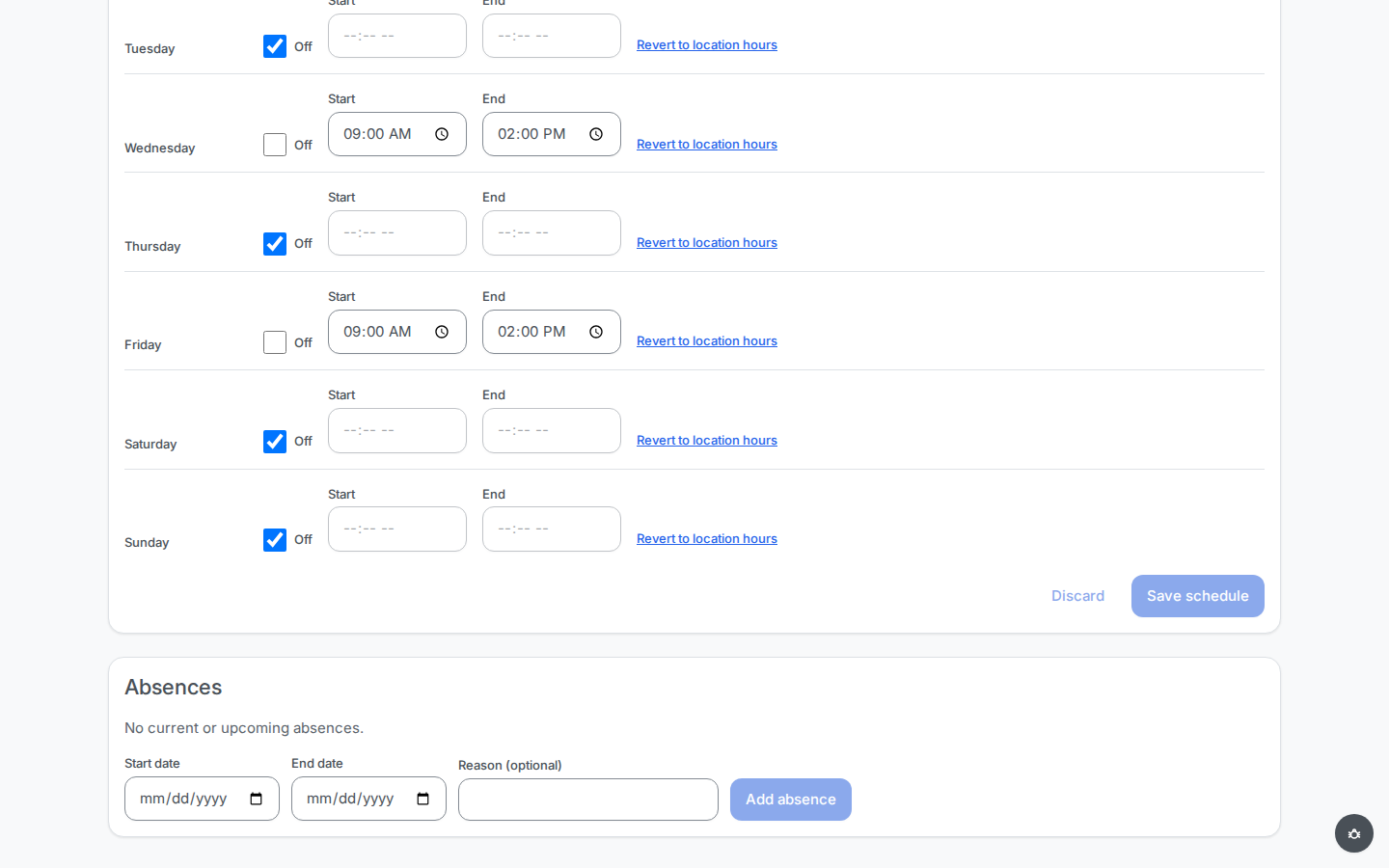
In the Schedule section of the operator's page, each day shows either the inherited branch hours or a custom value.
To customise a day, enter explicit Start and End times, or tick Off. Customised days keep their values even when branch hours change.
Revert to location hours on a day removes the customisation and returns it to following the branch.
The schedule governs appointment capacity, not the operator's live presence: it decides which appointment slots customers can book with this operator, but it never signs them in or out. An operator who starts early or stays late stays available, and one who is inside their scheduled hours but has not opened the console is not.
Bookable slots are always bounded by the branch's own working hours: a custom schedule can narrow or shift an operator's coverage within an open day, but it cannot create slots on a weekday the branch marks closed, nor on a holiday closure date, which overrides all schedules.
Absences
Record vacations and sick leave in the Absences section at the bottom of the operator's page: start date, end date (the same date for a single day), and an optional reason.
 Open full-size screenshot (new tab)
During an absence the operator is excluded from matching and from appointment capacity, and their console status is forced offline — without closing the branch. Notes:
- Absences cannot overlap for the same operator, and cannot start in the past.
- If an absence would strand already-booked appointments, the save stops with a count; confirming cancels those bookings and emails the affected clients.
- To end an absence early or change it, Remove it (and re-create if needed).
Move, pause, or remove an operator
- Reassign to another branch (organisation admin): the operator keeps their name and employee ID, but windows, schedule, and services and languages are branch-bound and reset — reconfigure them at the destination. Blocked while the operator is serving a client.
- Deactivate pauses the operator: they drop out of matching and cannot open the operator console, but reactivating restores their windows, services and languages, and schedule as they were. Blocked while serving; a client already called returns to the queue with their place kept.
- Remove the Operator role (organisation admin, on the operator's page) deletes the branch profile for good — for someone who keeps another role but stops working the counter. If Operator is their only role, deactivate the account instead.
Passwords
- Initial passwords are one-time. Whether set in an invite dialog, an operator create, or a CSV import, the person must set a password of their own at first sign-in before reaching any console.
- Self-service change. Any signed-in team member with a password can change it from the console by entering the current and a new password (at least 12 characters; well-known breached passwords are rejected). Other active sessions are signed out and the person is notified by email — the standard response to a suspected leak.
Result
Every person in the workspace is one account with one management level and the right roles: pending invites are recoverable, operators carry complete profiles with schedules that follow branch hours by default, absences keep matching honest without closing a branch, and no admin-known password outlives its first use.
Common problems
- "Email already in use" — the address already has an account in your workspace; change its roles rather than re-inviting. For a pending invite, use Resend or Cancel.
- A resend is refused — resends are rate-limited; wait for the cooldown shown in the message.
- An operator never gets clients — their profile is missing a window, language, or service, an absence is active, or they have not opened the console (or ended their shift in it). The readiness checklist shows profile gaps.
- An invited operator is missing from the list — the list defaults to Active; switch the status filter to Invited.
- Deactivation is refused — the operator is mid-service; let them complete or transfer the client first.