

Book an appointment
Your workspace has a public booking page where clients reserve a time slot at any of your branches — a three-step wizard in your branding, open from any phone or computer, with no app and no sign-in. This page walks through the flow as your client experiences it.
Prerequisites
- A branch with working hours configured — slots exist only within them.
- At least one service with operators assigned and scheduled — a service nobody can serve offers no bookable times.
- The booking page link published where your clients will find it — your website, an email signature, a social profile.
The flow
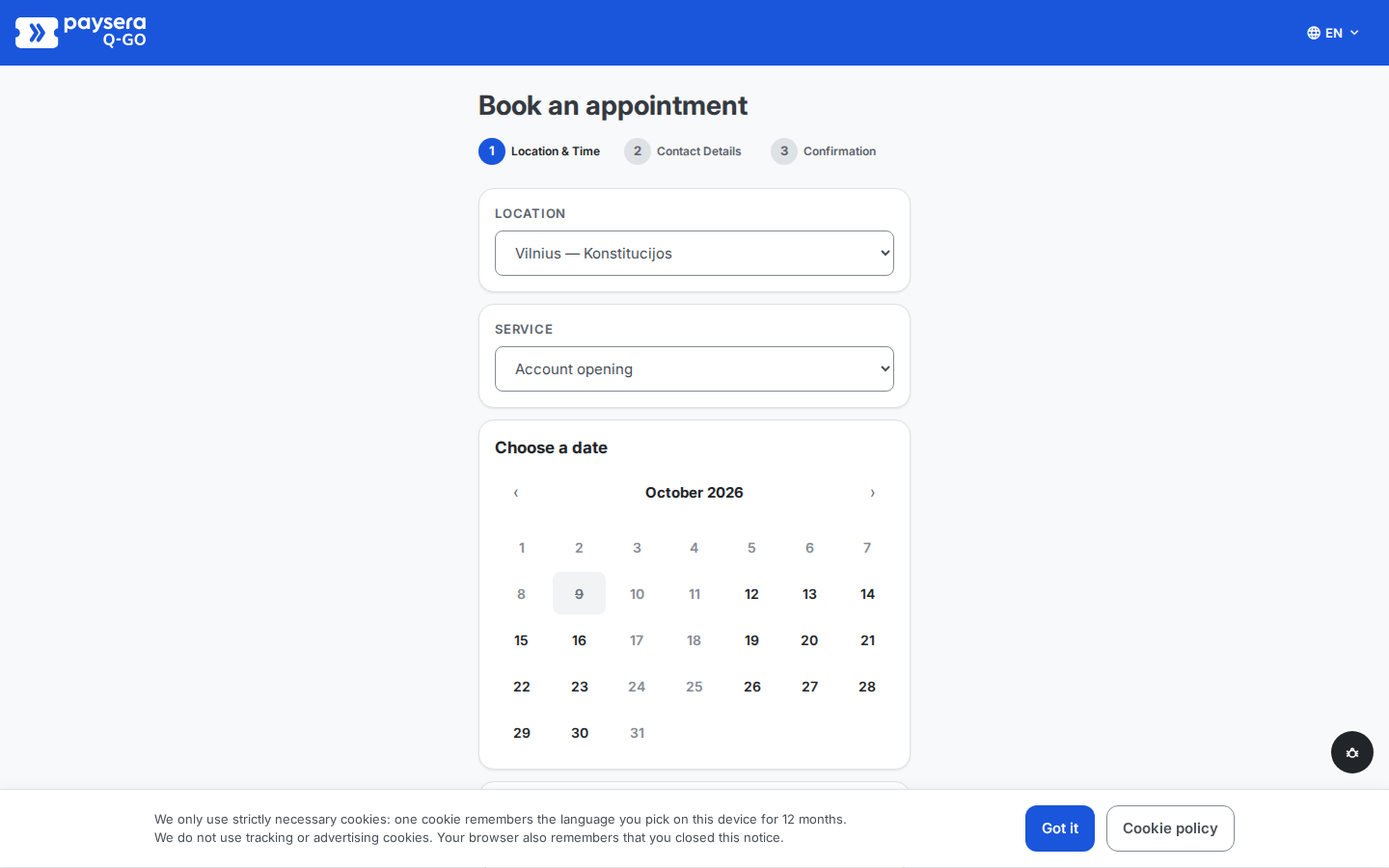
The client opens the booking page. It is a wizard with three numbered steps — Location & Time, Contact Details, Confirmation — with the current step highlighted and completed steps ticked off. The header carries a language switcher offering the languages you enabled for the web-booking surface (Languages); switching re-renders the whole page, service names included, without losing any progress.
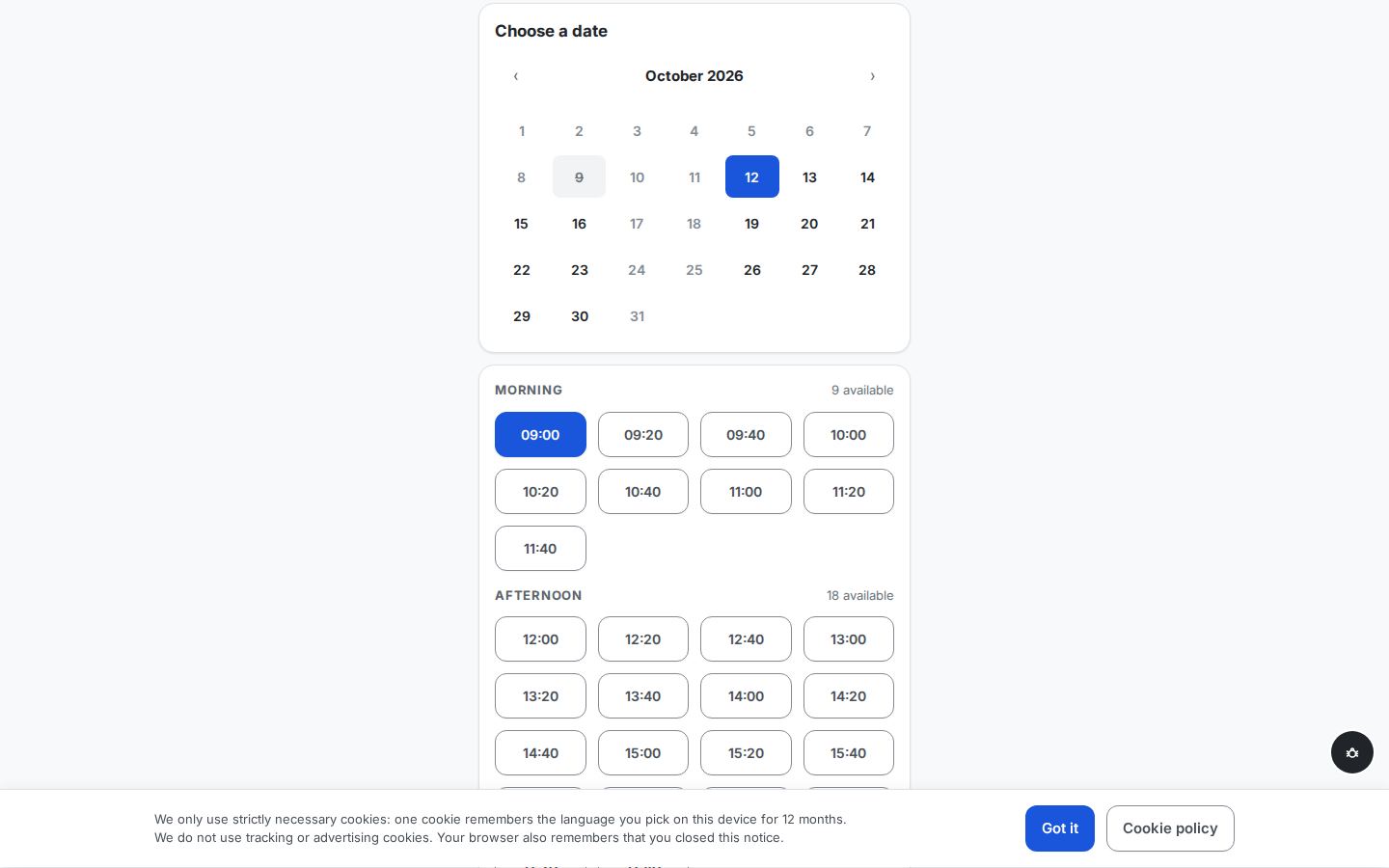
The client picks the location and the service from the two dropdowns, then a date in the Choose a date calendar. The calendar only reaches as far ahead as the branch's booking window allows — 30 days by default, configurable per branch from 1 to 365 — and days when the branch is closed (a non-working day, a holiday or closure) cannot be selected.
The available times for that day load below the calendar, grouped into Morning and Afternoon with a count of open slots in each. Each slot is as long as the service's typical duration, and a slot stays offered while at least one assigned operator is still free at that time. Once the branch has enough booking history, one slot may also carry a recommended badge — the historically quietest hour for that service, for clients whose schedule is flexible. The badge never hides or reorders anything; every offered slot stays bookable.
When your workspace collects self-declared client details, a preferred operator choice follows the slot, defaulting to Any available — the same soft preference as at the walk-in confirmation: a nudge for matching, never a hard lock, and it never changes which slots are offered.
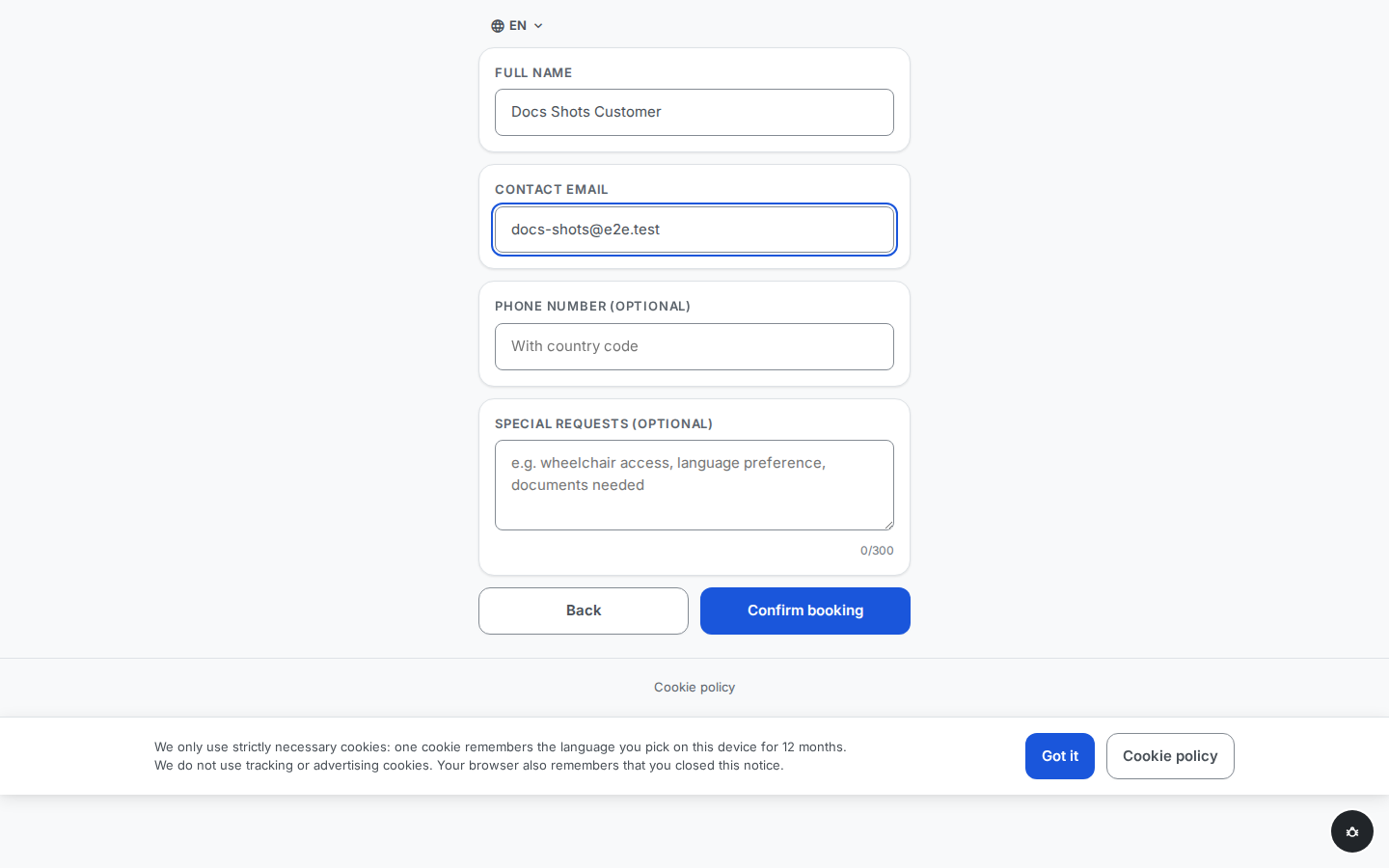
The Contact details step collects a full name, a contact email — the confirmation is delivered there, so it is required — and an optional phone number. An optional Special requests field (up to 300 characters, with a live counter) lets the client note things like wheelchair access or documents needed. The note is shown only to the operator who serves them — never on the in-branch display — and is informational only: it does not affect matching or priority.
The client presses Confirm booking. No payment is collected — the booking flow has no payment step.
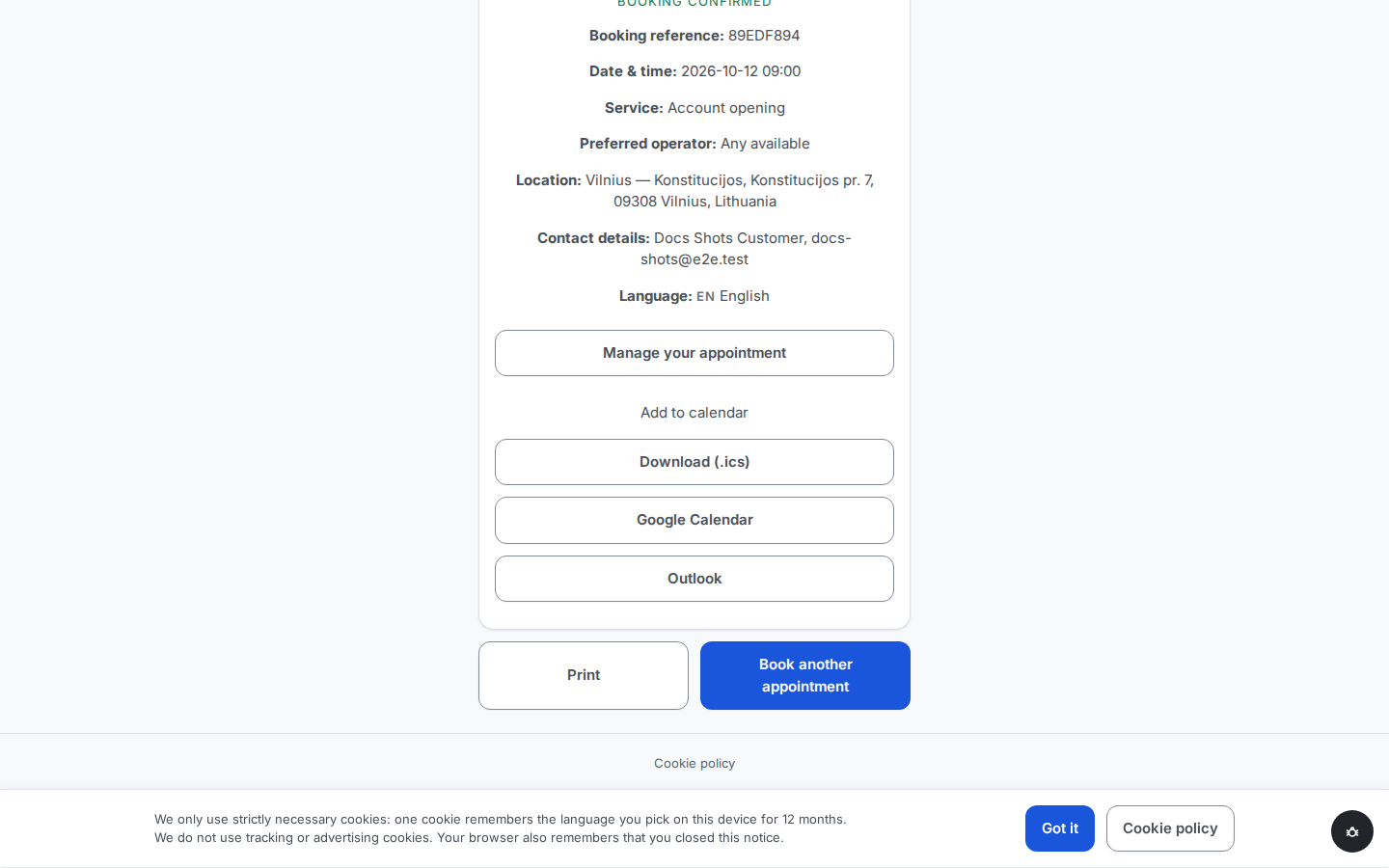
The confirmation step shows the booked appointment in full: a booking reference code, date and time, service, the preferred operator (or "Any available"), the branch name and address, the contact details, and the page language. From here the client can open Manage your appointment, add the visit to their calendar — Download (.ics), Google Calendar, or Outlook — Print the confirmation, or Book another appointment.
A confirmation email arrives at the given address, carrying the same personal manage link.
Result
The appointment is confirmed and the slot is held. Nothing shows in the branch's queue yet — the appointment turns into a live ticket near the booked time, automatically. The client keeps the manage link (on the confirmation page and in the email) for everything that comes next: Manage an appointment and arrive.
Common problems
- A date cannot be selected — it is beyond the branch's booking window, or the branch is closed that day (Holidays and closures).
- A day shows no times, or a time is missing — no assigned operator is scheduled and free then. Check the service's operator assignments and absences.
- The chosen slot is gone at confirmation — another client took the last opening first. The booking is not created; the only visible sign today is the Confirm booking button becoming pressable again. The client goes Back to the first step and re-selects the date — the times reload without the taken slot — then picks another one.
- No confirmation email — check spam, and check the address was typed correctly; the confirmation page's Manage your appointment link works regardless.