

Handle exceptions at the service window
Use this guide when a client misses a call, needs another service, or needs a specific colleague. For the normal serving loop, see Serve a client. The actions sit along the bottom of your ticket card — Pick and Recall on the card while it is free; Call Pre-registered and + sit on the waiting-queue card.
When the client does not show up
- Repeat call re-announces the client — their phone shows a reminder with your window, and you can repeat up to three times with a short cooldown between presses. Repeating does not reset the grace timer.
- No-show (after a confirmation dialog) closes the ticket as a no-show and frees you for the next client. A no-show client can simply scan the entrance QR again to rejoin the queue — or you can bring the same ticket back later with Recall.
Skip, transfer, and hand off
- Skip (after a confirmation) returns a called client to the queue with their waiting time fully preserved — for the client who stepped out for a moment. A ticket can be skipped only once; after that it must be served, transferred, or marked no-show.
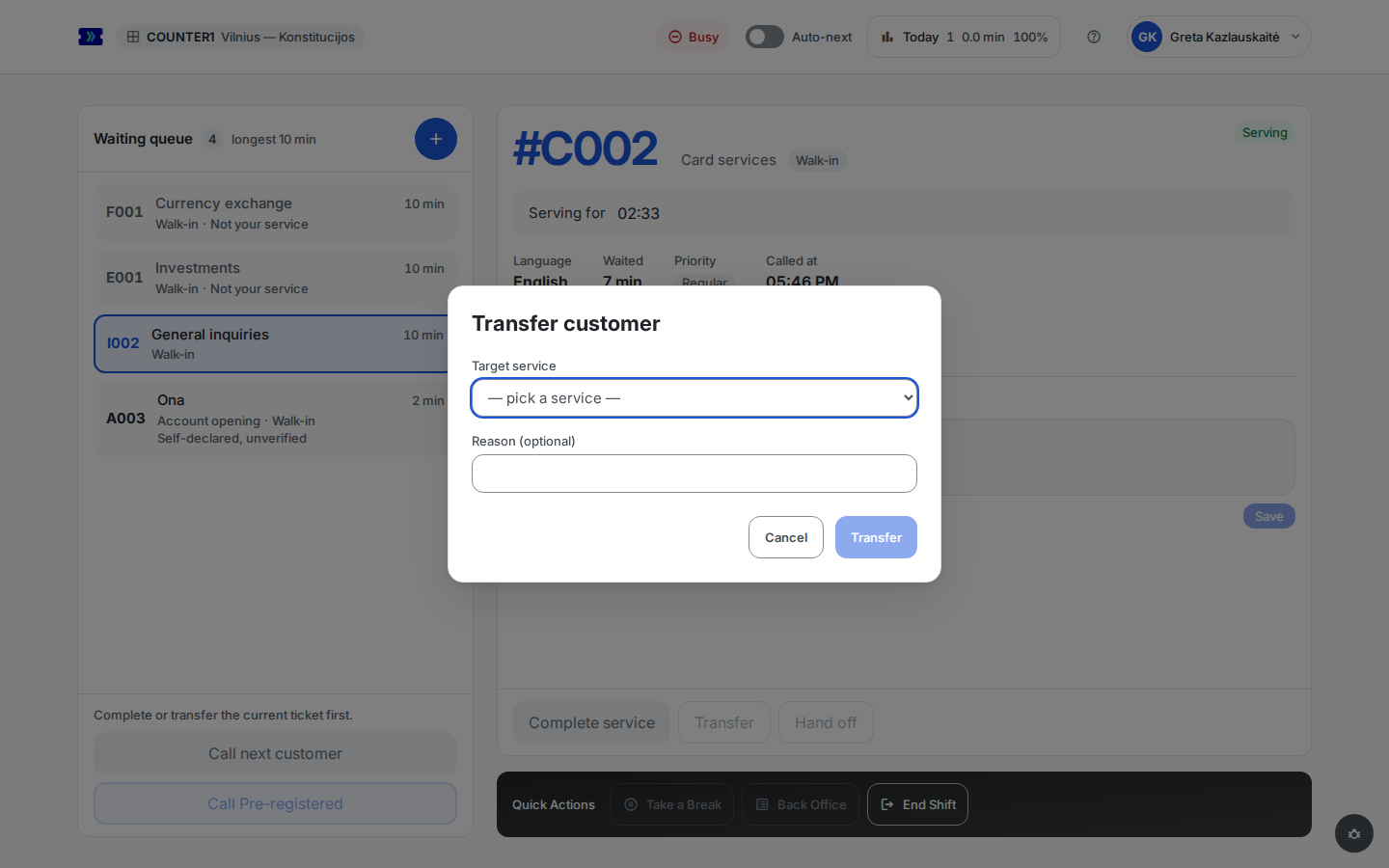
- Transfer moves the client to a different service at your branch when you cannot serve their actual need. Pick the target service, optionally add a short reason for the next operator, and confirm. The client keeps their place in line and their ticket number; if no qualified colleague is currently available for the target service, the console warns you and the button reads Transfer anyway.
 Open full-size screenshot (new tab)
- Hand off gives the client to a specific colleague — a specialist, a language match, an agreement between the two of you. The picker lists the operators at your branch who are available or busy, with their status and window. An available colleague gets the client called to their window immediately; a busy one gets the client reserved as their very next call. Your note and the client's waiting credit travel along.
Pick a specific client, and Recall
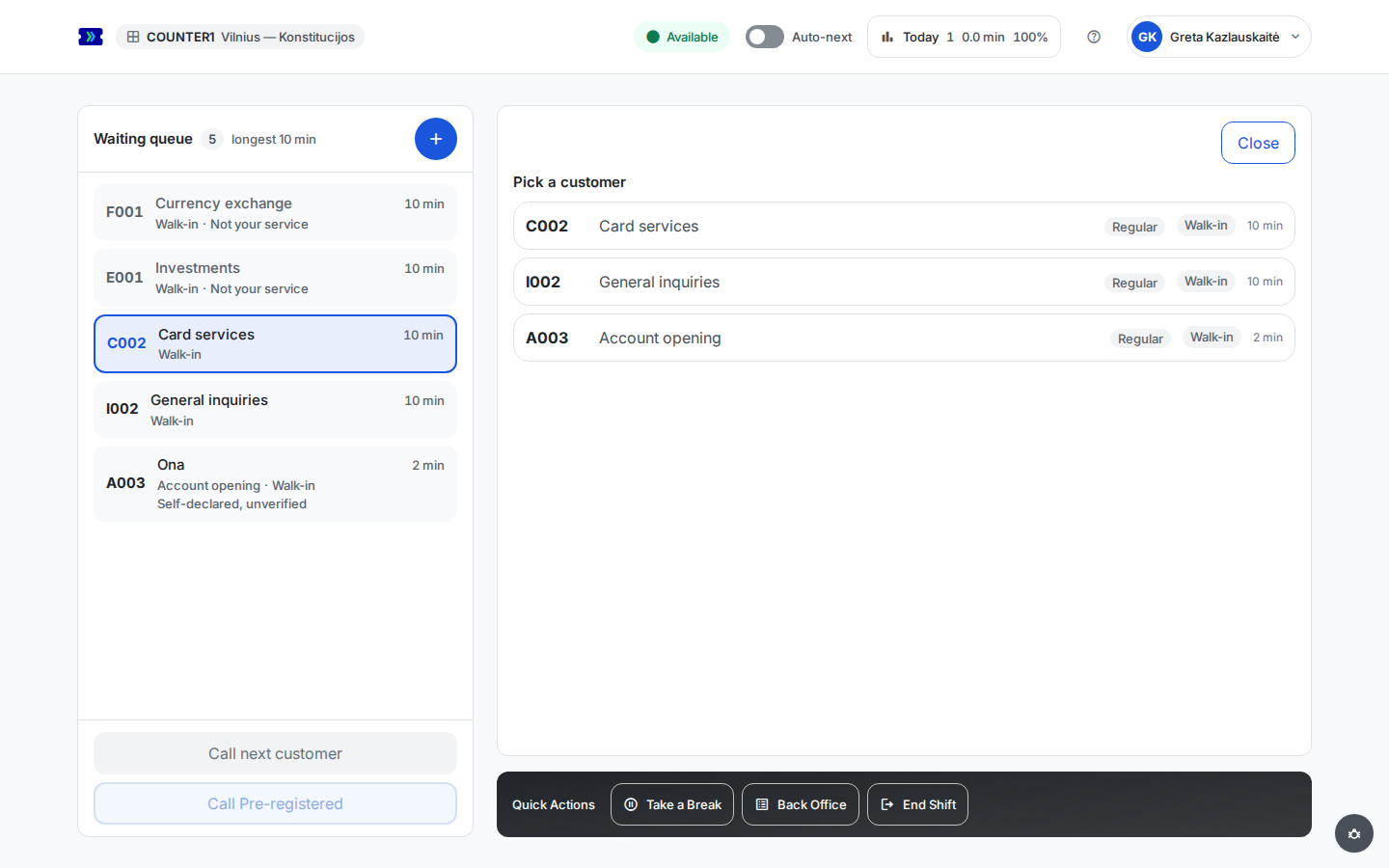
- Pick (on your ticket card while it is free) opens the waiting list for your services so you can call a specific client instead of letting the rules decide — a returning client who just stepped out, a colleague's verbal hand-over. Clicking a row calls that client exactly like Call next customer does. Clicking a ticket you can take directly in the waiting queue does the same — on hover such a row shows a Pick chip.
 Open full-size screenshot (new tab)
- Recall opens today's list of completed and no-show tickets at the branch. Re-calling one brings the client back into your serving flow under the same ticket number, with a fresh announcement on the display — for the client who missed their call or returns for a follow-up, without registering anew. Unlike Pick, a row here asks first ("Recall … again?") and waits for you to confirm, because the announcement goes out to the whole waiting room a second time.
Call a booked client early or late
- Call Pre-registered, at the bottom of the waiting-queue card, opens Today's appointments: today's appointments at your branch that are still to be called — booked, waiting in the queue, or marked a no-show — in slot order, each with its ticket number (a dash until the appointment has entered the queue), the client's name when known, the service, the booked time, and a status — Booked, Activated, or No-show.
- Press Call on a row to call that client to your window straight away — ahead of their booked time, or late, even after the no-show grace has closed or the appointment was marked a no-show. It works like any other call from there.
- A row can be called only while you are available, hold no ticket, and are assigned to its service; other rows stay listed for awareness and say why they cannot be called.
Notes for the next operator
- Every called or serving ticket carries a free-text Note field ("Add a note for the next operator…", up to 500 characters). Save a note before skipping or transferring — "needs a Russian-speaking operator", "business account specialist" — and whoever calls the client next sees it, along with who wrote it and when. Notes stay inside the operator consoles of your branch; the client and the in-branch display never see them.
Add a walk-in by hand
- The + button (Add customer to queue) in the waiting-queue card's header adds a client who could not or did not scan the QR code. Pick the service (required), optionally type a name, and press Add to Queue; the ticket joins the queue as a normal walk-in. No phone link is issued — the client follows their turn on the in-branch display.
- Where your branch shows walk-in names on the TV (Names on the kiosk and the TV), the form also asks whether the client agreed to show their name there. Tick it only after telling them — otherwise the TV shows their ticket number. The box becomes available once you type a name; changing the name clears it.
Returning clients
If your workspace has client identity enabled, calling an identified client who has visited your branch before adds an expandable returning-client panel to their ticket card: how many times they have visited, their no-show tendency, their most-used services, their average service duration, and a short table of the last few visits (date, service, operator, duration). A verification badge marks an identity confirmed at queue entry, as opposed to a manually entered identifier. First-time and unidentified clients show no panel — for an unidentified client you can attach an identifier during service so the history builds up for next time. The panel is visible only to you, the serving operator.