

Set up displays and kiosks
Two devices carry your queue inside the branch: the TV display shows called tickets and the waiting queue to the room, and the tablet kiosk lets walk-in clients register — by scanning a QR with their phone or directly on the tablet screen. Both are plain web pages, so any TV or tablet with a browser works; no special hardware. An unattended tablet does need setting up so clients cannot leave the kiosk page — see Lock down the kiosk tablet.
Prerequisites
- An organisation admin sign-in, or the Location Manager role for the branch — displays and kiosks are managed in the location manager console, under Devices → TV screens and Tablets. An organisation admin can pair devices at every branch; a location manager, at the branches they are assigned to.
- The device itself, with its browser open on your workspace's display or kiosk page.
Pair and manage displays
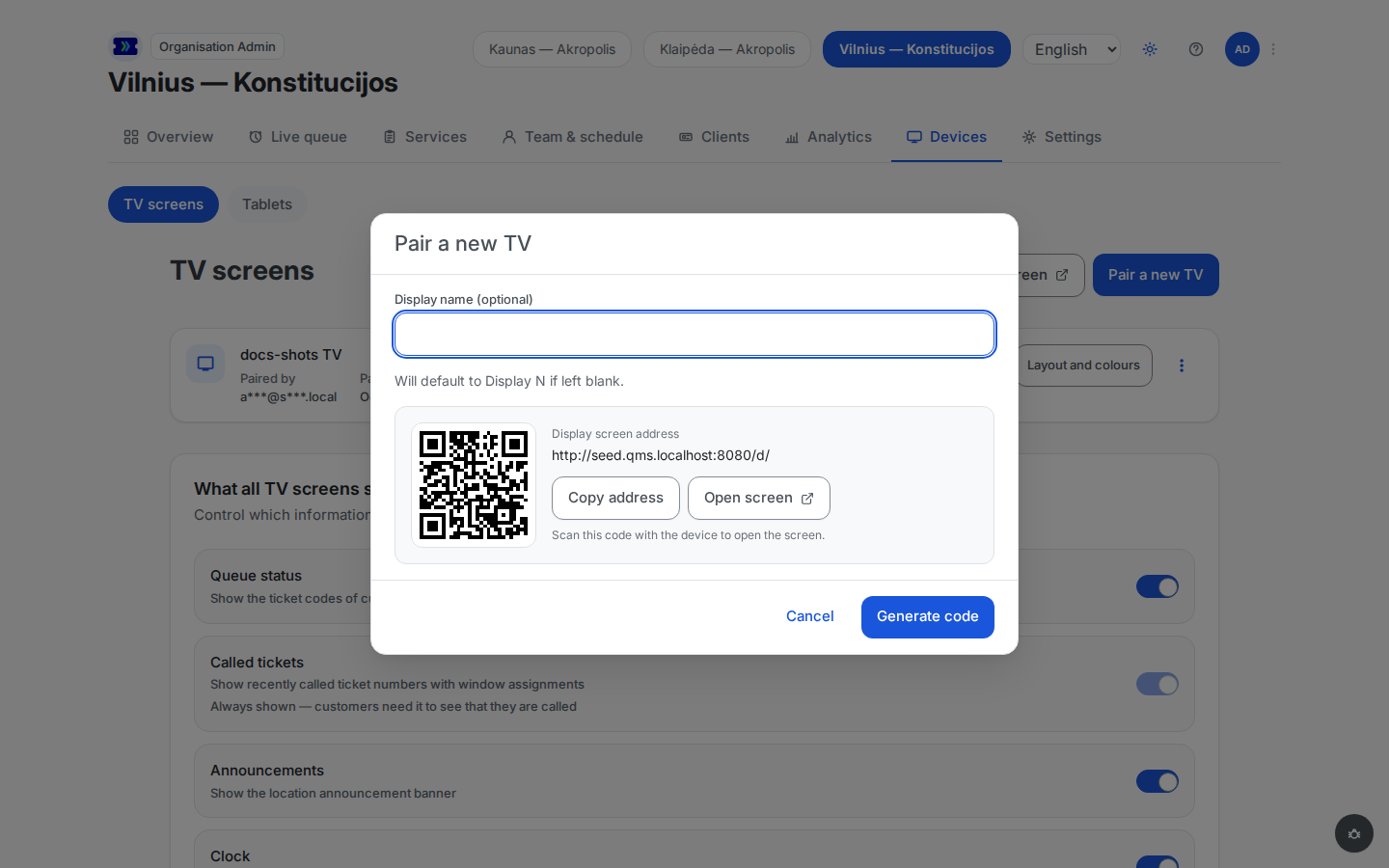
First-time pairing is a three-minute job — generate a code, type it on the TV — walked through step by step in Go live. Ongoing management happens on the same TV screens page:
 Open full-size screenshot (new tab)
- Pair a new TV issues a 6-digit code — single-use, valid 10 minutes. Several codes can be outstanding at once, so you can prepare two TVs in parallel. The optional display name defaults to Display 1, Display 2, and so on, and can be renamed later.
- The list shows each display with who paired it, when, and when it was last seen; a display silent for a few minutes gets an Offline badge (informational only — it is not unpaired). Each display's ⋮ menu holds Rename, Re-pair and Revoke.
- Revoke (in the display's ⋮ menu, one confirmation) unpairs a display immediately and takes it off the list; the TV switches to a "Display revoked — please re-pair" screen. A display that stays disconnected for over 30 days unpairs itself too, but keeps its place in the list; its TV shows "Display unpaired — please re-pair".
- Re-pair puts a TV in the place of a display already in the list — use it for a replacement TV, or for a TV that shows "Display unpaired — please re-pair". Open the display's ⋮ menu, choose Re-pair, then Generate code, and enter the code on the TV as for a first pairing; a "please re-pair" screen has no code field, so on a TV that shows one, open the display page again first. The display keeps its name and number, its layout and its colours — no new display is added to the list. The TV that showed the display until then stops as soon as the code is used and shows "Display unpaired — please re-pair"; leave that TV unpaired, as re-pairing it moves the display back to it. A revoked display is no longer in the list: open the display page on its TV again and pair it with Pair a new TV.
Layout and colours
Each TV has its own layout and colours, so every screen can suit its spot in the branch; the list shows what each display is set to.
- Layout — List shows the called tickets across the screen, with the waiting queue in a strip beneath them; Two columns shows the waiting queue in the left half of the screen and the called tickets in the right half.
- Colours — one of five colour sets: Paysera Q-GO (the default), Dark blue, Green, Red or Graphite.
To change them, click the Layout and colours button in the display's row, pick a layout and colours, and click Save. Each colour set shows its colour as a dot beside its name, and a small picture of the TV in the dialog shows the layout and colours you pick before you save. Only an organisation admin or a location manager of the branch sees the button; anyone else sees "Changed by the location manager" in its place. The change reaches the TV within a second; there is nothing to set on the TV itself. A newly paired display starts with List and Paysera Q-GO.
To give every TV of the branch the same layout and colours, tick Apply to every TV at this location before you click Save. TVs that already look like that are left alone. The copy happens once: afterwards each TV can be changed on its own again. If some TVs could not be updated, the dialog names them; click Save again to retry.
Display channels
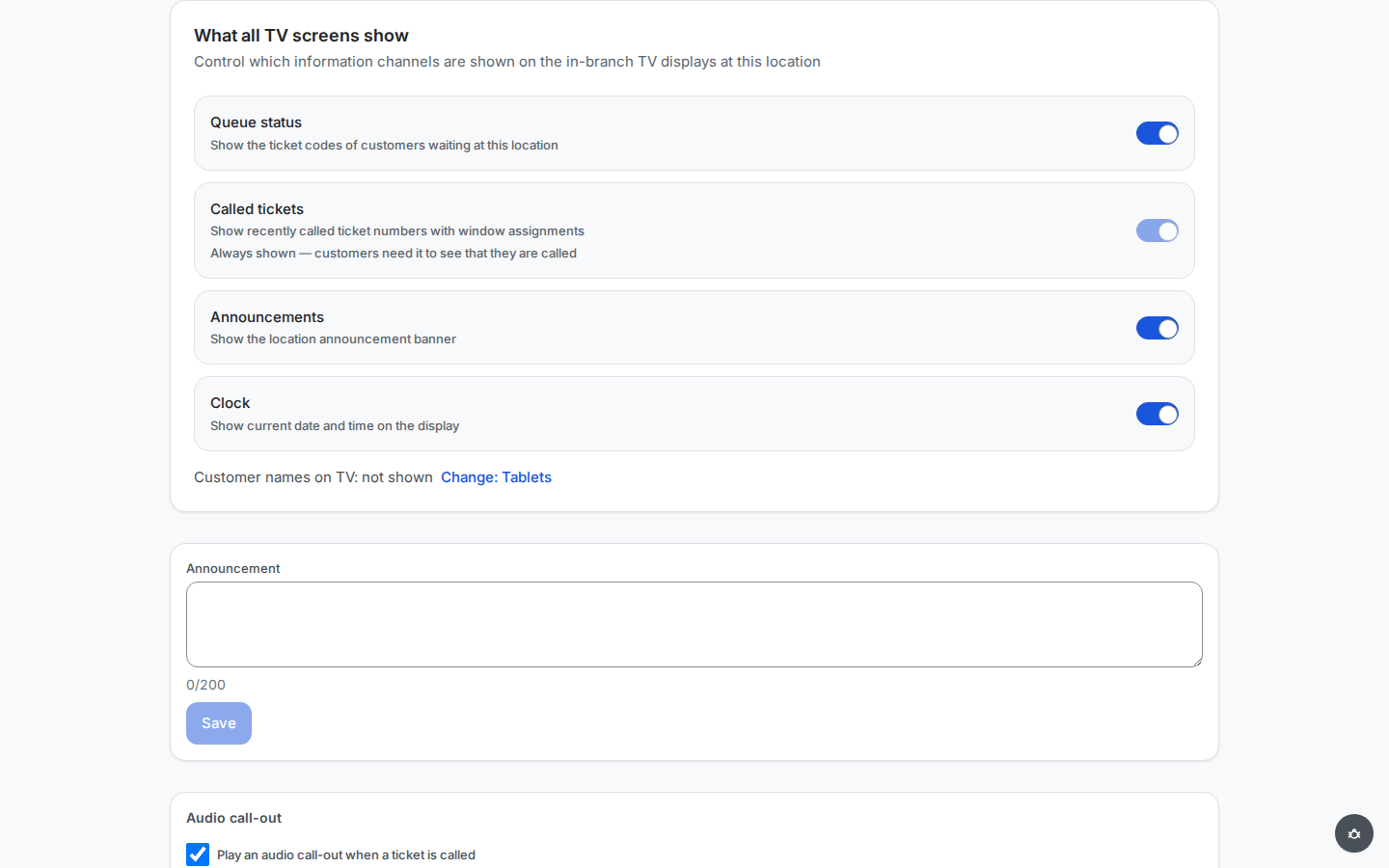
Layout and colours are set per TV; display channels decide, for the whole branch, which blocks of information every paired TV shows. They are the switches of the What all TV screens show card on the TV screens page — the page the branch's Devices tab opens.
 Open full-size screenshot (new tab)
| Channel | On the TV | When it is off | Default |
|---|---|---|---|
| Queue status | The waiting queue — the ticket codes of the clients waiting at the branch, or their names (see Names on the kiosk and the TV) | No waiting queue: the called tickets take the whole width, and waiting clients no longer keep the TV from its idle screen | On |
| Called tickets | The called tickets with their windows | Cannot be switched off — clients need it to see that they are called | Always on |
| Announcements | The branch announcement banner | No banner; the announcement text is kept and stays editable | On |
| Clock | The date and time in the header, and the large time on the idle screen | Neither shows; the rest of the idle screen stays | On |
Click a switch and the change is saved at once — there is no Save button; a message such as "Clock visibility updated" confirms it. The change reaches every paired TV at the branch within a second, and other branches keep their own settings. Only an organisation admin or a location manager of the branch can change the channels, and each change is recorded in the audit log. The integration API reads and sets them too, with the locations:read and locations:write scopes.
The card ends with a line on customer names: "Customer names on TV: shown" while the TVs show walk-in names in place of ticket numbers, and "Customer names on TV: not shown" otherwise — also when the branch is set to Collect name, show on TV but the organisation has switched name collection off. Names are set for the tablets, so the line's Change: Tablets link opens the Tablets page, which holds the name setting.
What the display shows
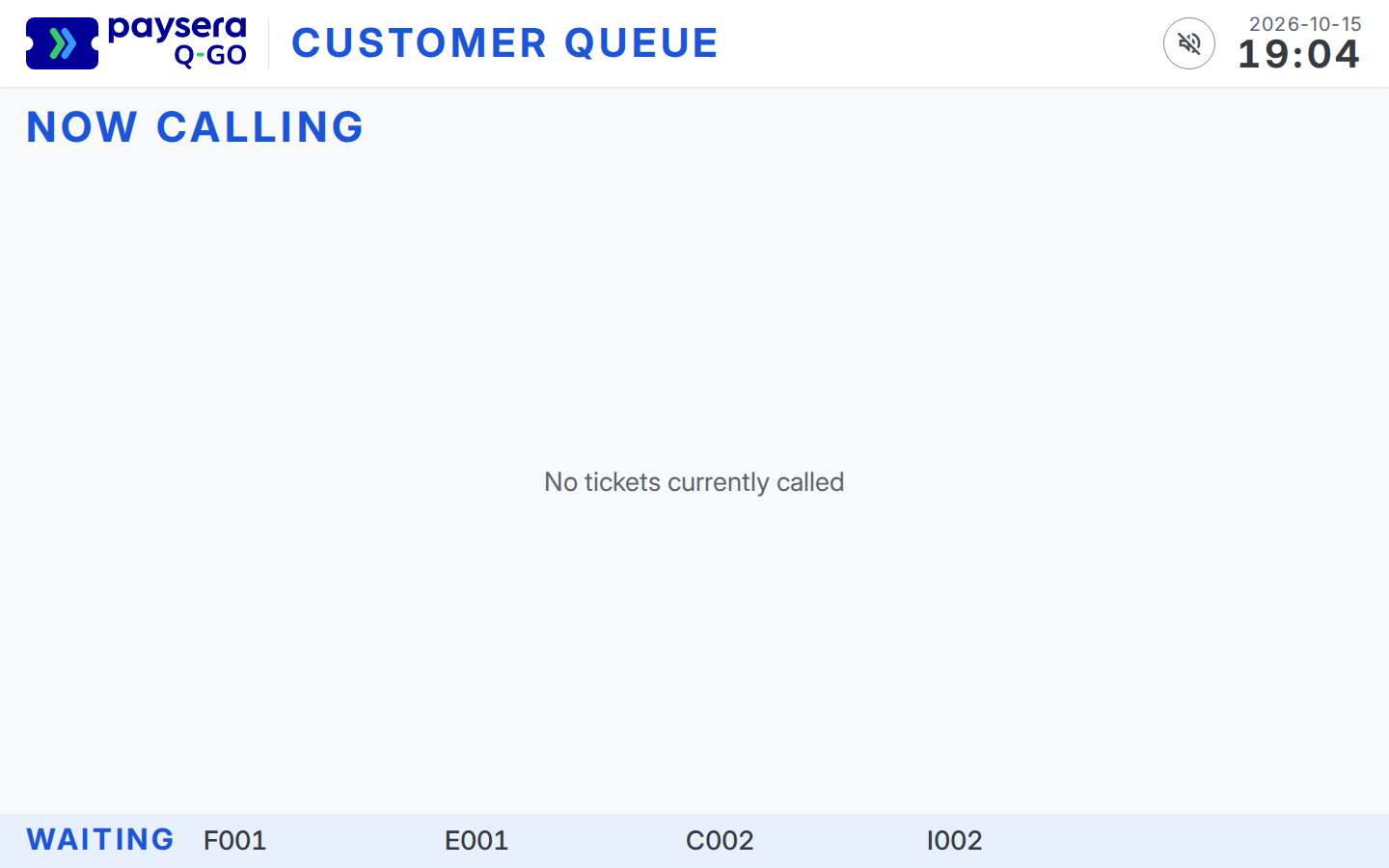
Called tickets with their window assignments and the waiting queue in order — so even clients without a phone can track their position. When nothing is being called and no waiting queue is on screen, the display idles on your logo, the branch name, and the time (unless the Clock display channel is off). With a waiting queue on screen but nothing being called, Now calling shows a "No tickets currently called" line until the next call. Privacy is built in: the display shows ticket codes and windows — never companies or client status — and a name only where you choose Collect name, show on TV, and then in place of its ticket code (see Names on the kiosk and the TV).
 Open full-size screenshot (new tab)
The display's on-screen language follows the branch's language list: the first language whose In-branch display toggle is on, as configured under the branch's language settings. A language deactivated at organisation level is skipped even when its toggle is on, and when the TV screens have no translation for the chosen language they show English. It renders a single language (no rotation), and language changes reach every paired TV within a second. For an organisation admin or a location manager of the branch, the TV screens page names the language the TVs currently show ("TV language: …") with a Change: Languages link to the branch's Languages settings — the language itself changes only there.
Announcement and audio call-out
The TV screens page also carries two branch-wide settings that shape what the TVs do — the same Announcement and Audio call-out blocks described in the branch configuration page:
- The announcement renders as a persistent banner on every paired display, in both the idle and active states, exactly as typed (it is your content, not translated), unless the Announcements display channel is off. Clearing the field removes the banner. Changes reach the TVs within a second.
- Audio call-out plays the branch's chime once per called ticket. Pick it under Chime from eight built-in sounds — Door bell (the default), Gong, Singing bowl, Glass ting, Vibraphone, Double ping, Two bells and Xylophone — and press Preview to hear it in your browser at the selected volume before you save; no TV needs to be paired for that. A changed chime reaches the TVs within a second. With sound type "chime + voice" the display also speaks the ticket code and window (for example "A042, window 3") in the configured voice language, drawn from your workspace catalogue — except in a branch set to Collect name, show on TV, where every call sounds the chime only. Volume has three levels — the TV's own volume setting still applies on top.
Browsers block sound on pages nobody has touched, so a display whose browser has just started shows a round button with a crossed-out speaker near the top right of the screen. Tap it — or anywhere on the board — once on the TV; from then on call-outs play automatically. If the TV has no voice available for the configured language, the chime still plays on its own.
The button comes back every time the TV's browser restarts (a power cycle, a nightly reboot, a crash) and every time the display page reloads itself to pick up a QMS update, and the TV stays silent until someone taps it again. To make a TV play sound by itself after a restart or an update, start its browser with autoplay allowed for your QMS address:
- Chrome / Chromium — launch it with
--autoplay-policy=no-user-gesture-required, or on managed devices add the QMS address to theAutoplayAllowlistpolicy. - Firefox — set
media.autoplay.defaultto0(allow audio and video).
The display tries to start sound on its own every time it loads, so with either setting in place the button never appears. Setting this up is done on the TV itself, by whoever manages the device.
The tablet kiosk
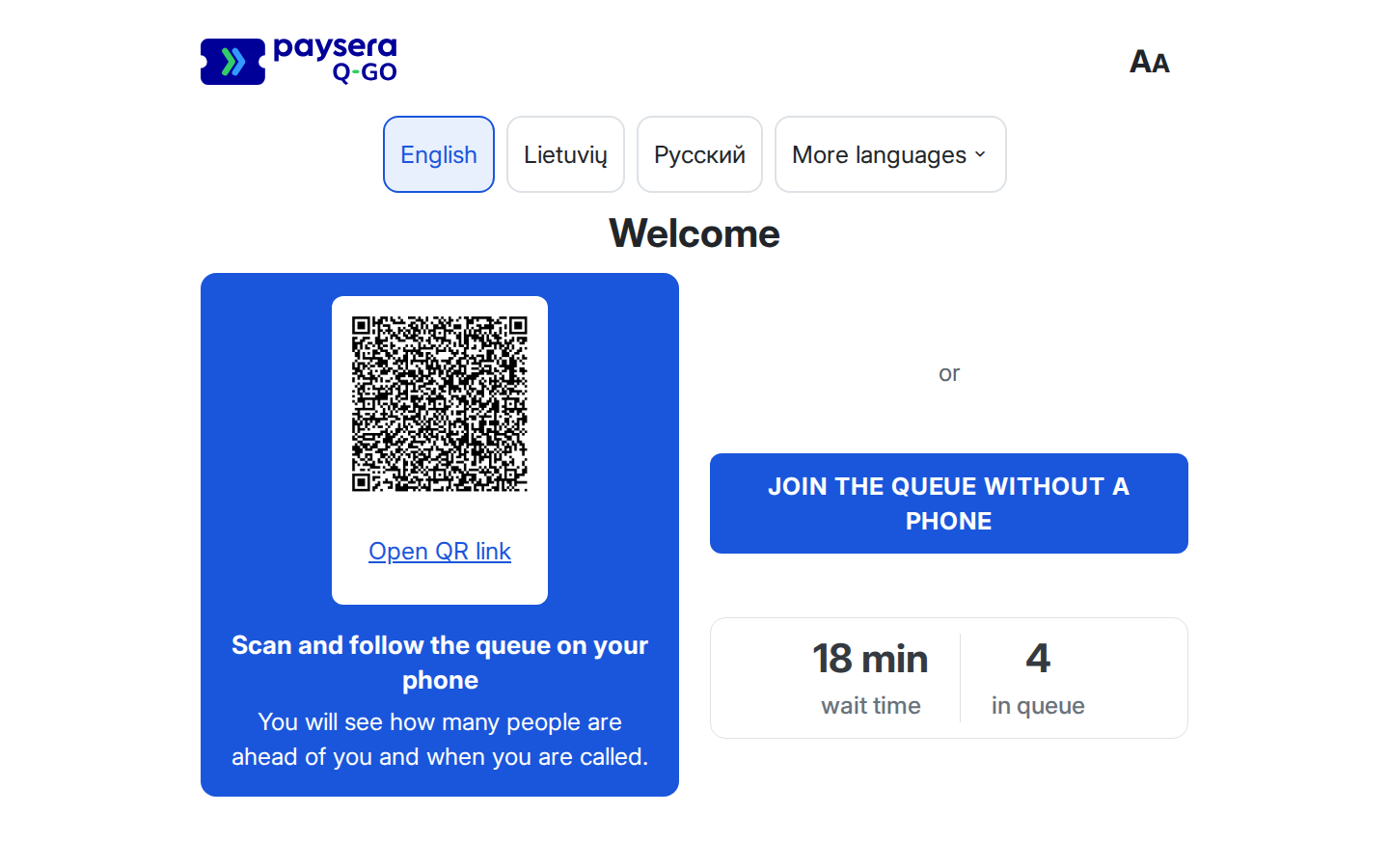
A paired kiosk greets walk-in clients with language buttons and two ways in — scan the rotating QR code with a phone, or tap Join the queue without a phone to register right on the screen — plus the current queue size and wait estimate. Each paired kiosk is managed from the Tablets page under Devices. The tablet can stand upright or on its side; every screen fits either way.
 Open full-size screenshot (new tab)
On-screen registration is a short guided flow:
The client picks a language on the welcome screen — one button for each language whose Tablet kiosk toggle is on for the branch, in your order, each written in its own language. The screen starts in the branch's default kiosk language and does not change by itself.
They pick a service from the branch's list, in the order you configured; a Back button at the top left returns a step.
Unless the branch is set to Ticket number only, a "How should we call you?" step follows, and the client must enter a name, a company name or any word before Register issues the ticket — see Names on the kiosk and the TV.
The confirmation shows, in large type, exactly what the TV will show for this client, followed by the service, how many people are ahead, the estimated wait, and what to do next. Done returns to the welcome screen.
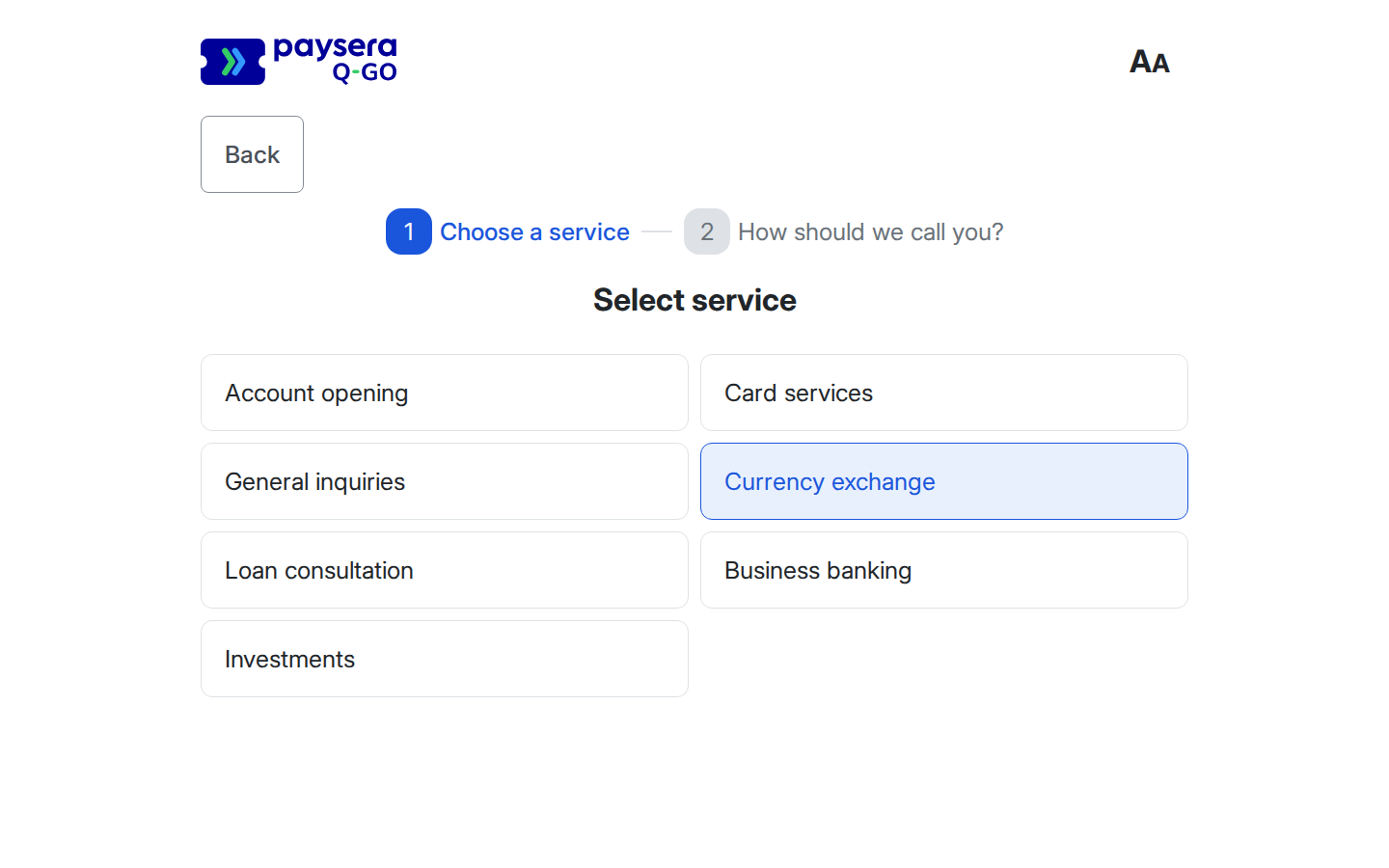
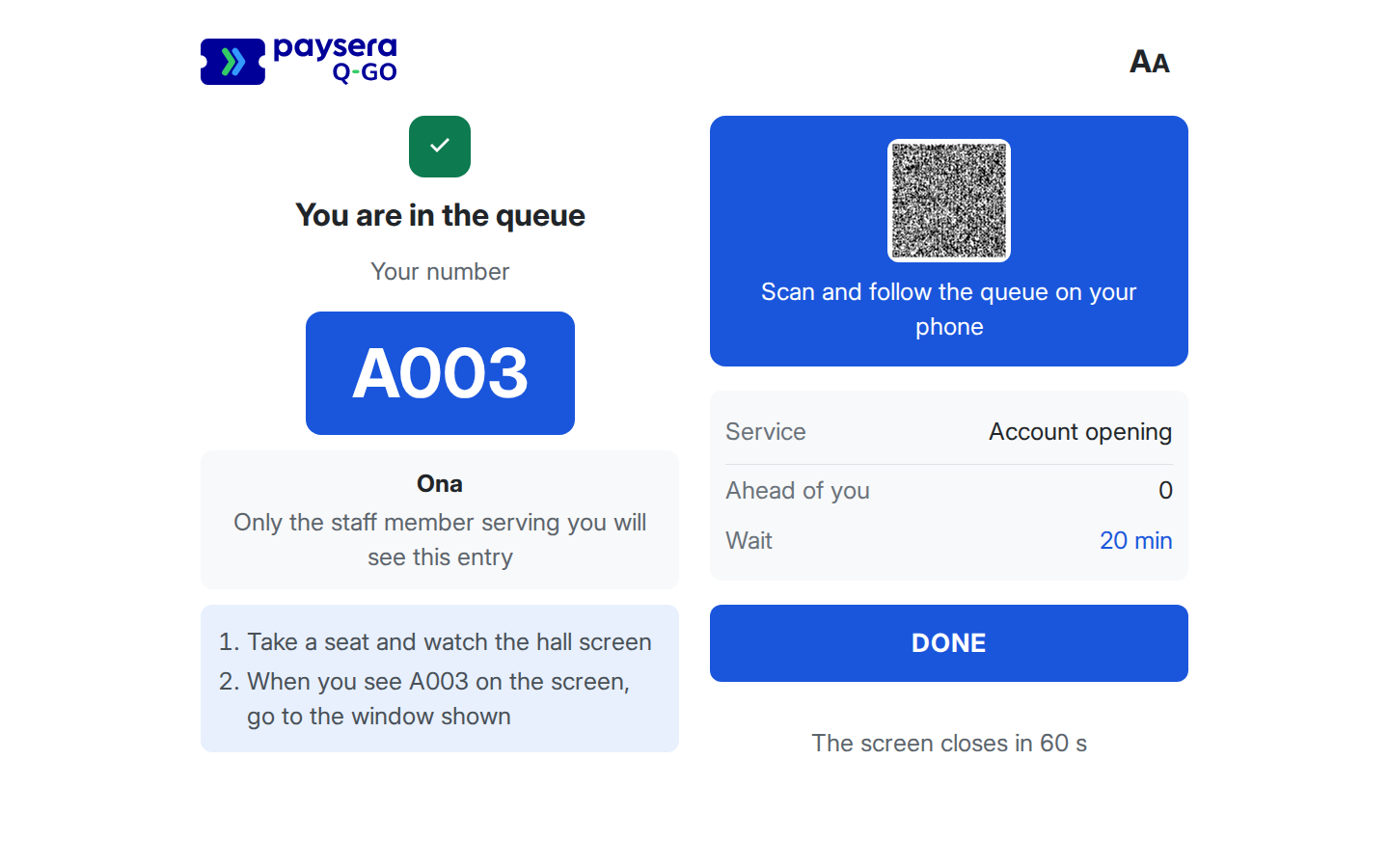
An AA button on every kiosk screen enlarges all text for clients who need it. On a day the branch is closed, the welcome screen shows a "Location closed today" message instead of the ways in. Under Sign-in required, the kiosk shows only the QR code for the phone, with no on-screen registration. Register at the kiosk walks through every screen as the client sees it.
The kiosk looks after itself between clients. An abandoned registration returns to the welcome screen after 2 minutes without a touch (any interaction restarts the timer) — nothing is issued and nothing needs cancelling. The confirmation screen returns on its own after 60 seconds without a touch (any touch keeps it open), or as soon as the client taps Done; the issued ticket stays in the queue either way. The next client always starts in the default language at the normal text size.
Pair a kiosk
- In the location manager console, open the branch, then Tablets under Devices, and click Pair a new tablet.
- Optionally give the kiosk a name (for example "Entrance tablet"); left blank, it is named Kiosk 1, Kiosk 2, and so on.
- Click Generate code. The dialog shows two steps: Step 1 — open the kiosk screen gives a QR code to scan with the tablet's camera and the kiosk screen address to type into its browser — your workspace address followed by
/k/, the same for every branch. Step 2 — enter this code on the kiosk gives a 6-digit code, single-use and valid for 10 minutes. - On the tablet, open the kiosk screen address. Under Pair this kiosk, enter the code and tap Pair. The tablet shows the welcome screen of the branch the code was generated for.
The tablet stays paired through page reloads and browser restarts — the pairing is kept in the browser's storage for the workspace address. Clearing that browser's site data, or opening the address in a private window, loses it, and the tablet has to be paired again.
The list on the Tablets page shows who paired each kiosk, when, and its Last heartbeat. An open kiosk screen reports in every minute; a kiosk silent for more than 5 minutes gets an Offline badge (informational only — it is not unpaired). Revoke unpairs a kiosk immediately, and the tablet shows "Kiosk revoked — please re-pair". A kiosk that stays silent for over 30 days unpairs itself, and the tablet shows "Kiosk unpaired — please re-pair". Either way, pair it again with a new code.
Names on the kiosk and the TV
The Customer name: ask on the tablet and show on TV card on the Tablets page decides, for every tablet at the branch, whether the kiosk asks for a name and what the TV shows:
| Mode | Kiosk | TV |
|---|---|---|
| Ticket number only | No name step | The ticket number |
| Collect name, show ticket number (the default) | Asks for a name; only the serving staff member sees it | The ticket number |
| Collect name, show on TV | Asks for a name, telling the client it will appear on the TV | The name alone, for example Ona, instead of the ticket number |
In both Collect name modes the name is required on the kiosk — a name, a company name or any word will do; under Collect name, show on TV the kiosk tells the client it need not be their real name. Under Collect name, show on TV every call sounds the chime only, even where "chime + voice" is set; in the other two modes the voice call-out reads the ticket number. When the organisation-wide Collect self-declared details on entry setting is off, no branch collects names and the card is locked. The TV screens page shows the outcome in its What all TV screens show card. The languages the kiosk offers are set under Services → Languages — the link beneath the card goes there.
Lock down the kiosk tablet
The kiosk is a web page, and a web page cannot stop anyone from closing it, opening another app or putting the tablet to sleep. The tablet itself can, and for free. Set it up once before the branch opens; it takes about 15 minutes.
You need the tablet on its charger, and a computer signed in to the console to pair the kiosk. Button names differ a little between tablet makers: if you cannot find one, type the word shown in bold into the search box at the top of Settings.
iPad
Once:
- Open Settings → Accessibility → Guided Access and turn Guided Access on.
- Tap Passcode Settings → Set Guided Access Passcode and enter a passcode. Write it down for your staff — do not keep it next to the tablet.
- Open Settings → Display & Brightness → Auto-Lock and choose Never.
- Open Safari, go to your workspace address followed by
/k/, and pair the kiosk.
Every time the iPad is switched on:
- Open the kiosk screen in Safari.
- Press the top button (or the Home button) three times quickly.
- With one finger, draw a circle around Safari's address bar — it stops responding to touch.
- Tap Start in the top right corner.
The iPad now shows only the kiosk screen. To leave it, press the button three times again, enter the passcode and tap End.
Android
Once:
- A screen PIN. Open Settings, search for screen lock, tap Screen lock → PIN, and enter the same 4 to 6 digits twice. Write the PIN down for your staff.
- App pinning. In Settings, search for pin and open App pinning (Pin windows on Samsung). Turn it on, and turn on Lock device when unpinning (or Ask for PIN before unpinning).
- A full-screen browser. Open Play Store, search for Fully Kiosk Browser, tap Install, then Open, and allow what it asks for. Its free version is enough. It shows the kiosk with no address bar or tabs.
- The kiosk address. Swipe from the left edge of the screen to the right to open its menu, tap Settings → Web Content Settings → Start URL, enter your workspace address followed by
/k/, and tap OK. - Full screen, always on. Still in its Settings: under Toolbars and Appearance, turn Show Status Bar and Show Navigation Bar off; under Device Management, turn Keep Screen On on. Leave every setting marked PLUS off — those are paid and put a label on the screen.
- Go back to the kiosk screen and pair the kiosk. A kiosk paired earlier in another browser has to be paired again here.
Every time the tablet is switched on:
- Unlock it with the PIN and open Fully Kiosk Browser.
- Open the list of recent apps: if the buttons at the bottom are hidden, swipe up from the bottom edge to show them, then tap the square button. If there are no buttons, swipe up from the bottom edge and hold for a second.
- Tap the small app icon above the Fully Kiosk Browser window and tap Pin.
The tablet now shows only the kiosk screen. To leave it, show the buttons by swiping up from the bottom edge, then touch and hold the back and square buttons together (or, if there are no buttons, swipe up from the bottom edge and hold), then enter the PIN. If a client does this, the tablet locks: they cannot open anything else, but the kiosk is off until your staff unlock the tablet and pin it again.
Keep it working
- Power and stand. Keep the tablet on its charger, in a stand that covers its buttons, so it cannot be switched off, unplugged or carried away.
- Browser data. Never clear the browser's data and never use a private or incognito window — either one unpairs the kiosk.
- After a power cut or restart, repeat the "every time" steps.
- Android browser menu. Fully Kiosk Browser's menu still opens with a swipe from the left edge. If a setting there was changed, repeat steps 4 and 5.
- The Offline badge. On the Tablets page a kiosk that has not reported in for more than 5 minutes gets an Offline badge: it was unpinned or closed, or the tablet fell asleep or lost its network. Check the page during the day.
A stronger lock (paid)
The free lock keeps clients out of every other app, but on Android a client can still stop the kiosk, and after a restart someone has to pin it again. Where the kiosk stands without staff nearby, or for many tablets, a paid tool locks the tablet completely — the buttons are blocked, settings sit behind a PIN, and the kiosk starts by itself after a restart:
- Android — the paid PLUS licence of Fully Kiosk Browser turns on its Kiosk Mode; for many tablets, enrol them as dedicated devices in a device management service.
- iPad — supervise the iPads through Apple Business Manager and lock them to the kiosk with Single App Mode from a device management service.
Result
The branch runs itself on screen: the TV announces and displays every call (with your logo when idle), and the kiosk registers walk-ins in any branch language and resets for the next client — with pairing, renaming, and revoking all one click away in branch settings.
Common problems
- "Pairing code is invalid or expired" — codes are single-use and last 10 minutes; generate a fresh one and enter it promptly.
- A display shows the Offline badge — the branch has not heard from that TV recently. Check it is on, connected, and still has the display page open.
- No sound from the display — the one-time enable-sound button (the crossed-out speaker) was never tapped on that TV, the audio call-out is switched off, or the TV's own volume is down.
- The voice announcement doesn't speak — the TV's browser has no voice for the configured language; the display falls back to the chime alone.
- The TV went back to List after an update — someone had picked the layout on the TV's own screen before, and the TV no longer keeps a layout of its own. Set it once in Layout and colours.
- The TV shows no waiting queue, clock or announcement — that block's display channel is switched off for the branch. Switch it on under Devices → TV screens, in the What all TV screens show card.
- A TV still shows the old look after a QMS update — a TV picks up an update by itself within about a minute, as soon as no call is being announced. If it has not after five minutes, check that it is online (no Offline badge) and still has the display page open. If it is online and still shows the old look, reload the display page on the TV once; from then on it updates by itself.
- A kiosk shows the Offline badge — the tablet has not reported in for more than 5 minutes: the kiosk screen was closed or left, the tablet is asleep, or it is off the network. Bring the kiosk screen back and lock the tablet down so it cannot happen again.
- The kiosk asks to be paired again — the browser's site data was cleared, a private window was used, or the kiosk was revoked. Pair it with a new code and keep the browser data.
- A language is missing on the kiosk — its Tablet kiosk toggle is off in the branch's language settings.