

Create your first branch
Everything client-facing in Paysera QMS — queues, appointments, displays, kiosks — belongs to a branch (a physical location of your organisation). This page takes you from an empty workspace to a branch with services, working hours, and service windows.
← Launch checklist · Next: Invite your team
Prerequisites
- An administrator sign-in for your workspace.
- At least one service on the Service catalogue page. A branch offers services from this workspace-wide catalogue, so create your services there first — create a service with a name, a short code, and a default duration.
Create the branch
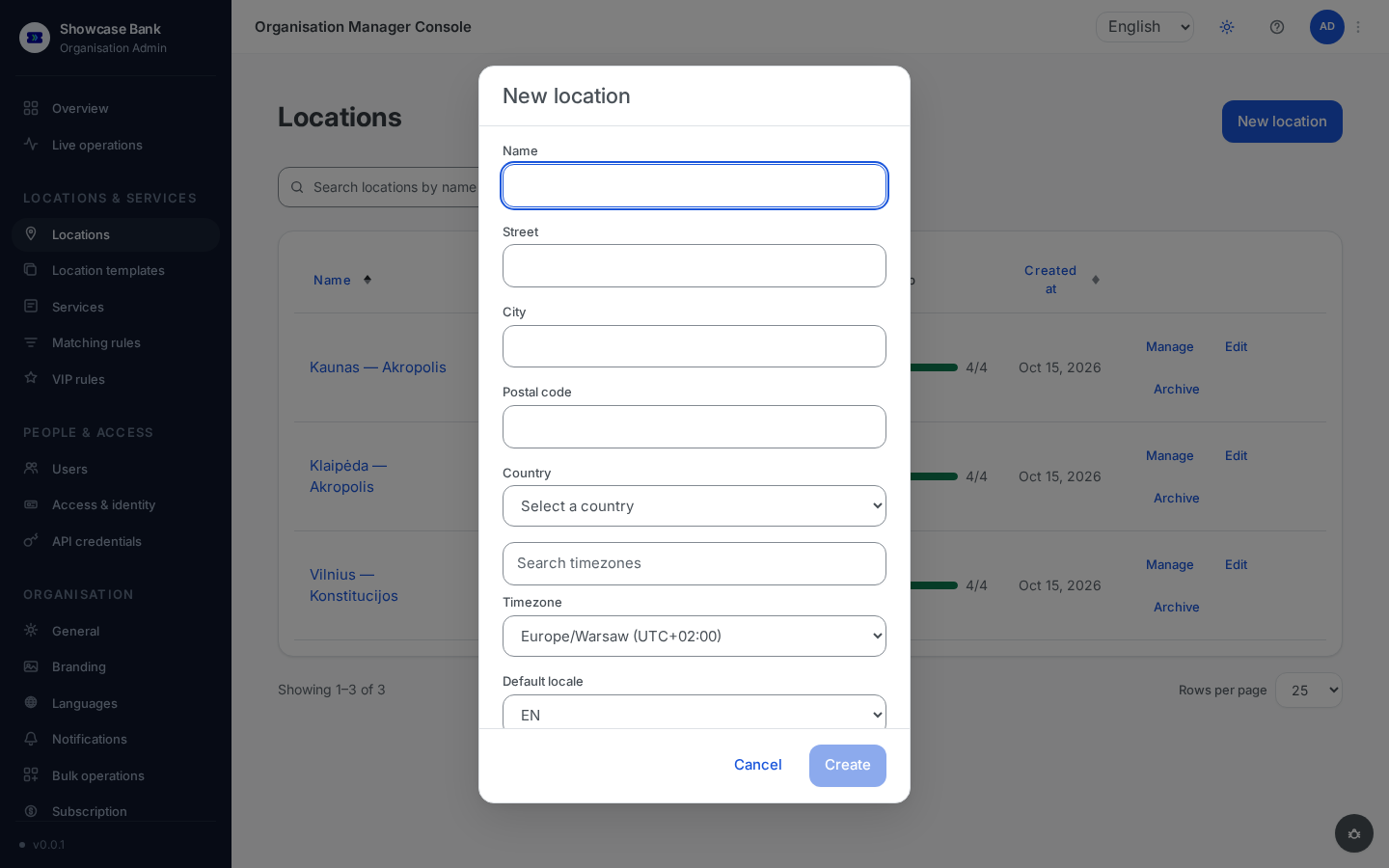
In the sidebar, open Locations and click New location.
Fill in the form:
- Name — shown to your clients; unique within your workspace.
- Street, City, Postal code, Country — the branch address as clients should see it.
- Timezone — working hours and reports use this timezone.
- Default locale — the language clients see first at this branch.
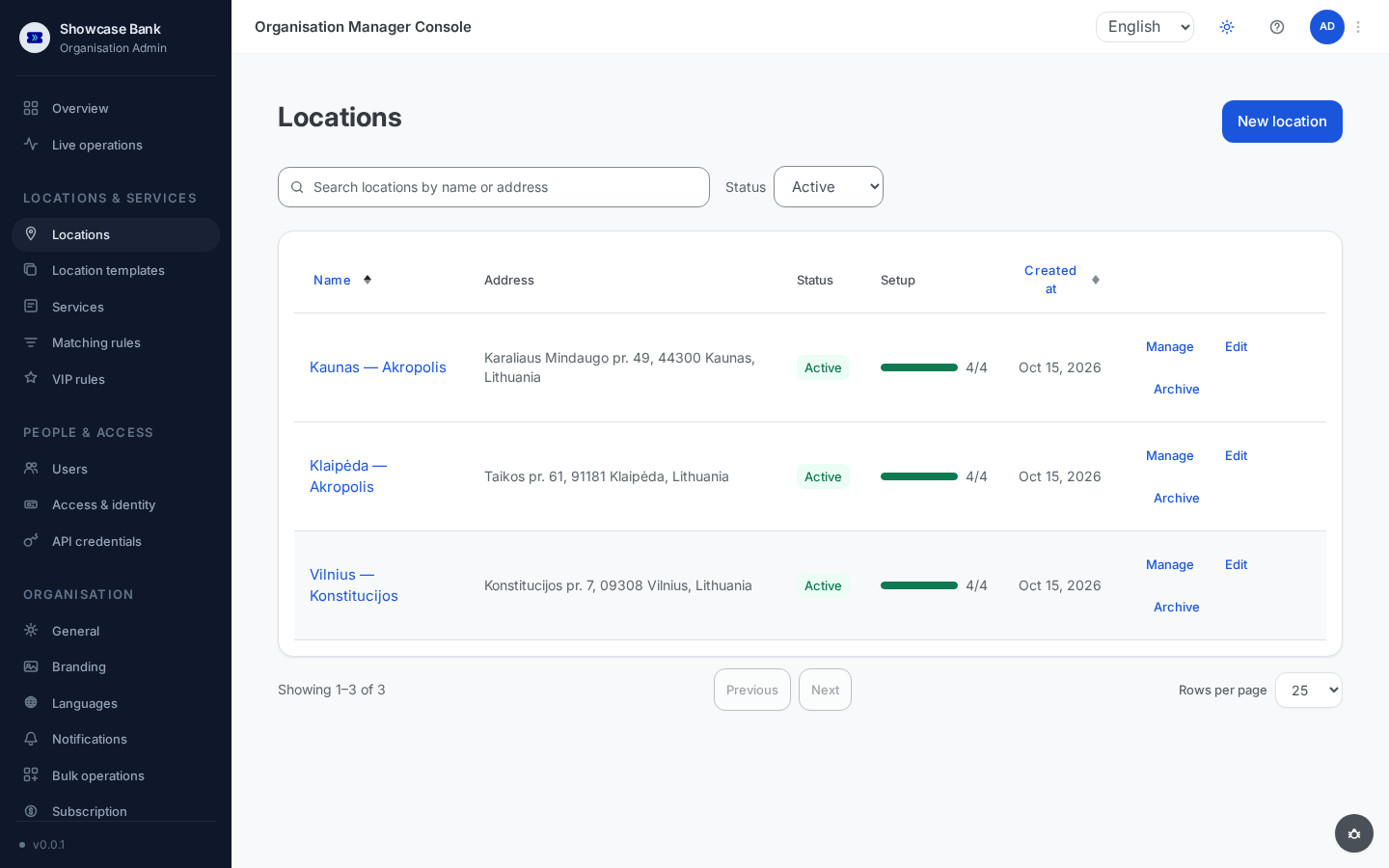
Click Create. The branch is active immediately and appears in the Locations list. The Setup column tracks how many of the four required setup steps are complete — a brand-new branch starts below 4/4.
Attach services
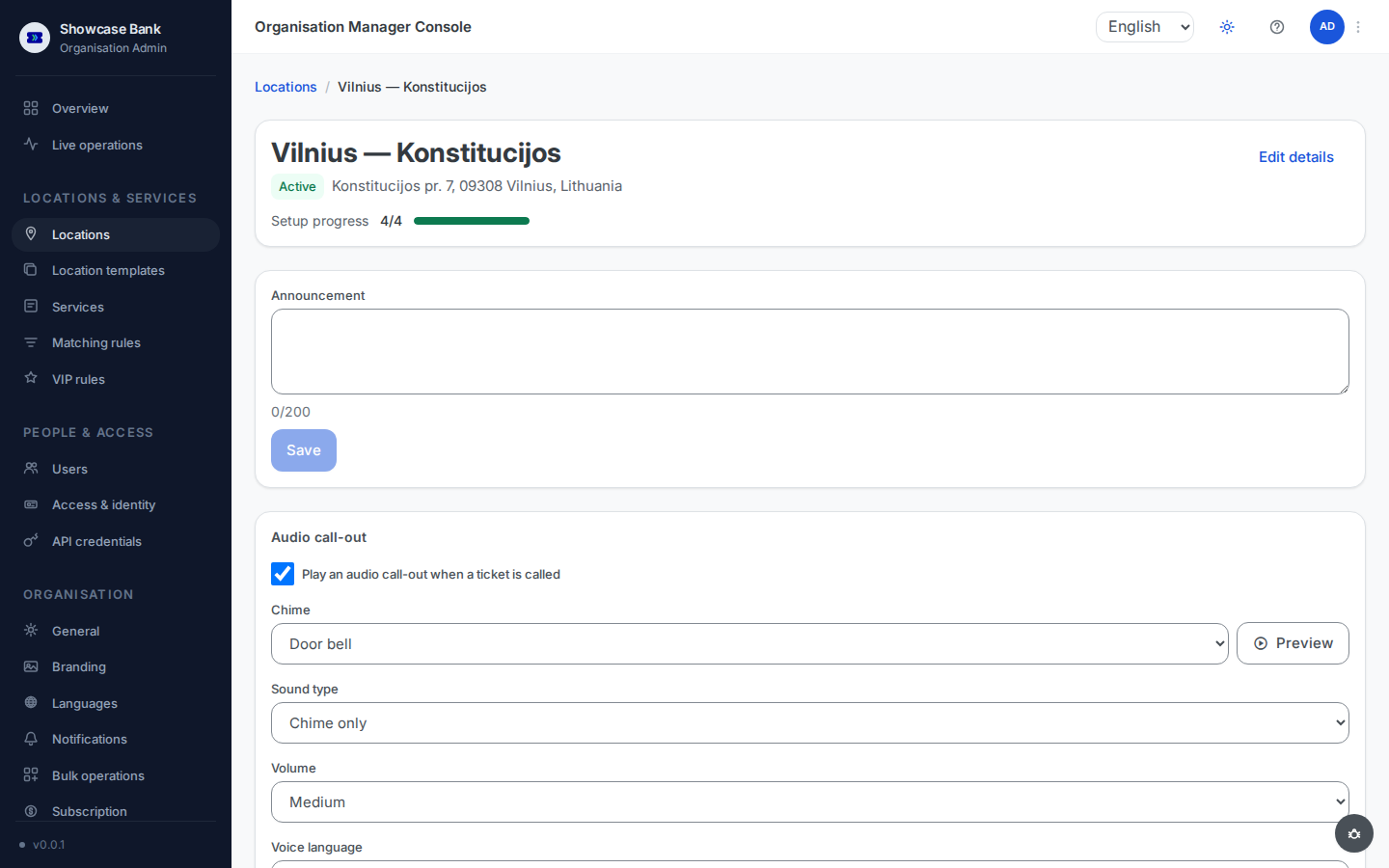
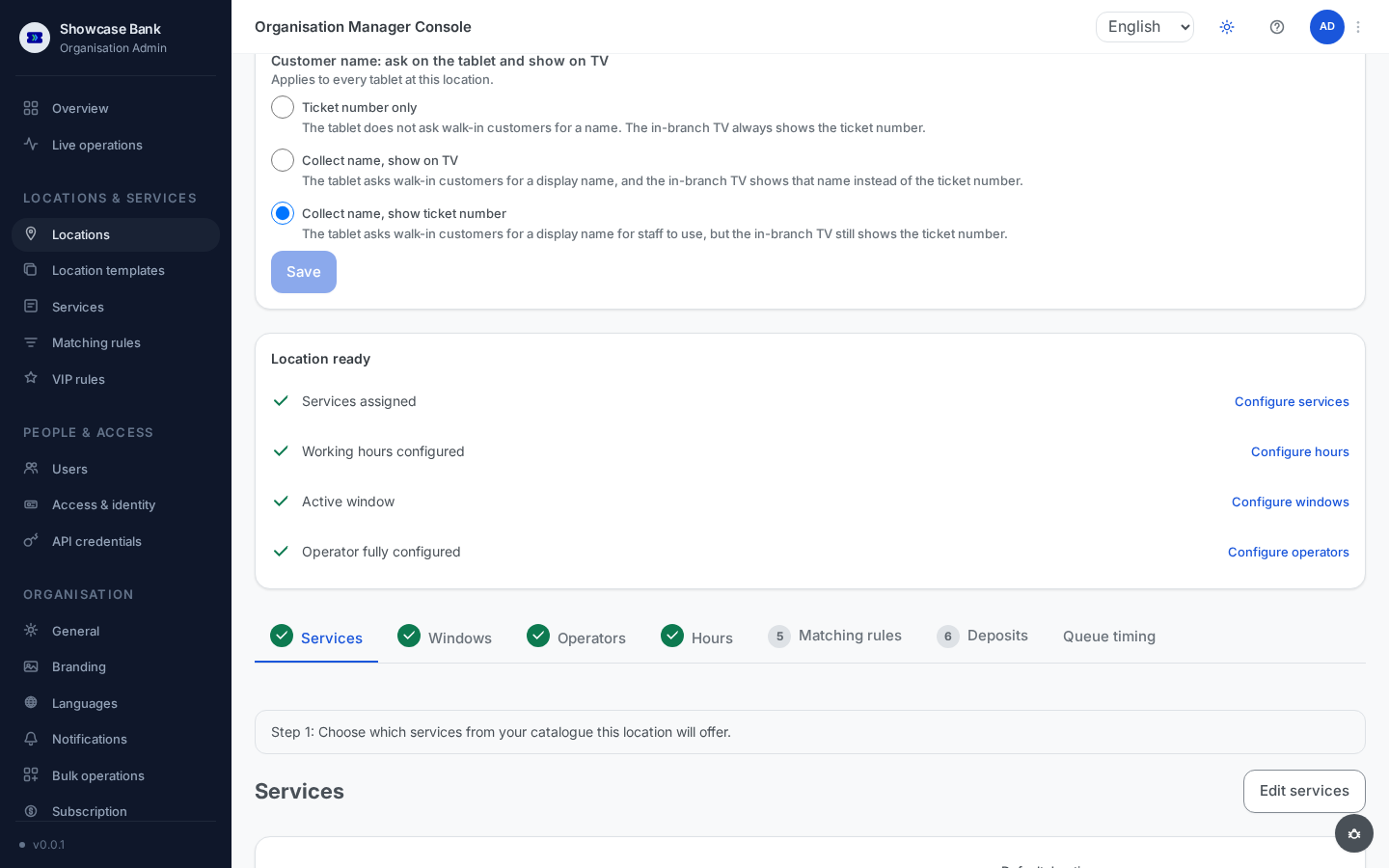
Click the branch name (or Manage) to open its configuration page. The header card shows the branch address, status, and setup progress; further down are the readiness checklist and the configuration tabs — Services, Windows, Operators, Hours, and more.
On the Services tab, click Edit services and choose which catalogue services this branch offers.
Review the Default duration (minutes) for each attached service. The catalogue value is prefilled; you can override it per branch. It feeds wait-time estimates until the branch builds up real serving history.
Set working hours
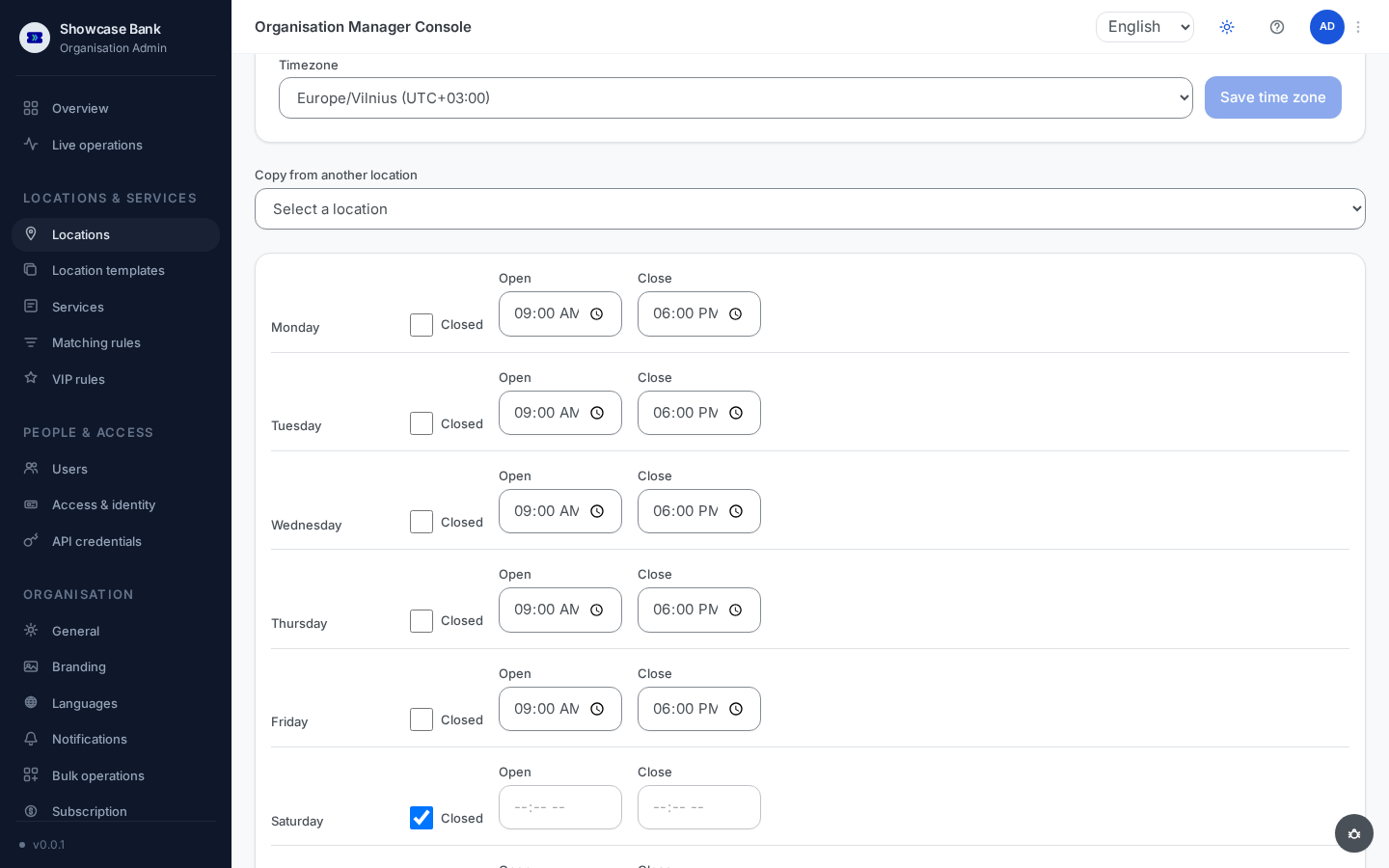
Open the Hours tab. A new branch starts with a sensible preset: Monday–Friday 09:00–18:00, weekends closed.
Adjust the Open and Close time per day, or tick Closed for days the branch does not operate.
If you already have another configured branch, pick it in Copy from another location to reuse its weekly pattern, then tweak and save.
Add service windows
Service windows are the physical counters, desks, or consultation spaces where clients are served.
- Open the Windows tab.
- Add a window: give it a short identifier (letters and digits, up to 20 characters, unique within the branch — e.g.
A1), and keep it active. - Repeat for each counter. Several operators can share a window across shifts.
Result
Your branch exists with services, working hours, and windows — three of the four required setup steps. The remaining step is staffing: invite your team and assign at least one operator to a window.
Common problems
- The branch name is rejected — branch names are unique within your workspace; pick a different one.
- Working hours won't save — the close time must be later than the open time on the same day. Overnight hours (for example open 22:00, close 02:00) are not supported.
- A service can't be removed from the branch — removal is blocked while any client is still waiting or being served for that service, or a future appointment for it exists. The error shows how many tickets and appointments are blocking; resolve those first.