

Export reports and charts
Reports leave the platform two ways: the Statistics page exports the full tabular report as an Excel or PDF file, and the Diagrams page additionally exports any chart as an image ready for a slide. The Client visits pill exports its client list as an Excel or PDF file too. Each exports exactly what you see — the selected period, the active filters, and the breakdowns or rows on screen.
Prerequisites
- An organisation admin sign-in, or the Location Manager role for the branch.
- Some served visits in the period you want to report on — an empty range exports an empty report.
Export the tabular report
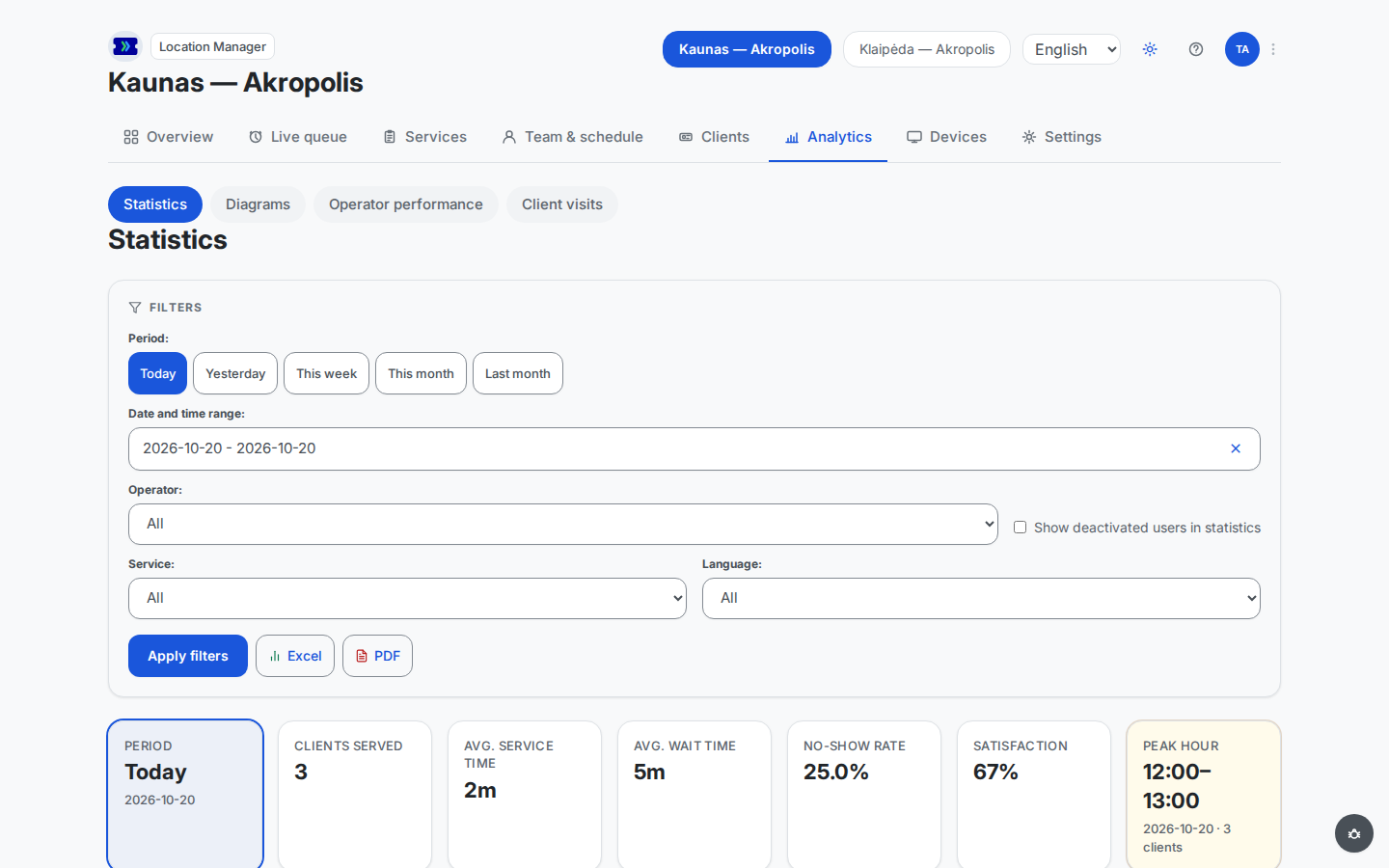
Open Statistics in the location manager console (where the numbers live), pick the period and any operator, service, or language filters, and press Apply filters.
Press Excel or PDF in the filters panel. The file downloads immediately and covers the report as filtered: the KPI summary and the per-service and per-operator breakdowns for the selected range.
The overall satisfaction figure from the KPI summary travels with the report, so the exported summary reads the same as the on-screen one.
Export a chart
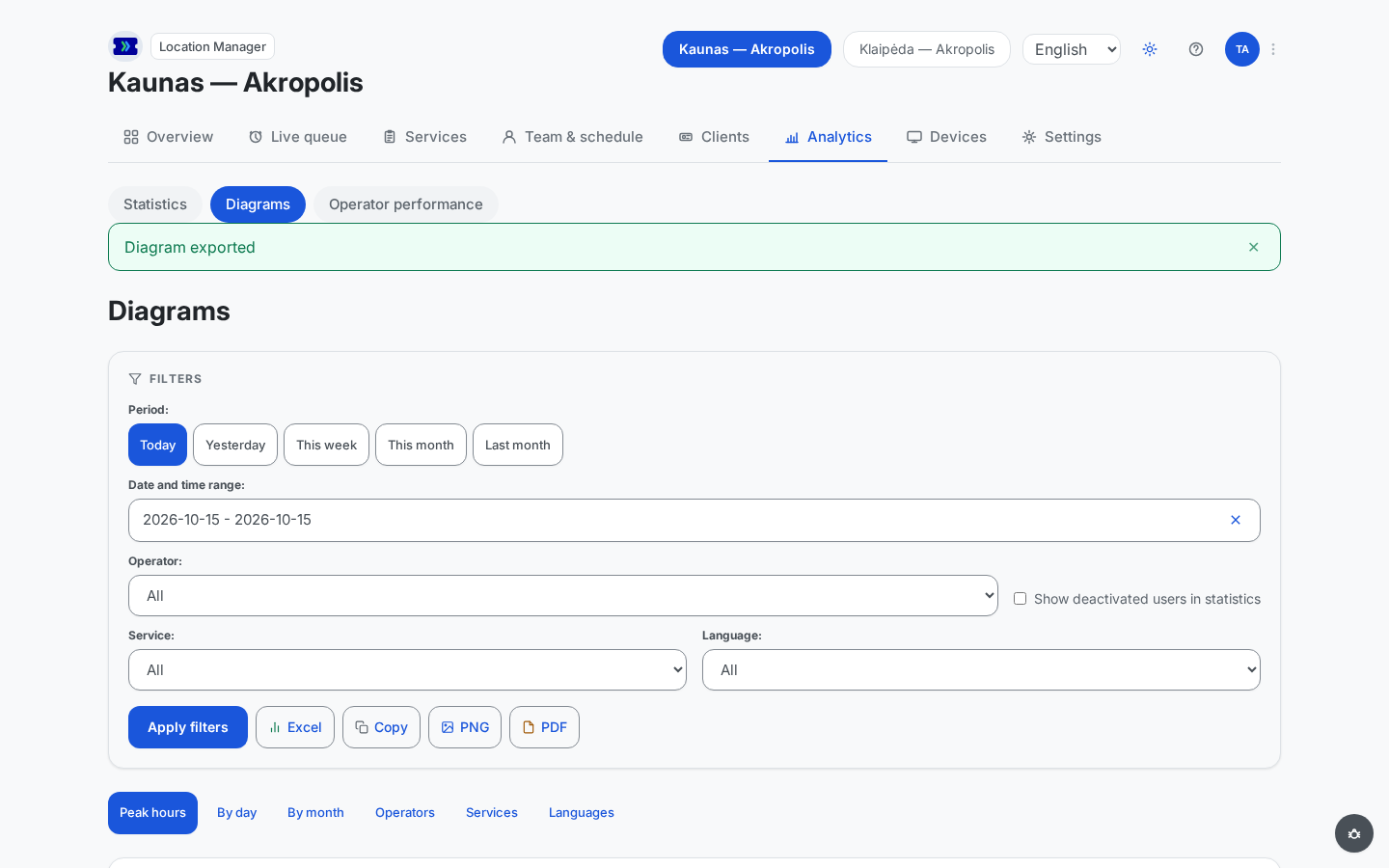
Open Diagrams and pick the chart you want with the tabs above it. The filters panel gains three image actions next to Excel: Copy, PNG, and PDF.
Copy puts the rendered chart on your clipboard for pasting straight into a document or chat, confirming with a "Chart copied" message; PNG and PDF download it as a file, each confirming with "Chart exported".
Excel on this page exports the chart's underlying data as a spreadsheet — numbers, not pixels — for your own charting or further analysis. It confirms with the "Diagram exported" message shown above.
Export the client list
- Open the Client visits pill in the Analytics main tab, pick the period and any service, operator, or language filters, and press Apply filters. Use Search and the Status filter on the pill to narrow the list further.
- Press Excel or PDF in the filters panel. The file downloads immediately and holds the list exactly as filtered and searched: the tiles and the client rows with their columns. The buttons stay unavailable while the list loads, when it fails to load, when the pill shows the "Customer tracking is not enabled" notice, or when it shows the client-window statement in place of a list. A list with no client rows still downloads, with its tiles and no client row. There is no CSV for this list.
- The file is named
clients-<branch name>-<date>, ending in.xlsxor.pdf. It carries clients' contact details, so share it only with colleagues who need it.
Result
The selected slice of the branch's history exists outside the platform: a PDF for sharing and archiving, an Excel file for your own analysis, a chart image dropped straight into a presentation, or the branch's client list as a spreadsheet or PDF.
Common problems
- Satisfaction shows "—" — no clients rated their visit in the selected range. The rating is optional and offered on the ticket page for 48 hours after a completed visit.
- Your export differs from a colleague's — the export covers the current filter selection, so different filters produce different files. Agree on the period and filters first.
- The client list shows fewer visits than you expect — on screen and in the file, client figures count only the last 90 days (or your organisation's shorter data-retention period), not the whole period you chose. The notice on the Client visits pill names the date they are counted from.
- No export buttons on the workspace-wide analytics page — exports are per branch today. Open the branch's own Statistics page and export from there.