

What the TV display shows
The TV in your waiting area is the queue's public face: it announces every call to the room, lists who is waiting (unless the branch switches that off), and idles on your branding (the Paysera Q-GO logo until you upload yours) when nothing is called and no waiting list is on screen. This page describes what your clients see on it through the day; pairing the TV and its settings live in Displays & kiosks.
Prerequisites
- A paired display (Go live walks through pairing).
Through the day
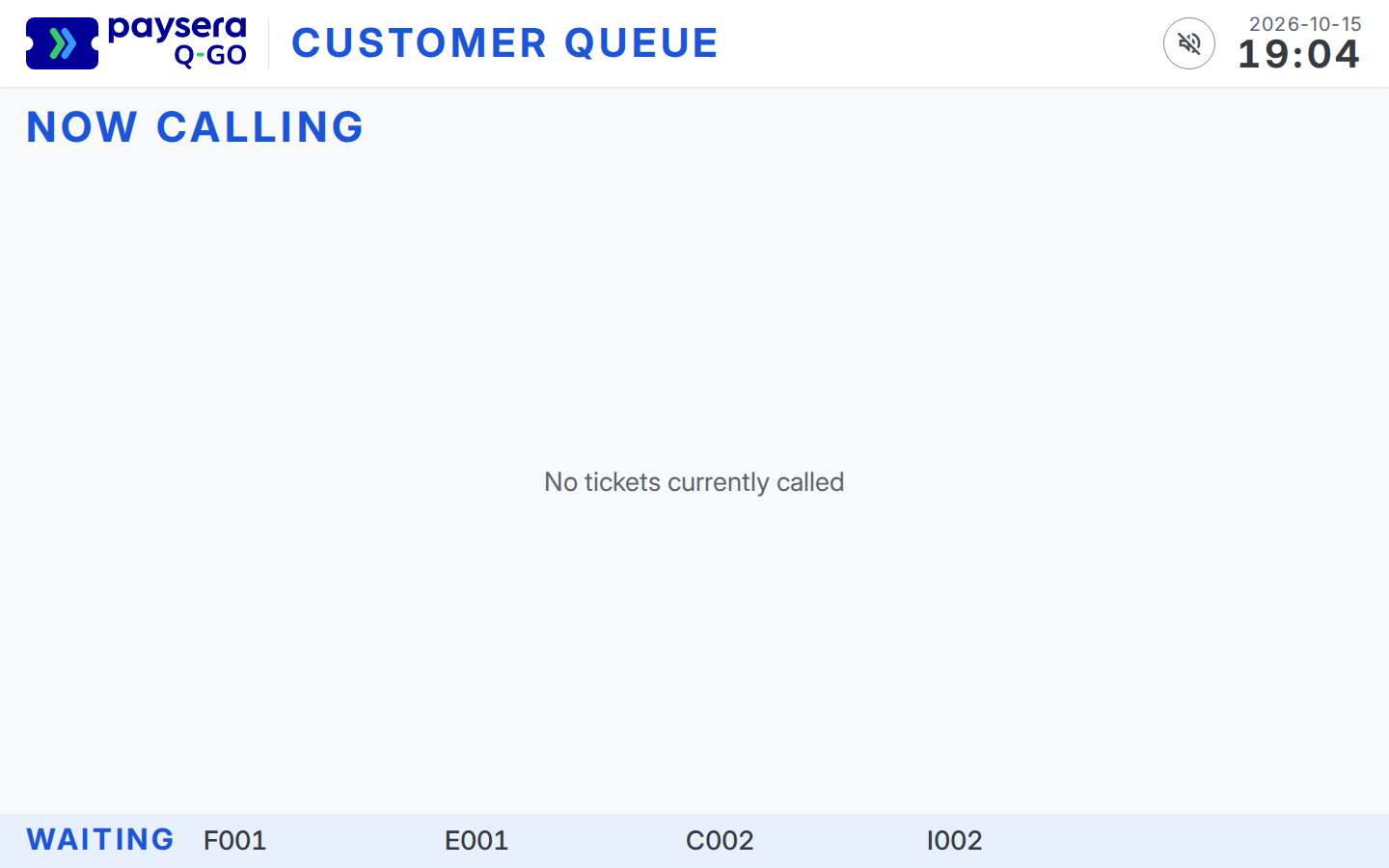
Quiet moments. With nothing currently called and no waiting list on screen, the display keeps its header — your logo and Customer queue — and shows the branch name and a "No tickets currently called" line — calm, not blank. Until you upload your logo, the header shows the Paysera Q-GO logo. Unless the branch has switched the Clock channel off in the What all TV screens show card on the TV screens page of the Devices tab, the header also carries the date and time, and the local time shows in large type. When clients are waiting and their list is on screen but nothing is currently called — right after opening, say — the display keeps Now calling with the same "No tickets currently called" line in the space the cards will take, until the next call.
A call comes in. Each call appears as a card under Now calling: the ticket code (or the client's name — see below) with its window, large enough to read across the room. A new call first shows in a large panel in the middle of a gently dimmed screen, then moves into its card and, unless another call is waiting, blinks a few times and settles; calls that come together are shown one after another. Up to six calls show at once, newest first, the newest filled with your display's accent colour. A TV set to reduce motion shows the new card at once.
Sound. If audio call-out is enabled for the branch, each call plays a chime — and, with "chime + voice", speaks the ticket code and window (for example "A042, window 3"). In a branch set to Collect name, show on TV every call sounds the chime only. One caveat of TV browsers: after the TV's browser starts, sound must be enabled by one tap on the display. Until then a round button with a crossed-out speaker shows at the top of the screen. Tap it, or anywhere on the board; after that sound plays on its own until the browser restarts. A TV whose browser is started with autoplay allowed needs no tap at all — see Displays & kiosks.
The waiting queue. All waiting tickets under Waiting, in queue order — this is how clients without a phone (typically kiosk registrations) track their position, unless the branch has switched the Queue status channel off in the What all TV screens show card. Codes only — no services, and no names unless the branch shows client names on the TV (see below).
Your announcement. If the branch has an announcement set, it shows as a persistent banner in every state, exactly as you typed it, unless the branch has switched the Announcements channel off in the What all TV screens show card; the text is kept.
Privacy on the big screen
The display is the most visible surface in the branch, and it is deliberately minimal: ticket codes and window assignments. Companies and client status never appear on it. A name appears only when the branch is set to Collect name, show on TV, and then it is the name the client gave at the kiosk, or that staff added for them after telling them it would be on the screen, shown instead of the ticket code — for example Ona. See Names on the kiosk and the TV.
Language
The display renders its labels and messages — such as Customer queue, Now calling, Window and Waiting — in one language — the first language in the branch's list whose In-branch display toggle is on (see language settings). It does not rotate languages; ticket codes and window numbers are language-neutral anyway.
Result
Every call is announced on screen (and out loud, if you enable it) within seconds of the operator's click, and waiting clients can see where they stand without a phone (while the waiting queue is shown). The rest of the time the screen carries your branding (or the Paysera Q-GO logo) and, if one is set and switched on, your announcement.
Common problems
- The display shows "Reconnecting…" — the TV lost its network connection; it catches up by itself once the connection is back.
- No sound — the TV's browser restarted and nobody has tapped the crossed-out speaker button since (start the browser with autoplay allowed to avoid this), audio call-out is off for the branch, or the TV's own volume is down; see Displays & kiosks.
- A call shows in its card without the panel or sound — it was already called when the display page loaded (for example after the TV restarted), so it counts as already shown; calls made after that are announced as usual.
- The display went dark or asks to be paired again — it was offline for over 30 days and unpaired itself, or its access was revoked. Its "please re-pair" screen has no code field, so open the display page on the TV again, then re-pair it in a few minutes from TV screens on the Devices tab. Re-pairing keeps its name, layout and colours; a revoked display is no longer listed, so pair it with Pair a new TV. See Displays & kiosks.