

Manage an appointment and arrive
Booking is half the story. The Manage your appointment link — on the confirmation page and in every email about the booking — opens a personal appointment page, no sign-in needed, that carries the client from booking to visit: reschedule, cancel, add to calendar, and check in at the branch. This page walks through that stretch, and what the platform does when the client arrives — or doesn't.
The appointment page
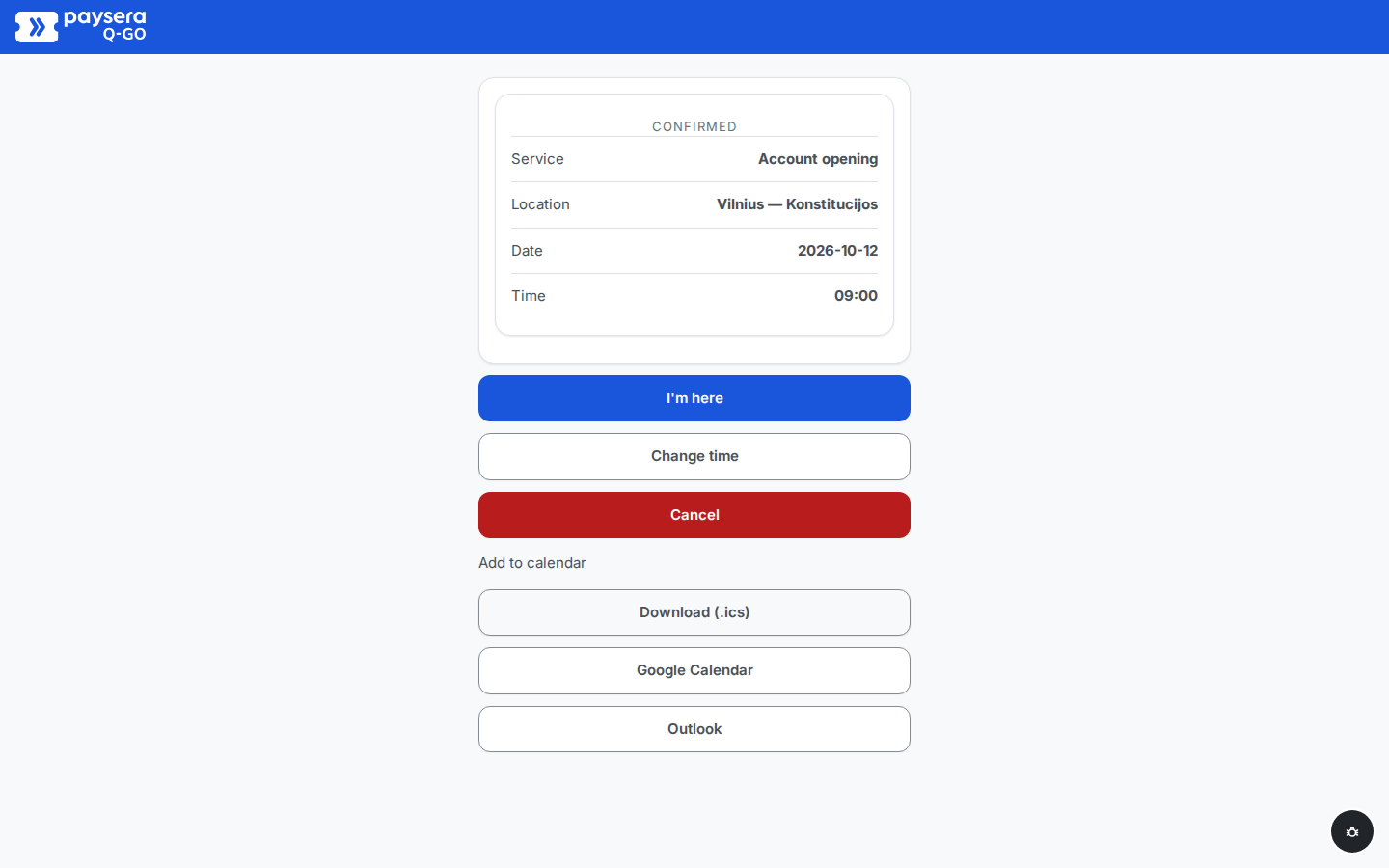
Opening the manage link shows the appointment card — status (Confirmed), service, branch, date, and time — above three actions: I'm here, Change time, and Cancel, plus the same add-to-calendar options as the confirmation page (Download (.ics), Google Calendar, Outlook).
Change the time
- Change time offers new dates and times for the same branch and service, from the same availability and booking window as the original booking; the currently booked slot is marked and cannot be re-picked. To change the service or the branch, cancel and book afresh.
- Confirming a new slot moves the appointment in one step: the old slot is released, the booking reference and the manage link stay the same, and an updated confirmation email goes out with the new date and time. The day-before reminder follows the new time too. There is no limit — a client can reschedule as often as needed while the appointment is still confirmed. If the requested slot was just taken, nothing changes and the availability refreshes so the client can pick another.
Cancel
- Cancel asks for confirmation, then releases the slot. The page shows the appointment as cancelled and offers no further actions. A cancelled appointment cannot be revived — the client books again if plans change back.
The day-before reminder
- 24 hours before the booked time, the platform emails the client a reminder — date and time, branch name and address, service, booking reference, and the same manage link. Appointments booked less than 24 hours ahead skip it (the confirmation email suffices), and cancelled appointments are never reminded. Wording and languages are yours to tune in Notifications.
Arriving: check in — or don't
- At the branch, the client can press I'm here. Check-in opens 30 minutes before the booked time and stays open until the branch's grace period after it (15 minutes by default). Checking in issues the queue ticket immediately — the client enters the live queue with appointment priority without waiting for the booked time — and the page moves to the live ticket page, the same one a walk-in client holds. On the operator console the client's row in the waiting queue reads Arrived, so staff see the client has arrived.
- Pressed too early, check-in is simply not accepted yet — the page says when it opens. Pressed twice, nothing changes: the client stays checked in.
- Check-in is optional. When the booked time arrives, a confirmed appointment becomes a live queue ticket automatically — no client action needed. Clients who never saw the check-in step are still called as usual; their ticket just shows no badge.
When the client never arrives
- Once the ticket is live and called, the ordinary no-show handling applies: the operator's grace timer, repeat calls, and the No-show action — an appointment past its booked time is a normal ticket in every respect.
- An appointment that is still just a booking when the grace period runs out — never checked in, never turned into a ticket — is marked a no-show automatically, with no staff action needed, and its slot no longer counts against availability.
Joining today's queue from afar — pre-entry
Separate from appointments, a branch can offer pre-entry: a link through which a client joins the live walk-in queue before physically arriving. It is not a booking — there is no chosen time slot, no check-in, and no appointment priority. The client gives a name and email, receives a real queue ticket immediately, and lands on the live ticket page showing position and estimated wait, so they can time their walk over. If they are called before they arrive and nobody steps up, the ordinary no-show handling applies. Pre-entry is off by default; it is enabled per branch by the organisation admin or the branch's manager.
Result
Between booking and visit the client is self-sufficient: reschedule, cancel, calendar, reminder — all through one link, no calls to your branch. On the day, the appointment turns into a live ticket — by check-in or on its own at the booked time — and from there the visit runs exactly like any other: called, served, rated.
Common problems
- "I'm here" is not accepted — the client is outside the check-in window: more than 30 minutes early (the page says when check-in opens), or past the branch's grace period — at that point the appointment is handled as a no-show.
- Change time and Cancel are gone from the page — the appointment is no longer just a booking: it was cancelled, marked a no-show, or has already become a live ticket. A live ticket is managed from the ticket page instead.
- No reminder email arrived — the appointment was booked less than 24 hours ahead, was cancelled before the reminder was due, or the client opted out of emails.