

Analytics
The manager's day is about the branch right now — queue depth, live waits, alerts. This section is about everything before now: the historical reports that tell you how a branch actually performed, which hours are busiest, which services and operators carry the load, and what your clients thought of it.
Where the numbers live
Branch analytics live in the location manager console — open to the branch's manager and to any organisation admin. On the branch page, the Analytics main tab holds the Statistics, Diagrams, Operator performance, and Client visits pills — the client list is the Client visits pill. The Clients main tab opens the Customer tier overrides page.
Working across several branches? The location buttons at the top of the branch page switch the active branch — a location manager gets the branches assigned to them, an organisation admin every branch — and every report re-scopes to the branch you pick. All figures are historical and on demand — the live picture stays on the branch overview, and reacting to long waits as they happen is the job of SLA monitoring, not of these pages.
One filter panel for everything
Statistics, Diagrams, Operator performance, and Client visits share a single Filters panel, so the pages always answer the same question about the same slice of data:
- Period presets — Today, Yesterday, This week, This month, Last month — one click each.
- A date and time range field for everything else: clicking it opens a calendar where you pick a from-date and to-date plus times, for any historical range you like.
- Operator, Service, and Language dropdowns narrow the report to one operator, one service, or clients served in one language; a Show deactivated users in statistics checkbox brings former staff back into the picture.
Set the filters, press Apply filters, and every card, table, and chart below re-computes.
The Statistics page
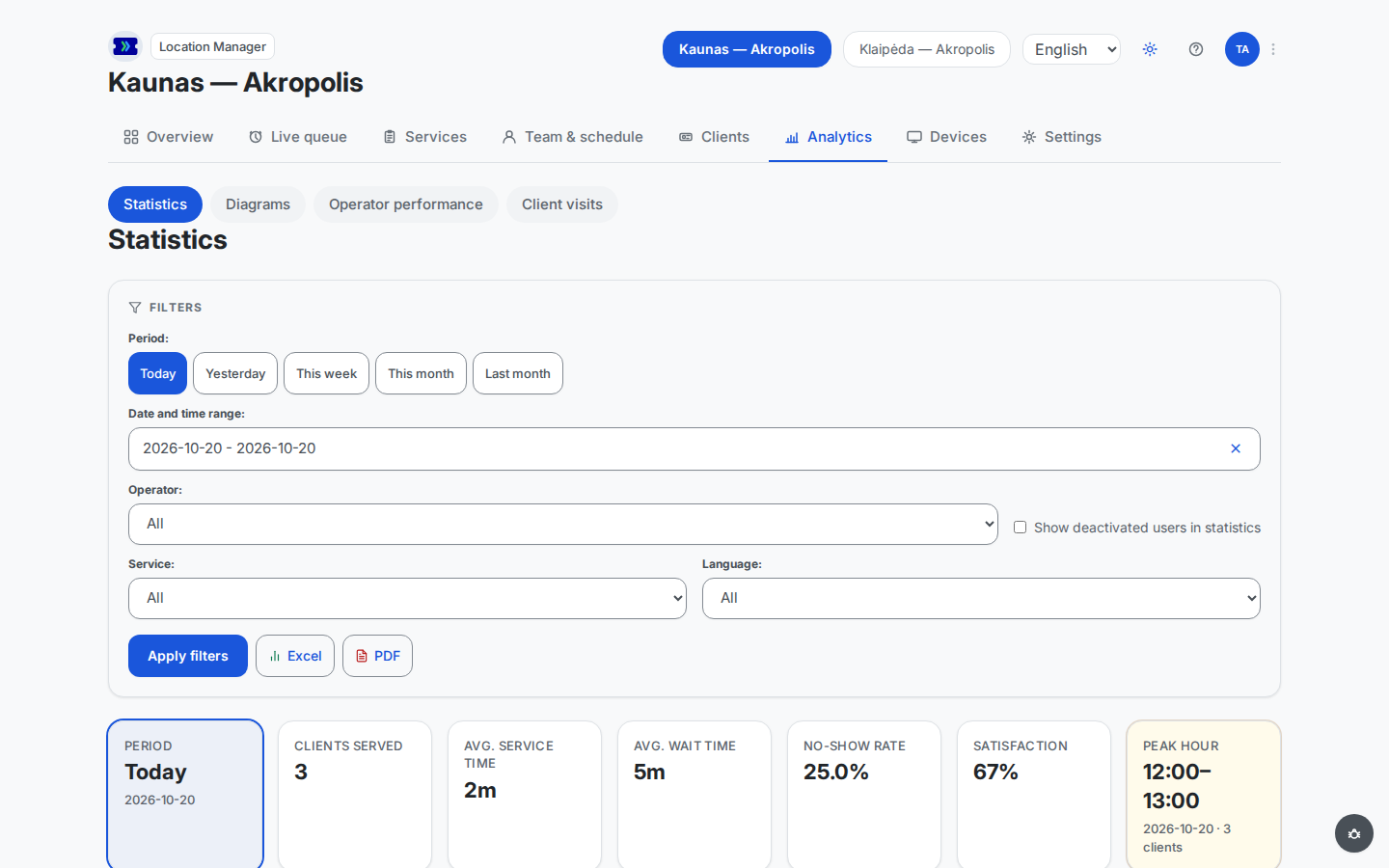
The Statistics page is the tabular report. From top to bottom:
 Open full-size screenshot (new tab)
- KPI cards summarise the selected range: the resolved period, clients served, average service time, average wait time, no-show rate, satisfaction, and the peak hour — the busiest hour of the range, with its date and client count. When a service has a wait-time threshold configured in SLA monitoring, the average-wait card also shows the strictest configured target, so you can compare the average against the promise at a glance.
- Breakdown tables — By service, By operator, and By language served — carry the same column set: clients, total service time, minimum / average / maximum service time, minimum / average / maximum wait, and the share of clients served within the SLA threshold. Rows in the operator table expand in place to show that operator's per-service figures.
- Summary cards below the tables call out the standouts of the range: the top-performing operator, the most popular service, and the wait-time and service-duration spread.
- SLA compliance cards show, per service with a configured threshold, the percentage of clients served within it.
The Satisfaction figure comes from the one-question rating clients answer on the ticket page after their visit; for identified clients, the Client visits pill also shows it per client.
The Diagrams page
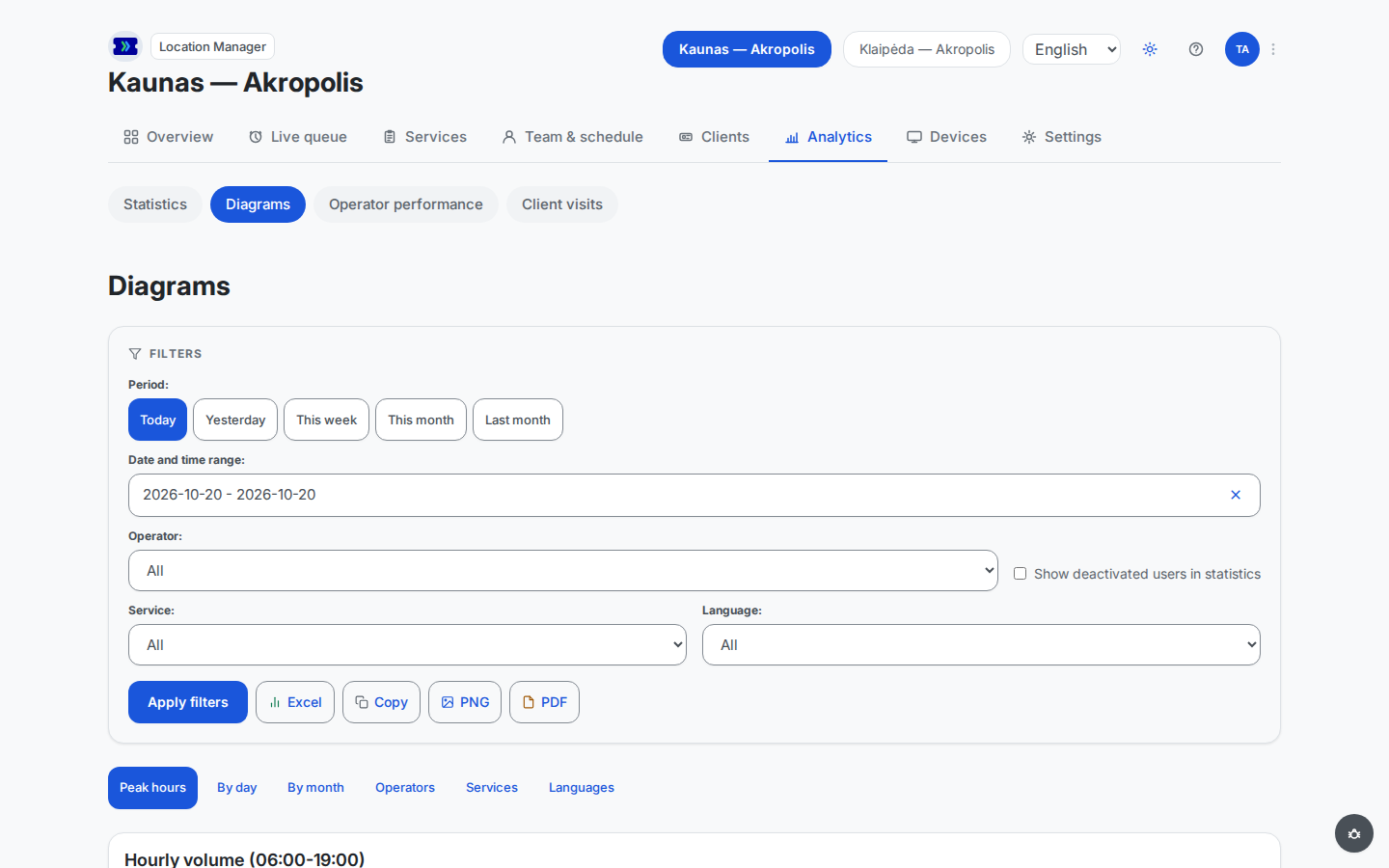
The Diagrams page draws the same data as charts, one chart per tab: hourly volume and peak-hours patterns, ticket volume by day and by month, operator and service comparisons, and the distribution of client languages.
 Open full-size screenshot (new tab)
The filters panel works exactly as on Statistics — and any chart can leave the page as an image or a spreadsheet; Export reports and charts covers every export path.
The Client visits pill
In workspaces where clients are identified — by verified sign-in or by a customer ID an operator enters — the Client visits pill of the Analytics main tab lists the identified clients who have visited the branch — visit counts, last visit, preferred services, and satisfaction per client — so regulars and frequent no-shows are easy to spot. In workspaces without client identification there is nothing to list: anonymous walk-ins never appear here. The pill then says that customer tracking is not enabled and what it needs. A location manager reads that the organisation admin can switch it on; an organisation admin gets links to the Customer identity data and Identity providers sections of the Access & identity page.
The pill sits under the same Filters panel as the other pages. The period you pick and the Service, Operator, and Language filters decide which visits count towards every figure on the pill — the tiles at the top (Total clients, Total visits, VIP clients, and Avg. satisfaction) and each client's row alike — and a client with no matching visit does not appear. Press Apply filters to re-compute. Two controls sit on the pill itself, above the list: Search (by name, email, phone, or customer ID) and the Status filter (All, VIP, or Regular). They narrow the list further and combine with the Filters panel.
Client figures count only visits from the client window — the last 90 days, or your organisation's shorter data-retention period, if it has one; they never reach back over a client's whole history. When the period you chose starts before the client window, the pill says from which date the figures are counted and that earlier visits are not counted here. When the whole period lies before it, the pill shows that statement in place of the tiles and the list, rather than an empty table. The Excel and PDF buttons in the Filters panel export the list — see Export reports and charts.
The workspace-wide view
An organisation admin gets the same kind of report across every branch at once: the management console's analytics page aggregates the whole workspace over a selectable date range (up to 90 days) into KPI cards for average wait, average service time, clients served, and no-show rate, plus breakdown tables per branch, per service, per operator, and per language — with operator rows expanding in place to per-service figures, and service and language filters to narrow the slice. It is the tool for comparing branches; the per-branch pages above remain the place to dig into one of them.