

Configure matching rules
When an operator becomes free, the platform picks who they serve next. Matching rules control that choice: hard constraints filter out clients the operator cannot serve at all, then weighted preferences score the remaining candidates and the highest score wins, with ties going to whoever has waited longest. With no preferences enabled, the queue is served strictly first come, first served.
Rules are defined once for the whole workspace and inherited by every branch; a branch overrides only the individual rules it needs to.
Prerequisites
- An organisation admin sign-in for the workspace-wide rules and for branch overrides (edited via the branch drill-down under Locations).
Workspace-wide rules
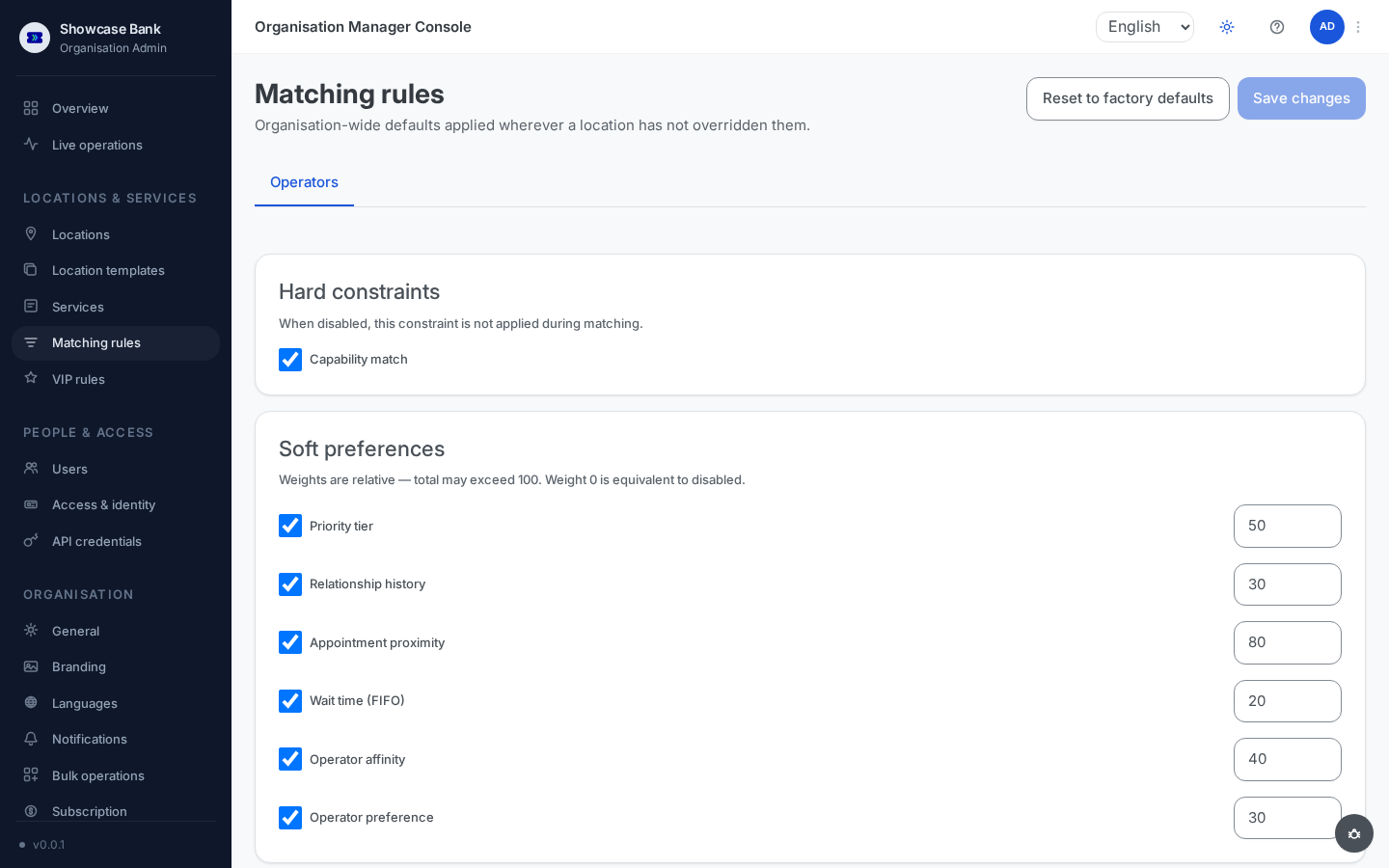
Open Matching rules in the sidebar. These are the defaults applied wherever a branch has not overridden them. The editor shows one tab per resource type your workspace matches — for queue management that is Operators.
Hard constraints are on/off switches. While enabled, a client is never matched to an operator who fails the check:
- Capability match — the operator must be assigned the client's service and speak the client's language.
Capability match is on by default. Turning it off makes matching more permissive — the check simply is not applied. There is no availability switch: matching runs only when an operator asks for their next client, so the operator is available by definition.
Soft preferences each have an on/off toggle and a weight from 0 to 100. Weights are relative, not percentages — the total may exceed 100, and weight 0 is the same as toggling the preference off. The preferences and their factory weights:
- Priority tier (50) — boosts VIP and Priority clients (see below).
- Relationship history (30) — prefers a client's personal manager.
- Appointment proximity (80) — clients near their booked slot effectively keep it.
- Wait time (FIFO) (20) — the baseline fairness signal.
- Operator affinity (40) — a client served by this operator in the last 30 minutes returns to them.
- Operator preference (30) — the operator the client picked at registration, when your workspace collects that.
Click Save changes. Changes apply from the very next call — no restart, and a client already called or being served is not re-scored. Reset to factory defaults (with confirmation) reverts the workspace values; branches with their own overrides keep them.
Per-branch overrides and inheritance
Each branch can tune individual rules without copying the whole set.
- Open the branch from Locations and go to its Matching Rules tab. Every rule row states its origin: inherits from organisation default, or overridden locally with the current workspace value shown alongside.
- Editing an inherited row (weight or toggle) stores an override for that one rule only. Everything else keeps following the workspace defaults — change a default later and every branch that has not overridden that rule picks it up automatically.
- An overridden row has a one-click Reset to organisation default (no confirmation) that returns just that rule to inheritance. A whole-set reset is also available and asks for confirmation, as it discards all of the branch's overrides at once.
- Back in the workspace-wide editor, any rule overridden somewhere shows how many branches override it; click the count to see each branch and its local value, and jump to that branch's editor.
A branch can additionally designate one of its services as its priority service (a fixed scoring boost) under Priority Rules in the Live Queue tab of the location manager console.
VIP and priority tiers
Clients fall into three tiers — Regular, Priority (elderly, disabled, special accommodation), and VIP. The tier is assigned when the ticket is issued and stays fixed for that ticket. It is a scoring boost, never a bypass: a VIP client is still never matched to an operator who lacks their language or service.
For workspaces using verified customer identity:
- VIP rules (sidebar) is where the organisation admin defines how VIP status is derived automatically from customer attributes.
- Tier Overrides (Clients tab, location manager console) lets a branch set a specific customer's tier locally — with a mandatory reason and expiry date. The override applies only at that branch, only to tickets issued while it is active, and lapses silently at expiry.
Auditing
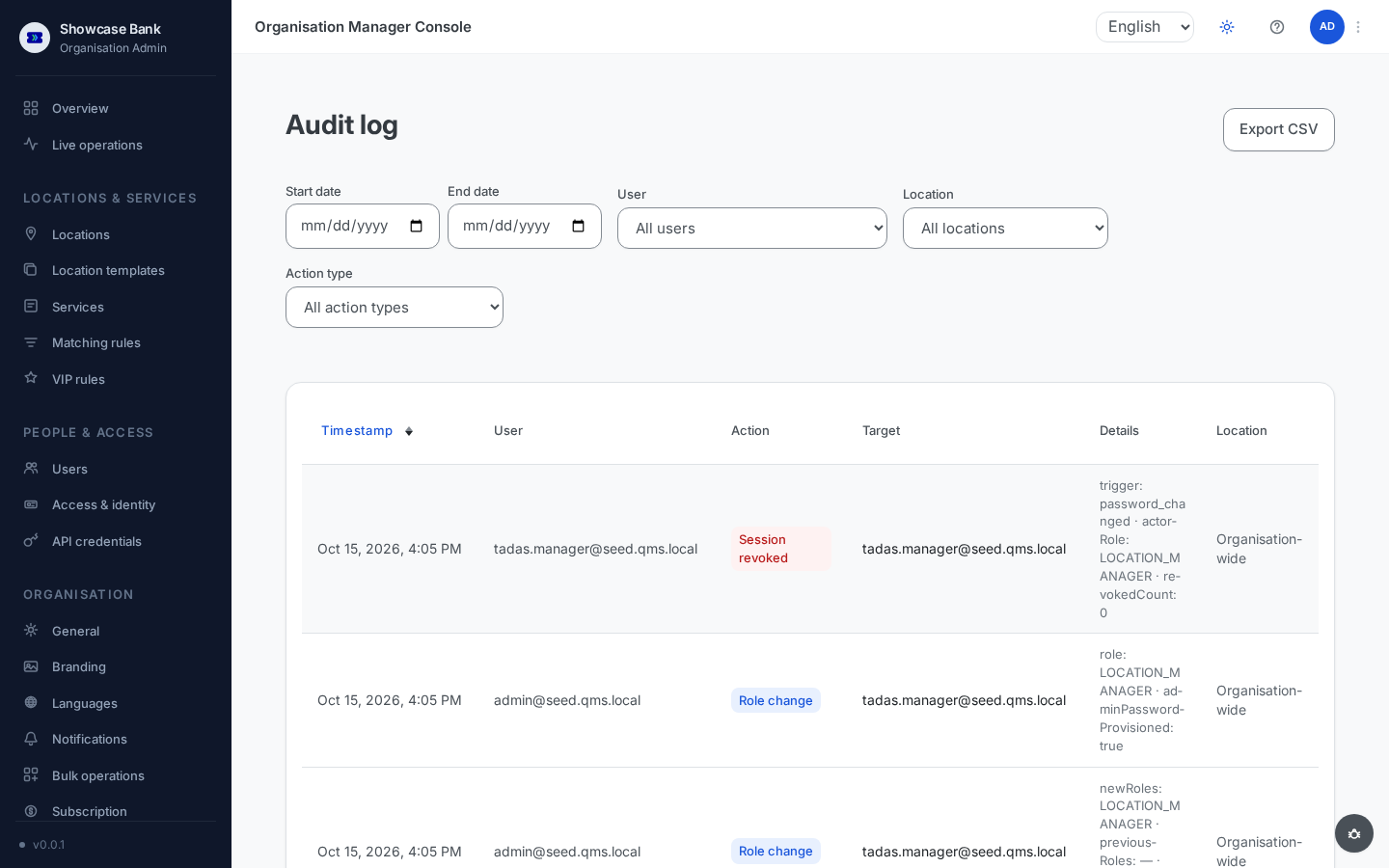
Every rule change — workspace default, branch override, tier override — is recorded in the Audit log (sidebar) with who changed what and when. Filter by date, actor, location, and action type, or export to CSV.
 Open full-size screenshot (new tab)
Result
Your workspace has one consistent matching baseline, each branch overrides only what genuinely differs locally, and you can always trace how the defaults and overrides interact — and who changed them.
Common problems
- A weight won't save — weights must be between 0 and 100 inclusive.
- Matching behaves as plain first come, first served — all soft preferences are disabled or weighted 0; that is the designed fallback, not an error.
- A branch ignores a changed workspace default — the branch has a local override for that rule. Use its per-rule reset to return the rule to inheritance.
- Tier overrides are rejected — your workspace does not use verified customer identity; tiers and overrides need it. The Tier Overrides page says so in place of the list: a location manager reads that the organisation admin can switch it on, and an organisation admin gets a link to the Identity providers settings.