

Follow the branch through the day
While operators work the counter, managers watch the whole picture. This page covers the location manager's day — the branch overview, SLA monitoring, and the branch audit trail — and the organisation admin's matching view across all branches.
Prerequisites
- For the branch sections: an organisation admin sign-in, or the Location Manager role for the branch. For the workspace-wide sections at the end: the Organisation Admin level.
- A branch that is live and serving clients (Go live).
The branch overview
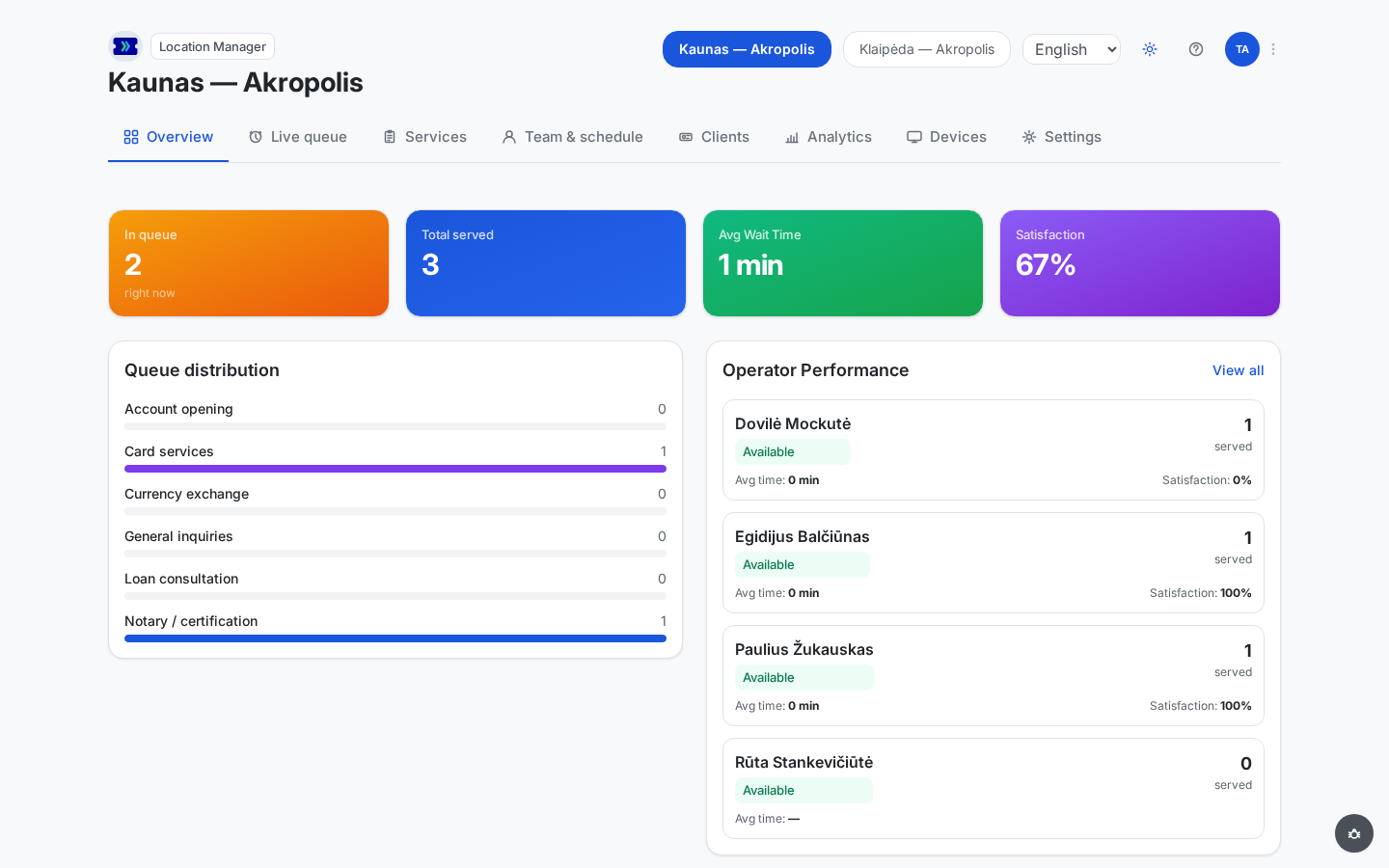
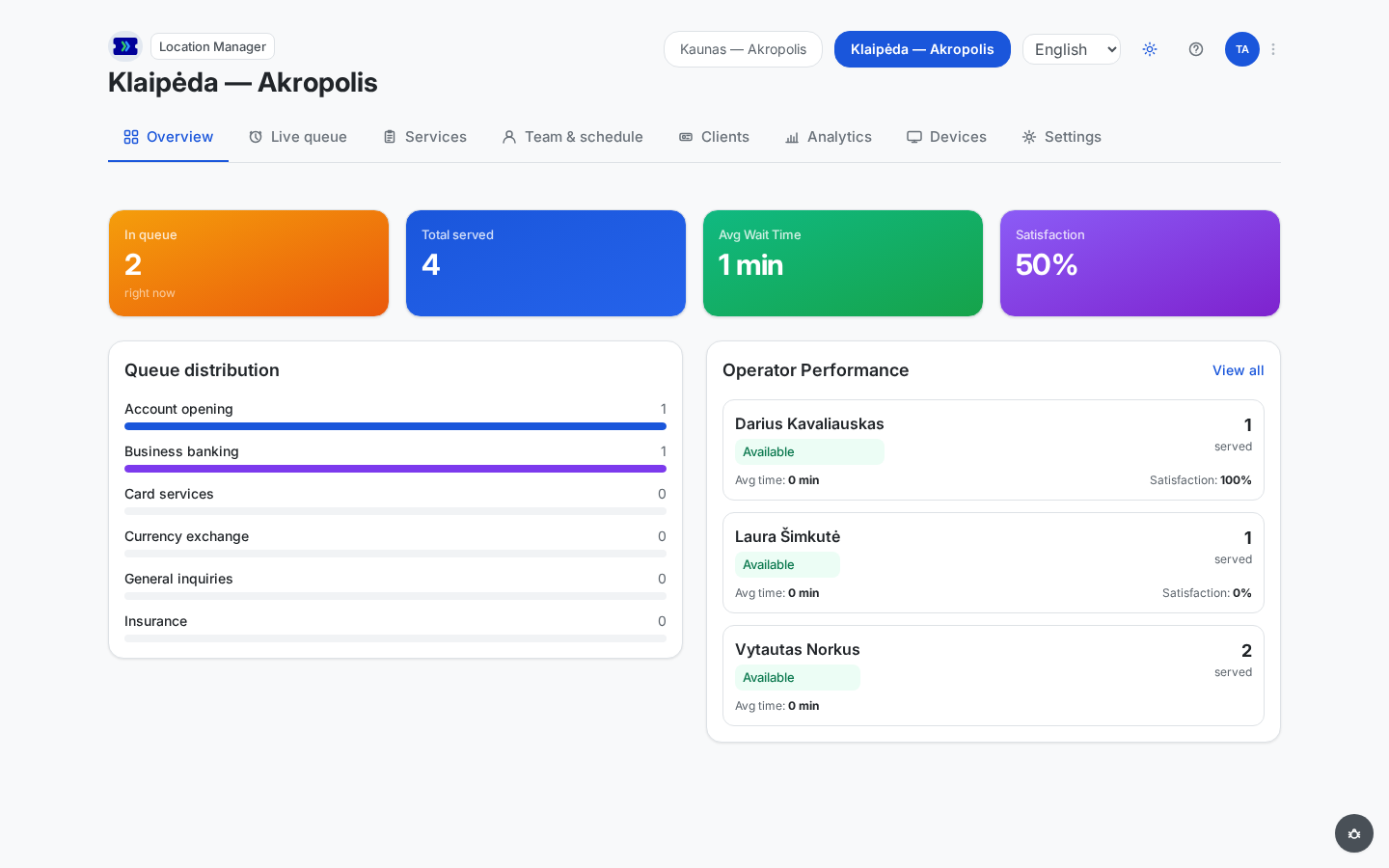
Sign in to the location manager console. It opens on your branch's Overview: KPI tiles for the queue right now, tickets served today, average wait time, and satisfaction, followed by a Queue distribution panel (waiting clients per service) and an Operator Performance panel (each operator's status, tickets served today, and average service time).
The Location ready checklist from Go live stays at the top of the page, each step linking straight to the settings that fix it — handy when a configuration change breaks readiness mid-week.
Working across several branches? The location buttons at the top right switch the active branch — the branches assigned to you, or every branch if you are an organisation admin; every panel re-scopes to the branch you pick.
The overview — KPI tiles, queue distribution, and operator statuses alike — loads when the page opens (and when you switch branch); refresh the page for a current snapshot. The main tabs along the top hold the rest of your branch tools — Live queue, Services, Team & schedule, Clients, Analytics, Devices (its TV screens and Tablets pages), and Settings, covered in Configuration — deeper reporting lives in the Analytics section of this documentation.
SLA monitoring — react when waits grow
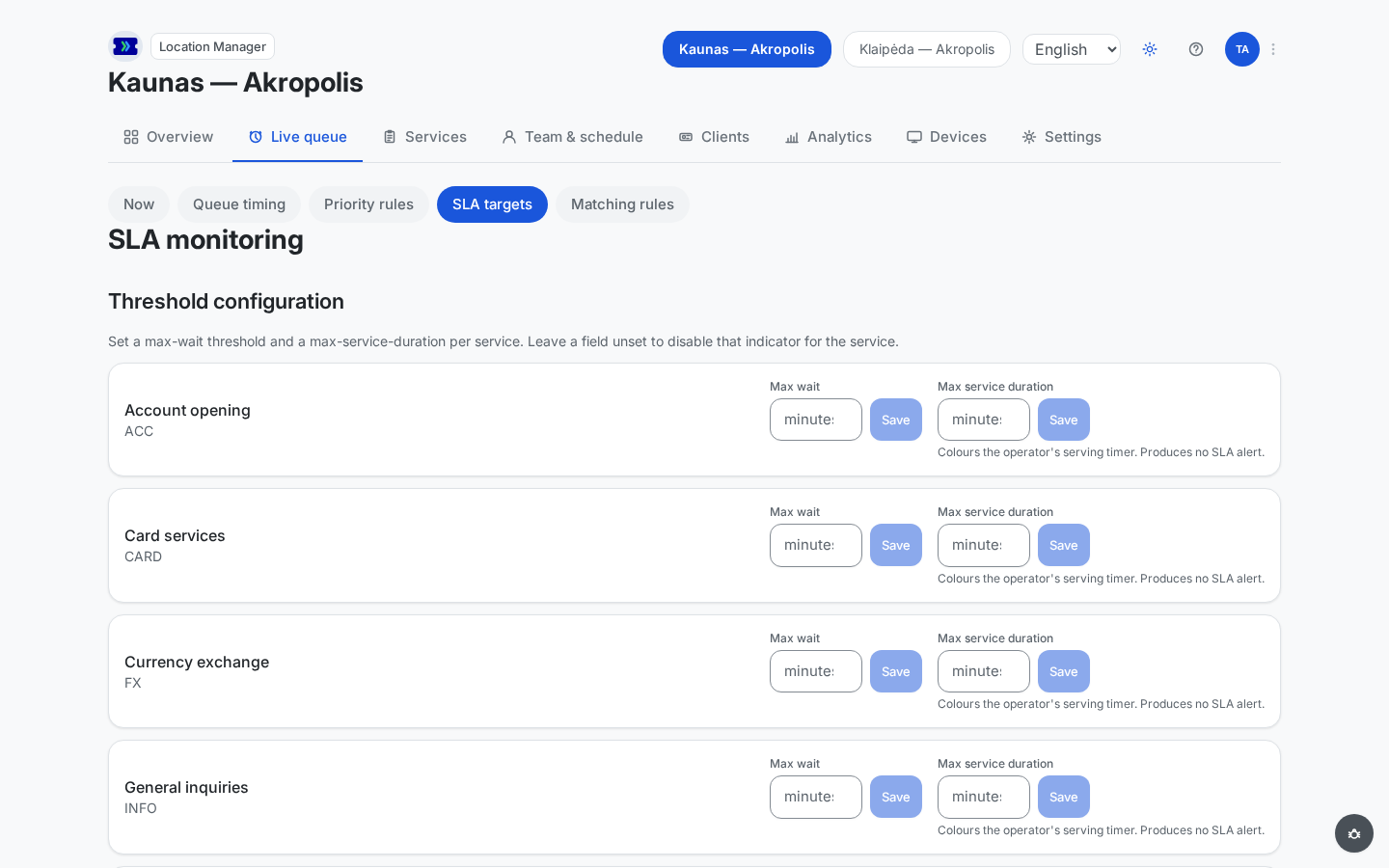
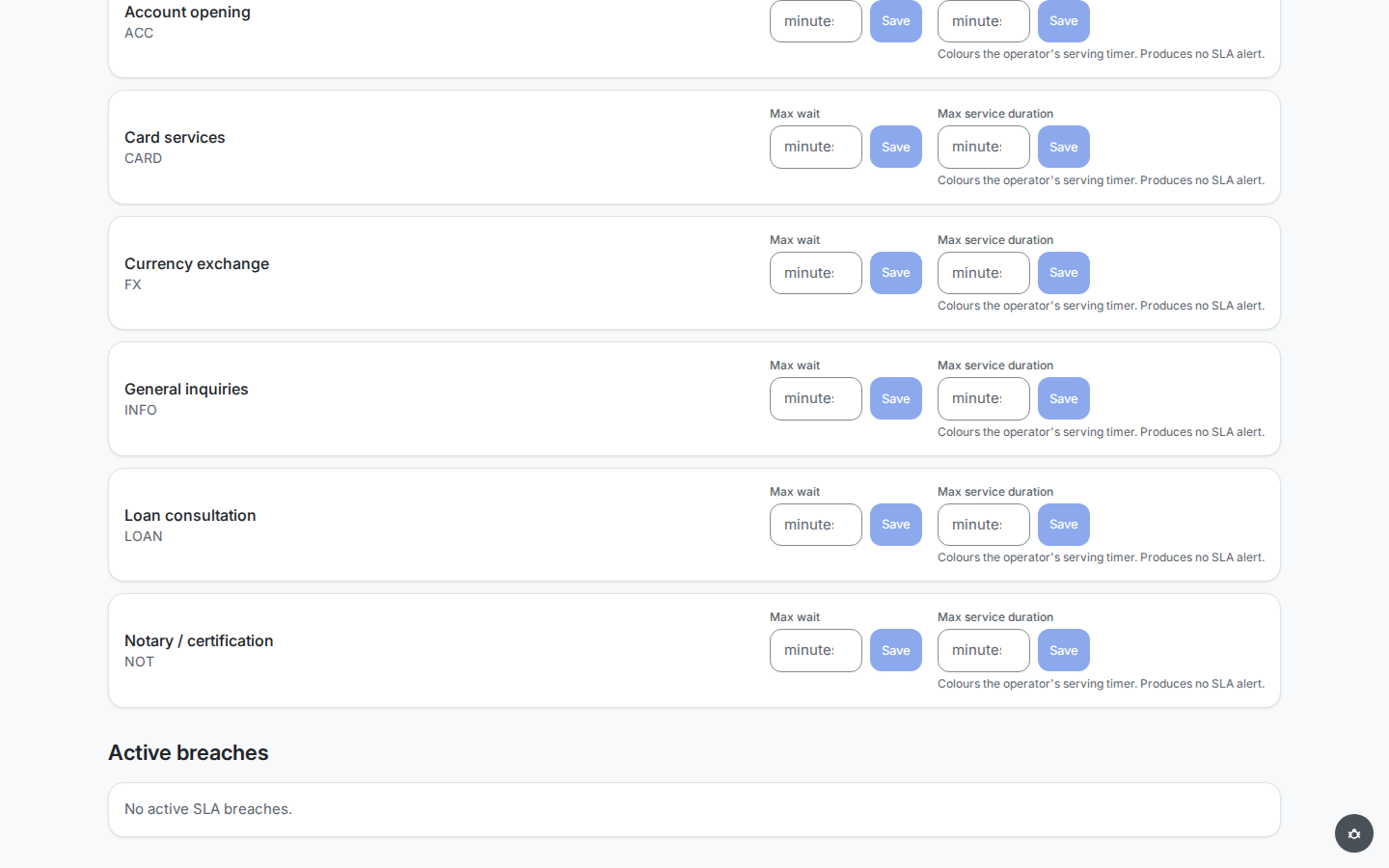
Open the Live Queue tab and select the SLA targets pill to reach SLA monitoring. Under Threshold configuration, give each service a Max wait in whole minutes and press Save. The page says it plainly: "Set a max-wait threshold and a max-service-duration per service. Leave a field unset to disable that indicator for the service." — a service without a max wait never raises an alert. The optional Max service duration only colours the operator's serving timer; it raises no SLA alert.
From then on the platform watches the queue. The moment a waiting client's elapsed wait crosses their service's threshold, you get an email and an in-app alert, and the breach appears under Active breaches with the ticket number, service, configured threshold, actual wait, and when it happened. One alert per ticket — a client kept waiting does not re-alert every sweep.
Breaches leave the list two ways: dismiss one manually once handled, or let it resolve itself — when the breached ticket is eventually served to completion, the alert auto-resolves with the actual breach duration recorded. A breached ticket that ends as a no-show or cancellation stays in the list for you to dismiss.
The audit log
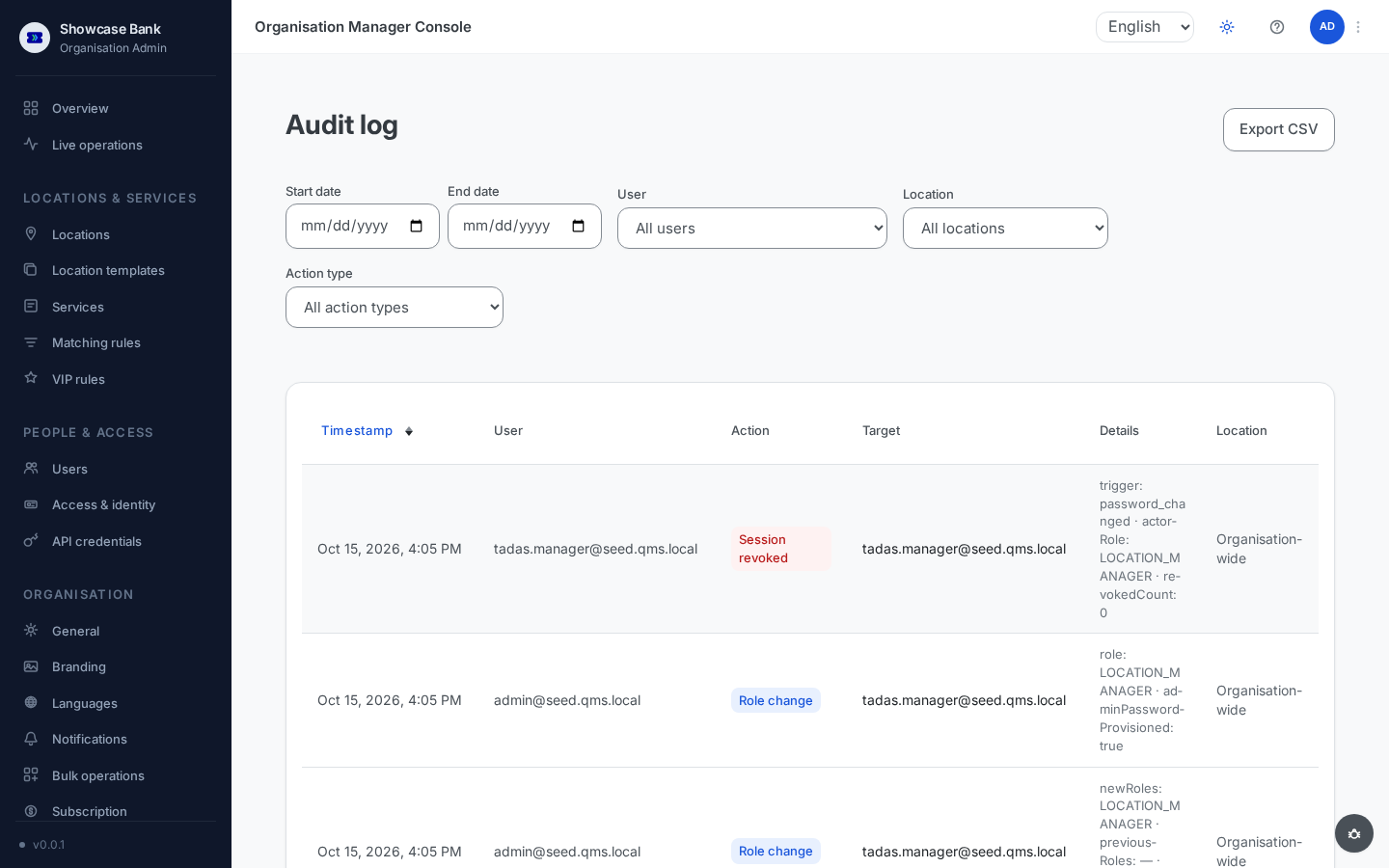
Both manager consoles carry an Audit Log. In the location manager console it is scoped to your branch; the organisation-admin version shown below spans every branch plus workspace-wide events (sign-in security events, personal-data exports).
Filter by date range, actor, location (including a tenant-wide option for events that belong to no single branch), and action type; the filters combine. Each row shows the timestamp, the actor (System for automatic events such as an operator signed out for inactivity or a lost connection), the action, the target, the location, and a details summary. Export CSV downloads the filtered result — the export itself is recorded in the log.
The log is read-only by design: no console action edits or deletes an entry, which is what makes it usable as evidence.
The organisation admin's overview
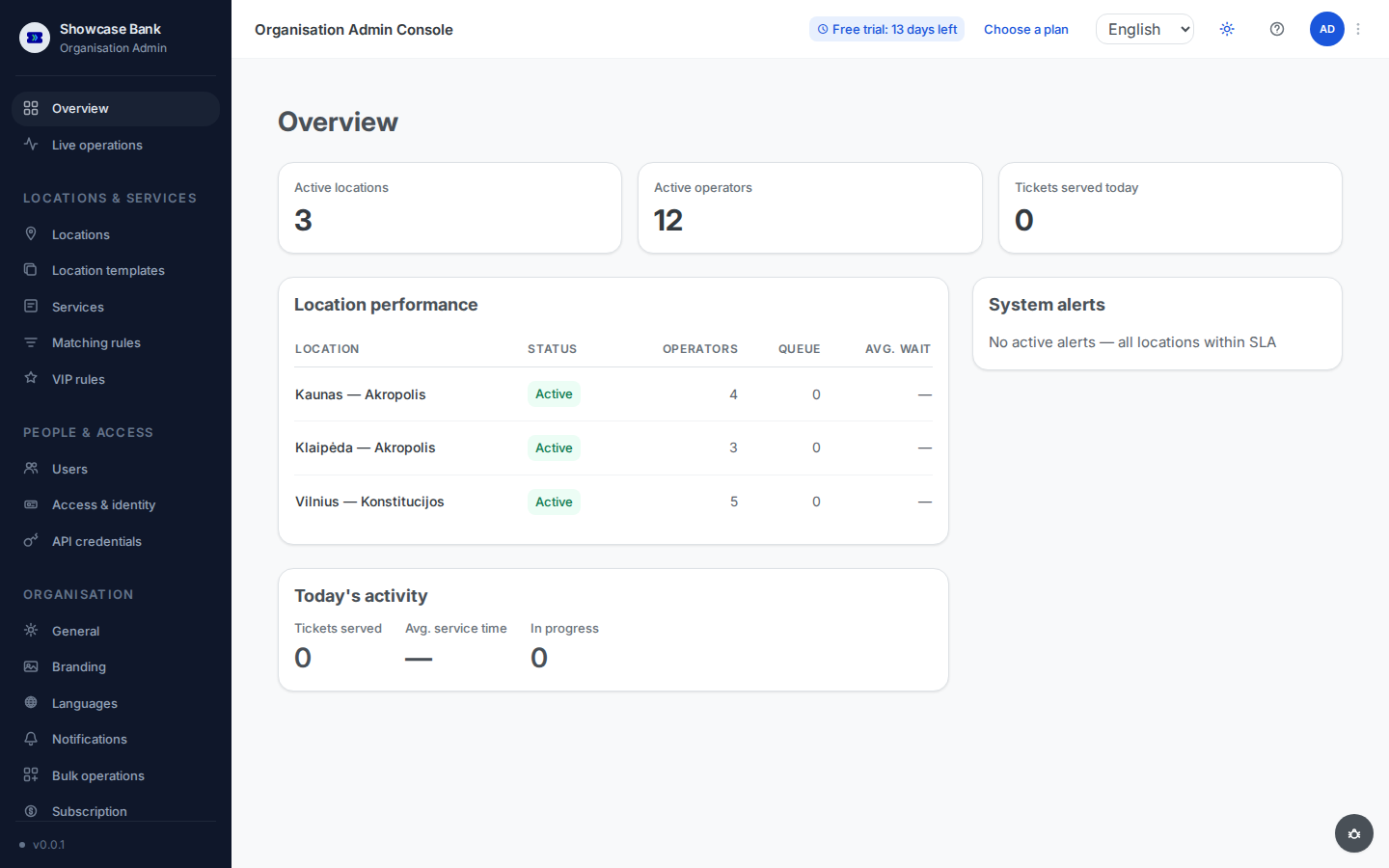
In the management console, an organisation admin lands on the workspace-wide Overview: active locations, active operators, and tickets served today, a Location performance table (per branch: status, operators, queue depth, average wait), a System alerts panel listing SLA breaches across every branch, and a Today's activity card (tickets served, average service time, visits in progress right now).
Unlike the branch overview, this page keeps its numbers current on its own — the tiles and panels refresh live as tickets move, with no page refresh needed.
Result
You see the branch's live state on landing, hear about degrading waits the moment they cross your thresholds instead of discovering them in next week's report, and can reconstruct who did what from an immutable audit trail — per branch or workspace-wide.
Common problems
- No SLA alerts arrive — the service has no threshold set (unset means monitoring is off for it), or the alert went to another manager: only managers assigned to the breached branch are notified.
- A breach disappeared from Active breaches — the client was served (auto-resolved) or a colleague dismissed it. Either way the event stays in the records.
- Branch overview numbers look stale — the location manager overview loads its data when opened; refresh the page.
- A branch is missing from your console — you are not assigned to it; an organisation admin assigns manager branches on the Users page (Team). Organisation admins see every branch.